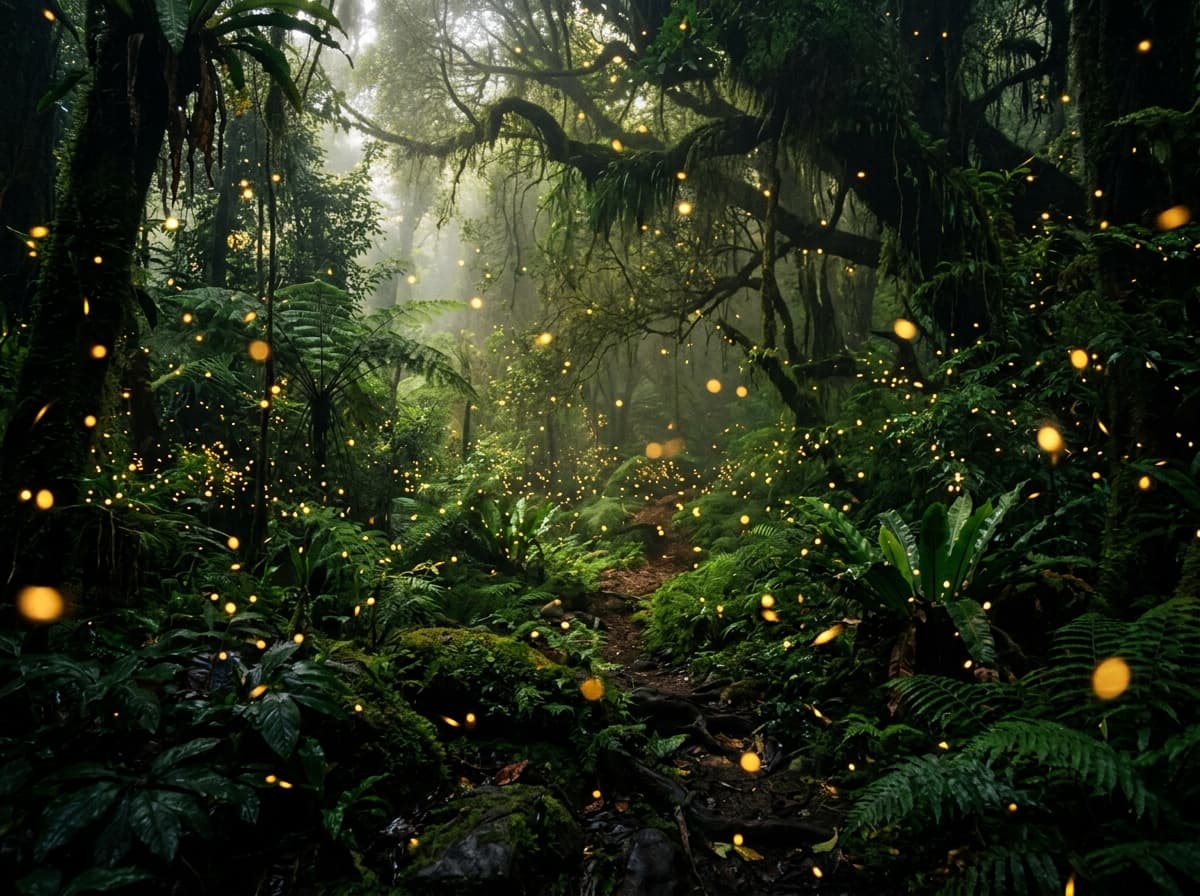
Subject
Scene
Create fashion portraits and interiors with Nano Banana 2.1. Try online, view real examples and edit reference photos through the HiAPI API.
Provider: Google
Category: image generation
Endpoint: /v1/tasks
Status: Available
Cost: See live page pricing
Create fashion portraits and interiors with Nano Banana 2.1. Try online, view real examples and edit reference photos through the HiAPI API.
Pricing
Standard Usage
Choose the output image file format
Ready for generation
Configure your parameters and click "Run" to see the output here.
Explore prompt-generated images and reference images with their edited results.
Choose an adjacent model by task, output tier, and reference-image needs.
Create fashion portraits and interiors with Nano Banana 2.1. Try online, view real examples and edit reference photos through the HiAPI API.
The Playground and API use the same model ID: gemini-nano-banana-2.1. Generate with a prompt alone, or add images for editing and visual references without switching models.
Explore reference limits, sizes, formats and quality settings for Nano Banana 2.1.
Refer to live page pricing and the task record.
References provide visual facts; the prompt assigns their roles and limits the edit.
Copy a minimal request below. See Docs for parameters, callbacks, task retrieval, and errors.
POST /v1/tasksgemini-nano-banana-2.1curl -X POST "https://api.hiapi.ai/v1/tasks" \
-H "Authorization: Bearer YOUR_API_KEY" \
-H "Content-Type: application/json" \
-d '{
"model": "gemini-nano-banana-2.1",
"input": {
"prompt": "A fashion editorial photograph on a sunlit white-stucco terrace above the Mediterranean, shot at eye level with a 50mm lens. One adult woman in her late twenties is walking naturally toward the camera at the right-center of the composition, her head turned slightly toward the sea with a relaxed confident expression. She wears an oversized ivory linen blazer over a deep burgundy silk camisole, high-waisted navy tailored trousers, and simple leather sandals. Wind lifts a few strands of her dark shoulder-length hair and gently moves the blazer hem. A cobalt-blue glazed ceramic bench occupies the left foreground; beyond it, crisp ivory architecture frames a bright turquoise sea and a small distant headland. Directional late-afternoon sunlight reveals real skin texture, linen weave and silk highlights, with clean architectural shadows and controlled reflections. Rich but restrained cobalt, burgundy, ivory and warm skin tones, sophisticated magazine photography, believable proportions and hands, beautifully resolved clothing, candid physical movement, subtle film grain. The woman is the clear visual focus, with the surrounding terrace providing depth. No lettering, no logos, no watermark, no illustration, no CGI appearance, no airbrushed plastic skin.",
"resolution": "2K",
"aspect_ratio": "16:9",
"output_format": "png"
}
}'The create request immediately returns a taskId; image generation continues asynchronously.
FROM AN IDEA TO A COMPLETE VISUAL
Nano Banana 2.1 is Google's image generation and editing model. On HiAPI, start with text to compose subjects, settings, colors and layout into a complete image, or add an existing image to revise its lighting, environment or details. Creation and editing use the same model, so both fit into one workflow.
Three generated images explore two photographic directions and a reference edit: coastal fashion, a furnished interior, and a leather jacket edit of the original portrait. They explore subject and setting, light and materials, and continuity in a local revision. Enlarge the images to inspect details and expand the examples to copy the actual prompts.
01 / PEOPLE, CLOTHING AND SETTING
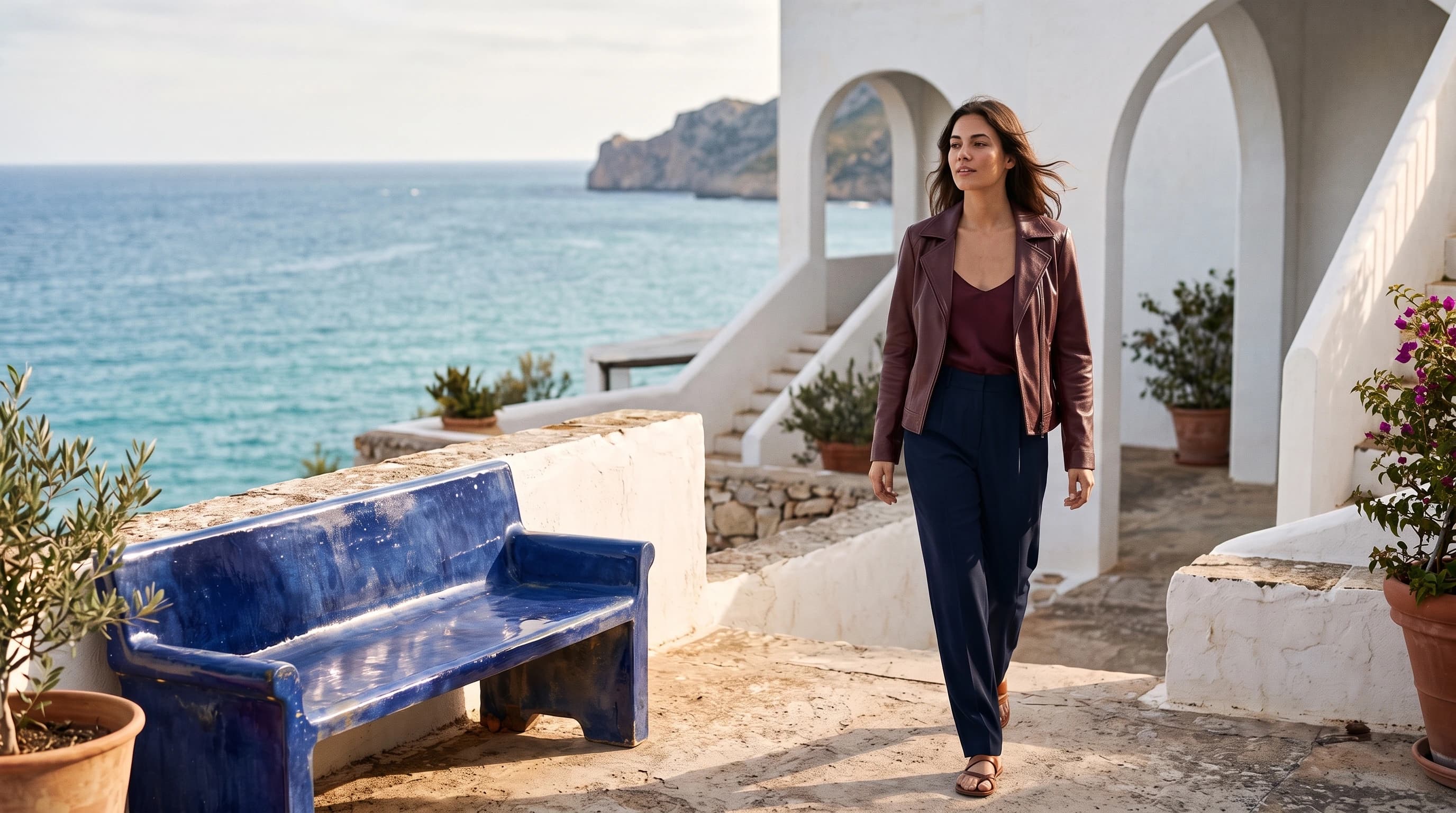
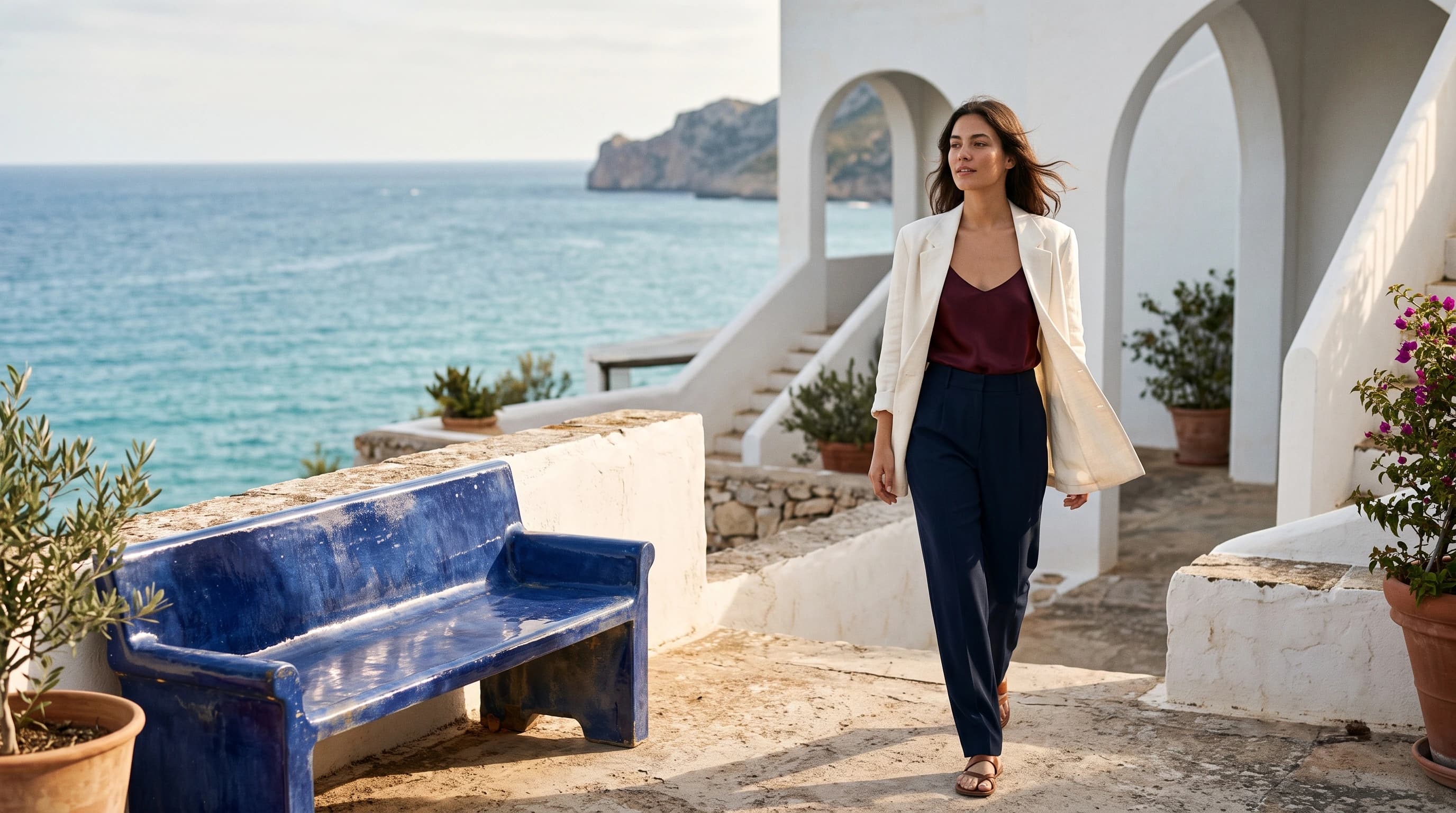
A fashion image starts with the relationship between the person and the setting. This coastal portrait places a walking woman on the right, with white arches, a blue ceramic bench and the sea providing depth. Burgundy and navy clothing connect the subject with the scene, while sunlight brings out different qualities in linen, skin and glazed ceramic.
For a brand or lifestyle concept, describe the subject, movement, clothing, camera and light rather than relying on a general request for premium photography. Specify fabric, colors and pose, and assign background objects a supporting role. Inspect the face, hands, clothing seams and shadows, and check that the framing provides enough room for the intended layout.
02 / SPACE, DAYLIGHT AND MATERIALS
Interior detail comes from the relationship between objects, surfaces and light. The furniture example centers on a walnut lounge chair with an orange velvet seat, accompanied by a metal side table, glass vase and pale architectural surfaces. Side light separates bright and shaded areas and gives wood grain, velvet and metal distinct visual qualities.
Interior designers, home brands and furniture catalogs can use this approach to explore presentation concepts. Choose a hero piece, then specify camera height, window position, background surfaces and a few accessories. A limited prop count helps establish a clear focus. Use the image to discuss mood and composition, while verifying product specifications, actual materials and dimensions from real documentation.
CONTINUE FROM AN EXISTING IMAGE
Describing the whole photograph again can change the person, pose and background along with the outfit. This example supplies the actual coastal portrait above and requests an ivory linen blazer be replaced by a burgundy leather jacket. It lists the face, hair, movement, trousers, framing and terrace as details to preserve. Move the comparison slider to inspect the garment change and continuity of the person and setting.
For another revision, save the previous result and supply it as the next input. Separate requested changes from details to preserve so each iteration has a clear goal. Tasks do not automatically inherit a conversation or image; provide the visual reference again for every new request.
Use the actual coastal portrait with its complete framing.
Specify the jacket change and list the person, pose and background to retain.
Check the face, hands, fabric and lighting, then save the result.
TURN A VISUAL GOAL INTO A CLEAR BRIEF
Start with the audience and placement, then organize the brief into subject, setting, camera, light and details. The coastal example defines a walking person, describes linen, silk and dark trousers, arranges the terrace, ceramic bench and sea, and specifies camera height and afternoon sunlight. Each element has a role, making it easier to identify what needs a revision.
Concrete materials give a clearer direction than broad style labels: describe velvet pile, wood grain, glaze reflections or leather folds rather than only asking for elegance. Limit background props to those that support the composition. Specify where later copy or a product will sit, and use explicit references and a detail check when a real product or person must remain consistent.
Evaluate the overall composition first, then inspect faces, hands, edges and lighting. For one focused change, supply the result as a reference edit. For simultaneous changes to the subject, setting and camera, consider rewriting the whole brief. Save inputs and outputs so each creative decision and revision has a clear basis.
Start with the asset you need, then choose text generation or reference editing. Establish the visual direction before moving into layout, retouching or a product workflow.
Brand teams can explore a visual direction through people, clothing and settings, then use reference editing for outfit variations. Define which garment, background element or light should change and inspect the subject’s features. Verify real-product colors, cut and materials against the product documentation.
Assets: brand concepts, lifestyle visuals and outfit proposals
Home and design teams can build a presentation concept from a hero piece, surfaces, daylight and camera position, then discuss how the product relates to its setting. For reference edits, list furniture shapes and spatial relationships to preserve when comparing color or arrangement options.
Assets: furniture scenes, material mood studies and spatial concepts
Product teams can combine an original image, requested changes and preserved details into an asynchronous task for garment changes or visual variants. Present the original alongside the result so users can inspect the person, product and background. Supply the reference again for each new edit rather than relying on automatic conversation continuity.
Assets: reference edits, visual variations and creative workspaces
Aspect ratio shapes the composition; resolution sets the output tier. Choose them together to reduce later cropping.
After exploring a direction in Playground, use the same HiAPI key, model ID and input settings in your application. Asynchronous tasks fit content tools, design workspaces and queues: save the task ID, poll its status or receive a completion callback, then copy the image to your storage. Check current pricing on the page and actual billing in the task record to connect each result with its request.
Use a prompt alone to generate an image. Add references and describe the requested changes and details to preserve for editing. Both use the same model ID. Tasks are independent; supply the previous result again to continue editing.
Add up to 10 JPEG, PNG or WebP images. Assign each a subject, setting or style role and list details to preserve. URLs must be publicly accessible; API images must be no larger than 30 MB each.
auto lets the model choose a layout from the prompt and references. Select an explicit ratio for a poster or advertising placement. Resolution tiers do not specify a fixed pixel width and height. Ratios guide composition; actual pixel ratios can vary, especially at 1:8 and 8:1. Check output dimensions before cropping for a fixed placement.
Write each exact phrase, specify the position of the headline, label and subtitle, and exclude extra text. Check the completed image character by character, especially small type and long passages.
Each task generates one JPG or PNG image. A transparent-background switch and image-count parameter are not exposed. Choosing PNG does not guarantee transparency.
Save taskId, retrieve GET /v1/tasks/:id until completion, then read output[].url. You can also set callback.url for terminal notifications. Save results promptly if you need to retain them.
Start with fashion portraits and furniture settings, or supply an image for reference editing. This page shows a generated coastal portrait, interior and outfit comparison. Results depend on the input; inspect details before delivery.
Use 1K to explore a direction, 2K to inspect materials, spaces or layout, and consider 4K for larger displays or later cropping. Higher resolution does not automatically fix lettering or structural errors; actual dimensions vary by aspect ratio.
Supply the original image and separate changes from details to preserve, such as replacing a jacket while retaining the face, pose and background. Compare garment edges, hands and lighting against the original. Supply the latest result again for another edit.
Specify the subject, movement, fabric or surface material, camera position and light direction, and limit props. Inspect skin, hands, reflections and shadows. A general request for premium photography or a higher resolution does not guarantee accurate details.
Skip uploads for text-to-image, or add 1 to 10 images for editing and describe their roles.
Describe the subject, composition, and lighting; for edits, specify what to change and preserve, then choose quality, layout, and format.
Check the reference relationship in Playground, then create asynchronous tasks with the same model ID.
1 reference image / 2752 × 1536
The actual coastal portrait is the reference for changing an ivory linen blazer to burgundy leather. Compare the person, pose and background.
Edit this exact fashion photograph. Replace only the woman's oversized ivory linen blazer with a beautifully fitted deep-burgundy soft leather jacket, worn open over the existing silk camisole. Give the jacket realistic fine leather grain, subtle natural highlights and believable folds that follow her current body and walking pose. Preserve the exact woman, face, expression, hair, skin tone, hands, body proportions, pose, navy trousers, sandals, camera framing, cobalt ceramic bench, terrace architecture, sea, sky and every background object. Maintain the existing directional sunlight and shadows; adapt only the jacket's light and reflections to its leather material. This is a garment replacement in the original photograph, not a new scene. Keep the photograph natural and editorial, with no text, no logos and no watermark.