Bria Product Shot API puts your product photo in a new scene from an English description or a reference image, with preset or original placement. Try it online.

Provider: Bria

Category: image generation

Endpoint: /v1/tasks

Status: Available

Cost: See live page pricing

Back to Models

Bria Product Shot

New
by BriaImage

Bria Product Shot API puts your product photo in a new scene from an English description or a reference image, with preset or original placement. Try it online.

Pricing

Standard Usage

115 Credits/ image

Input

Scene input
0 / 1000

More parameters

Generation settings

Where the product sits on the canvas; bottom center by default

Preset position (measured 1024×1024 for square input), or keep the product where it is in the photo at the input size

Generation preferences

Faster results; turn off for the standard mode at the same price

Expand the scene description automatically; scene-description mode only

Estimated cost115 Credits / imageper image
Upload product image to run

Output

Ready for generation

Configure your parameters and click "Run" to see the output here.

--

From references to edited results

Each case separates references, the edit instruction, and the complete result, with image zoom and prompt copy.

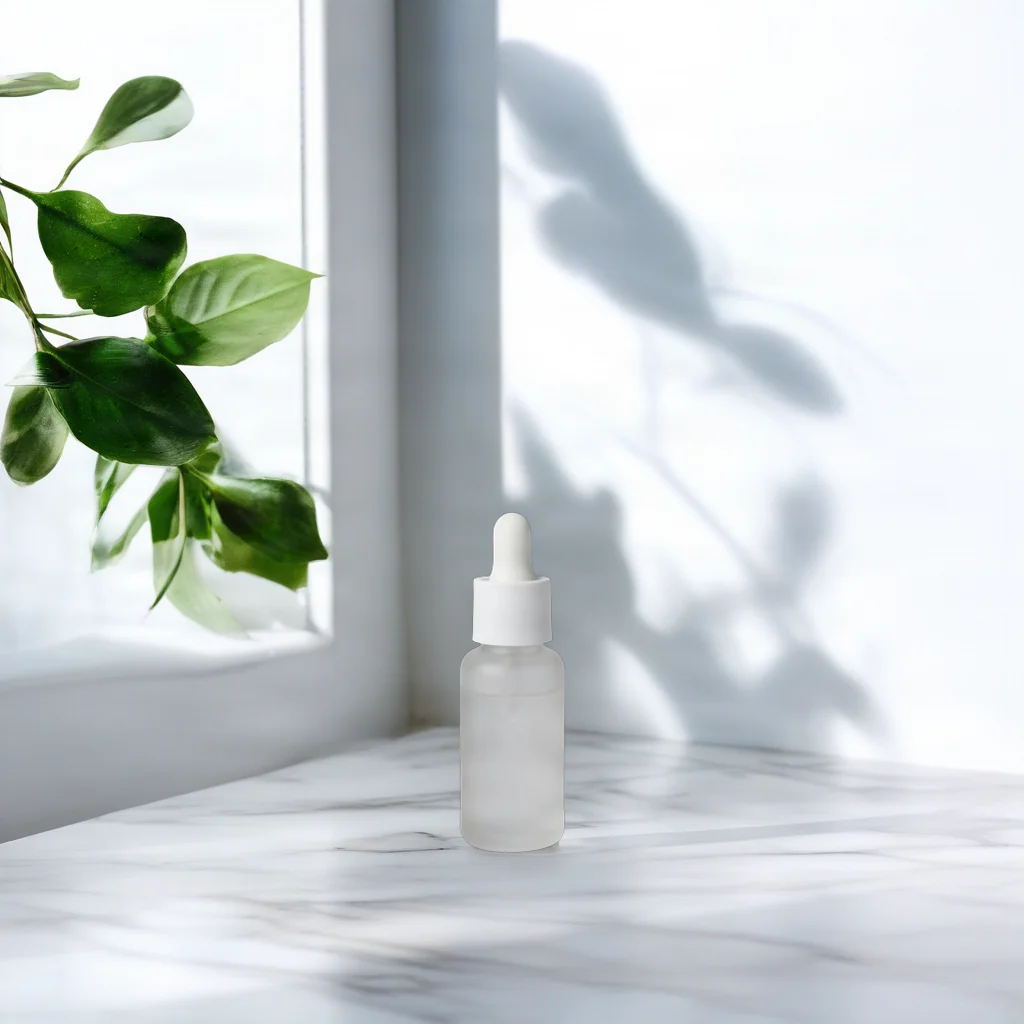
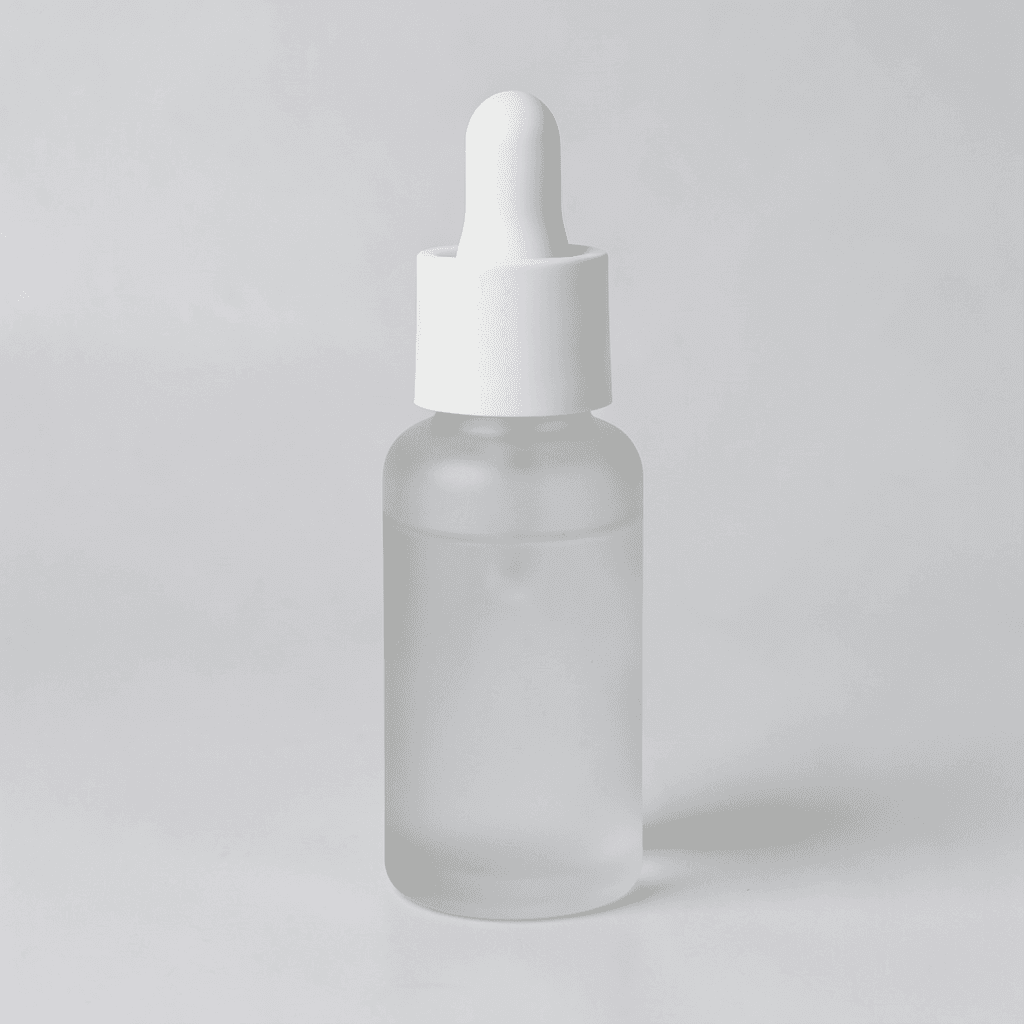
Serum bottle on a marble countertop by a window · After
Serum bottle on a marble countertop by a window · Before
BeforeAfter

1 reference image / 1024 × 1024

Scene from text

Serum bottle on a marble countertop by a window

Scene description mode with the product placed bottom center: the frosted dropper bottle keeps its shape and cap while the marble countertop, window light and green leaves come from the prompt.

Scene input
English scene description
Placement
Preset position · bottom center
Fast mode
on
Prompt · English

On a white marble countertop beside a window, soft morning light, a few green leaves in the background
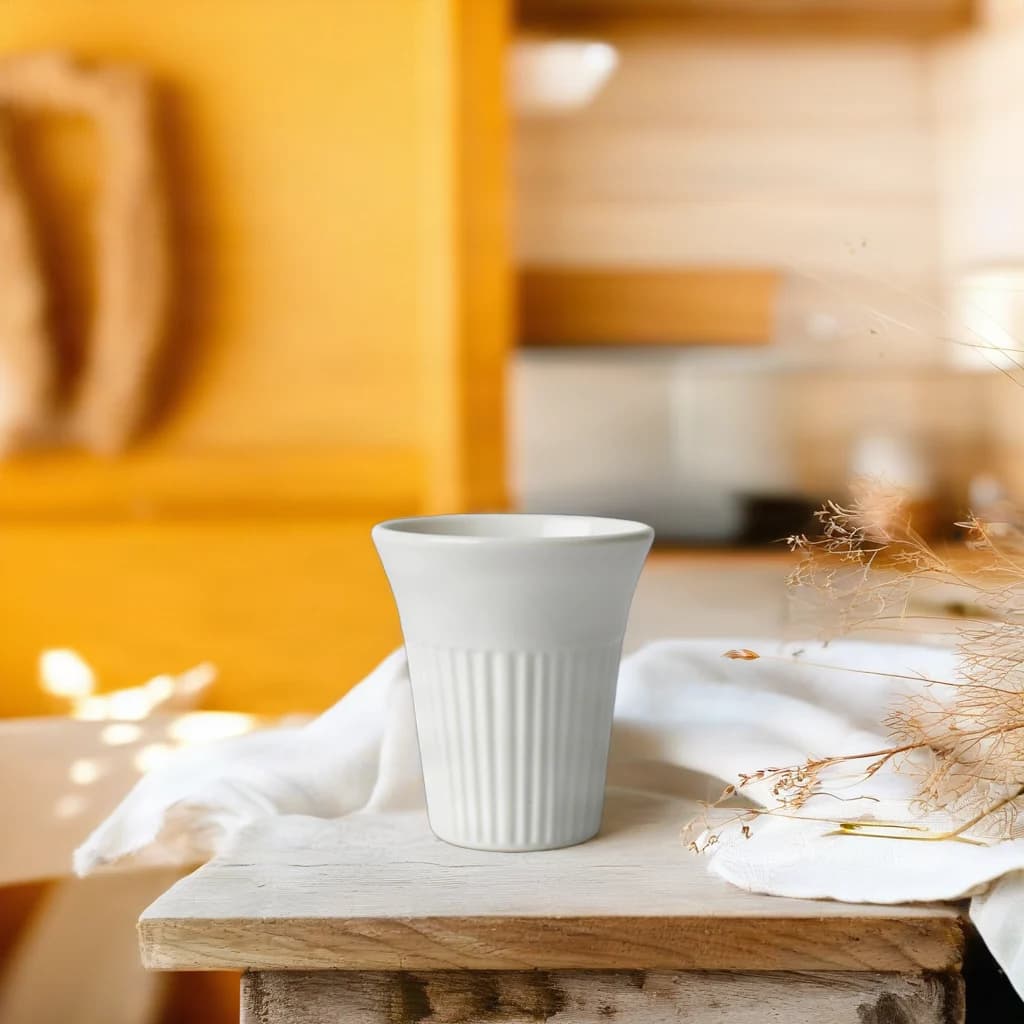
Ribbed ceramic cup on a wooden kitchen shelf · After
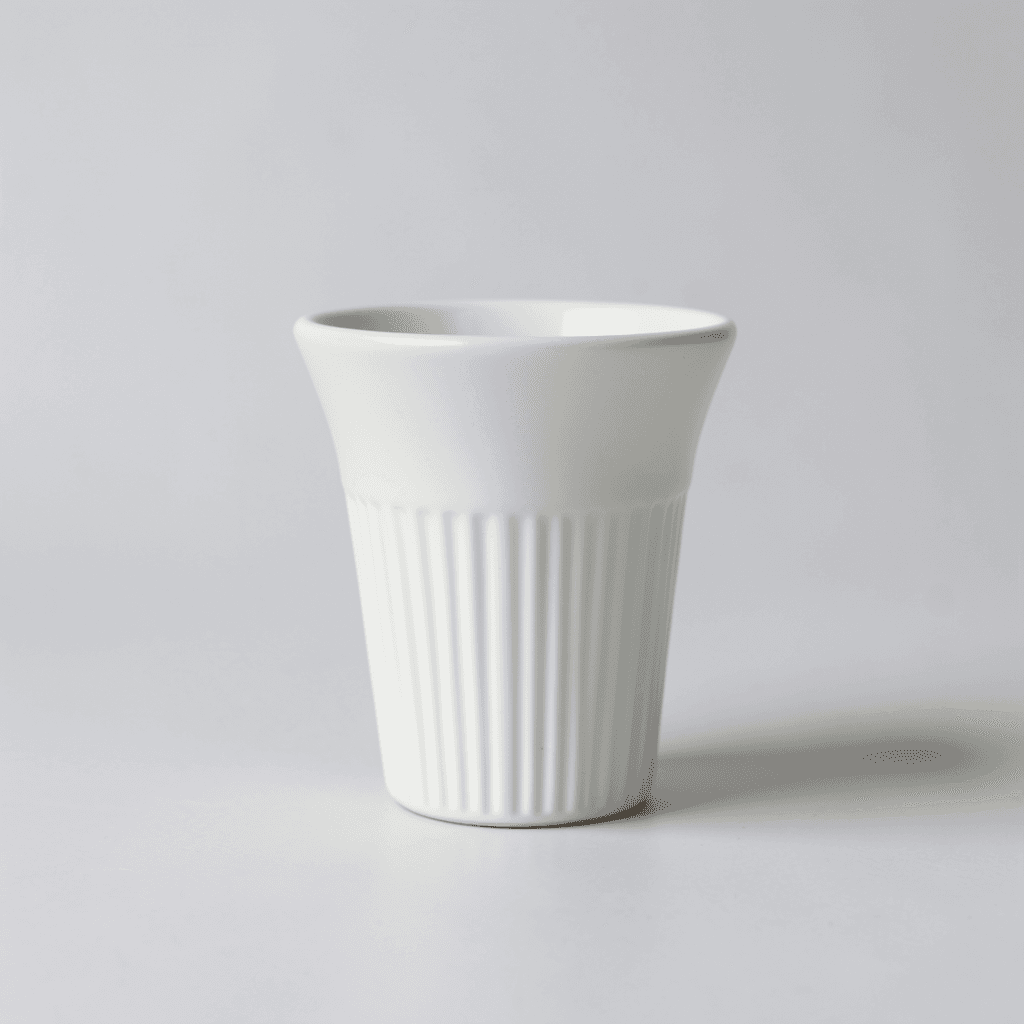
Ribbed ceramic cup on a wooden kitchen shelf · Before
BeforeAfter

1 reference image / 1024 × 1024

Lifestyle scene

Ribbed ceramic cup on a wooden kitchen shelf

A different product and scene: the ribbed cup stands on a rustic shelf with linen cloth and dried flowers in warm afternoon light; the ribs and rim stay faithful to the input.

Scene input
English scene description
Placement
Preset position · bottom center
Fast mode
on
Prompt · English

On a rustic wooden kitchen shelf with linen cloth and dried flowers, warm afternoon sunlight, cozy Scandinavian kitchen in the background

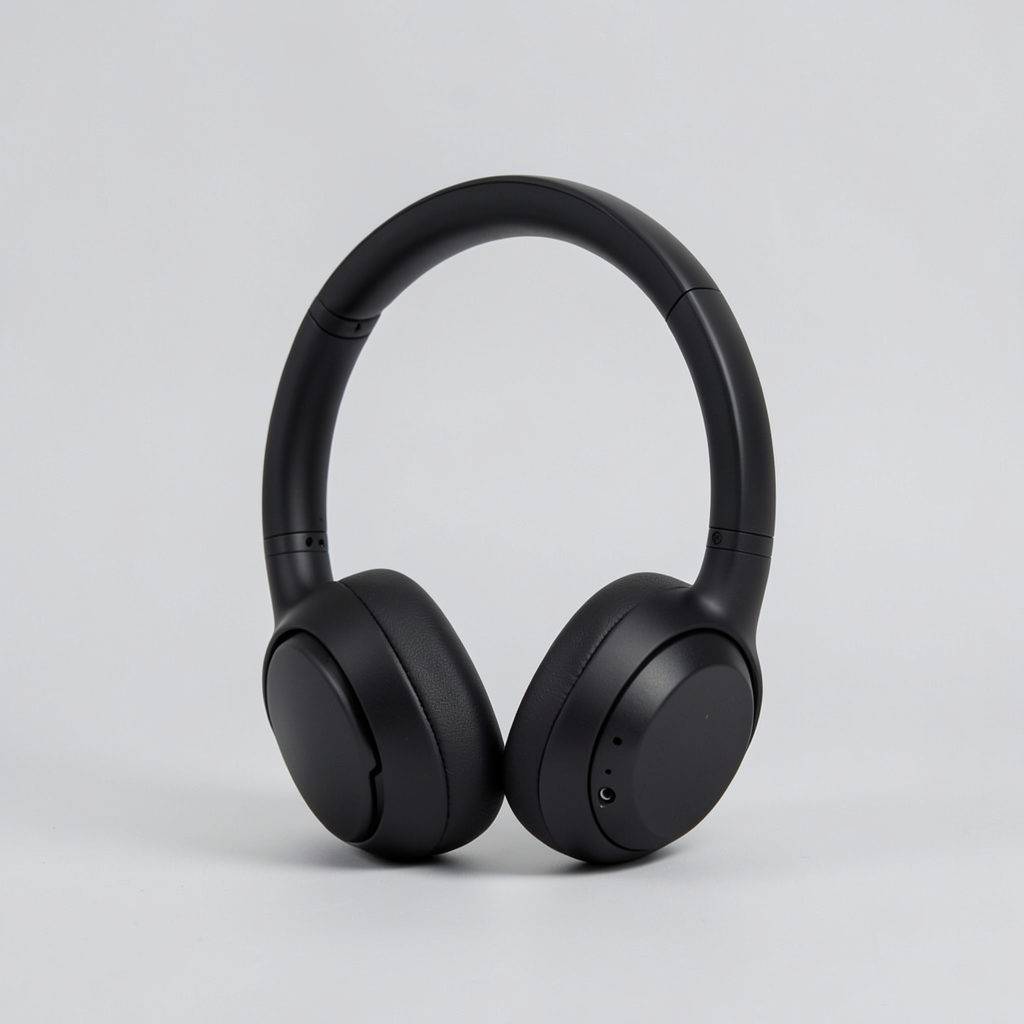
Product imageProduct image
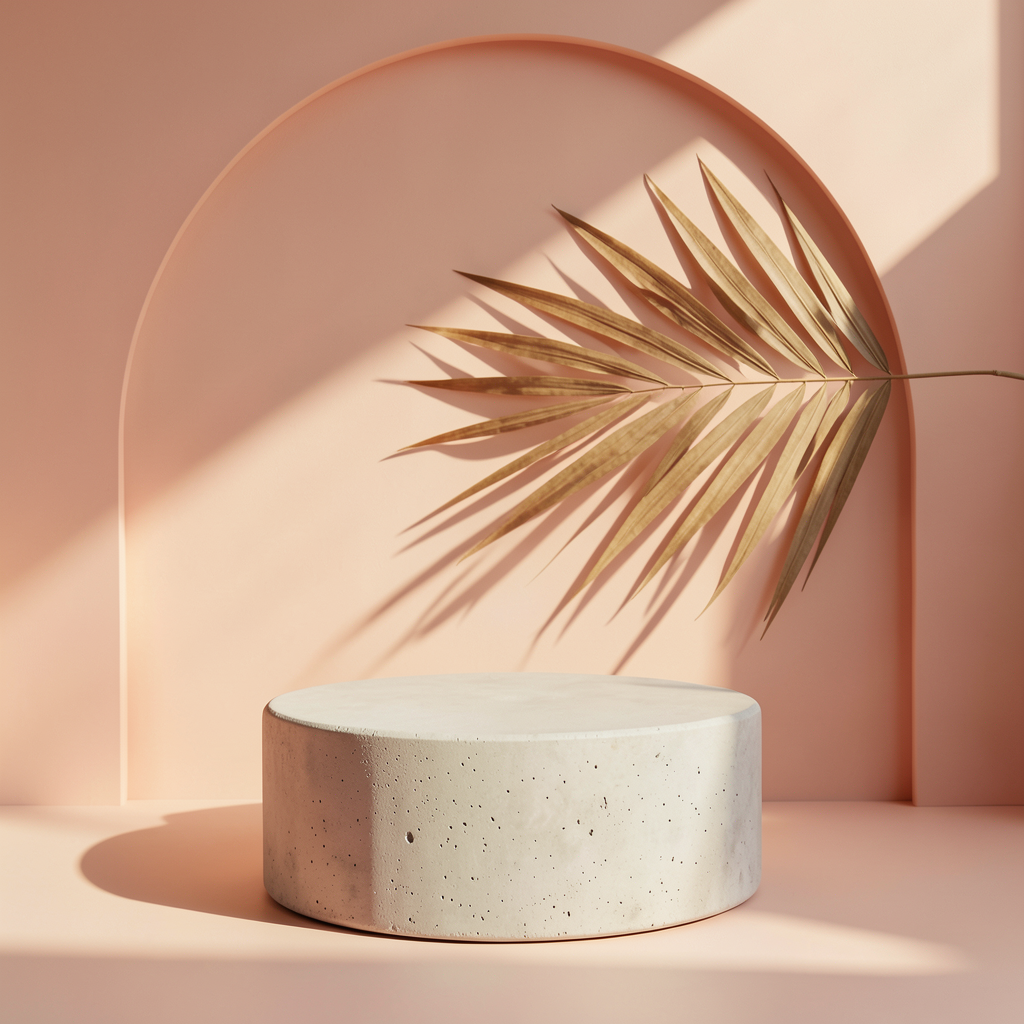
Scene referenceScene reference
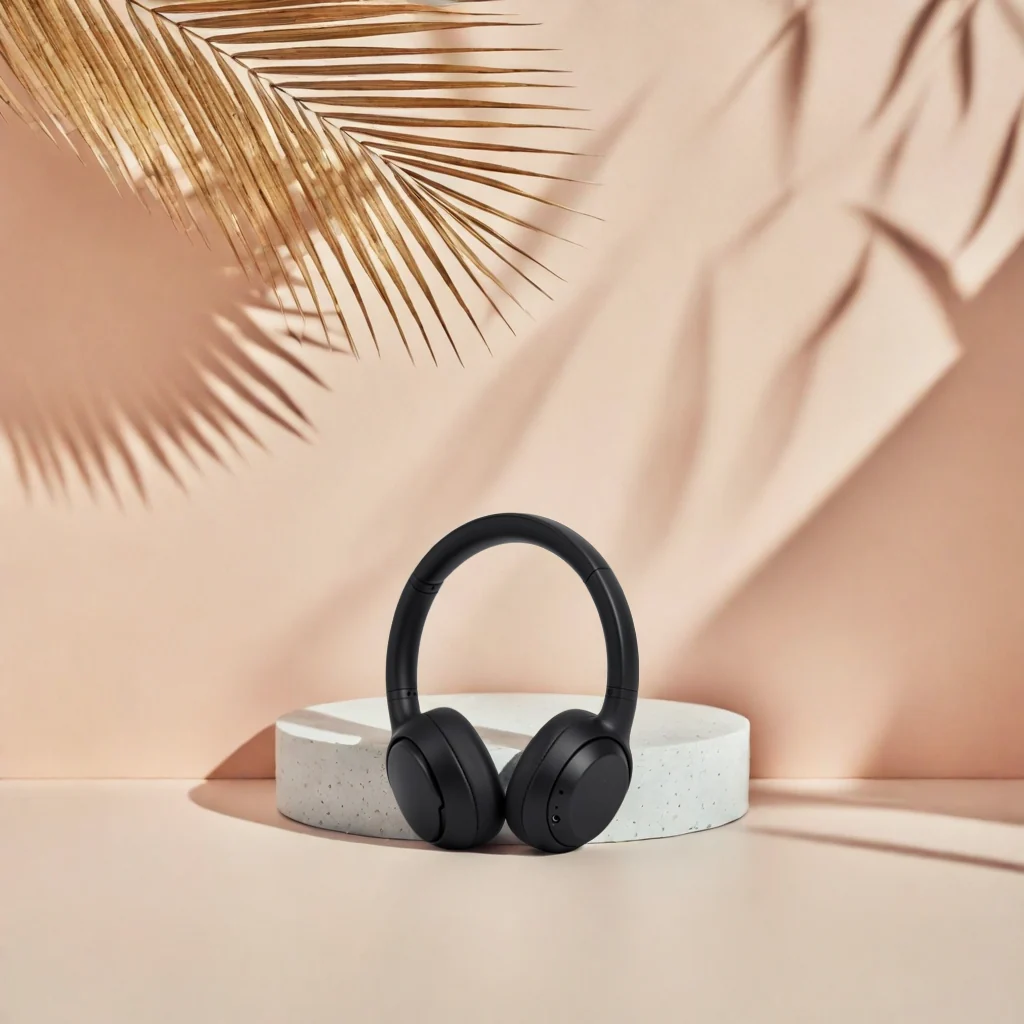
Headphones placed into a scene reference · Composite resultResult

2 reference images / 1024 × 1024

Scene from reference

Headphones placed into a scene reference

Scene reference mode, no prompt: the headphones are set on the concrete pedestal of the peach studio reference, with its palm-leaf shadows and warm side light.

Scene input
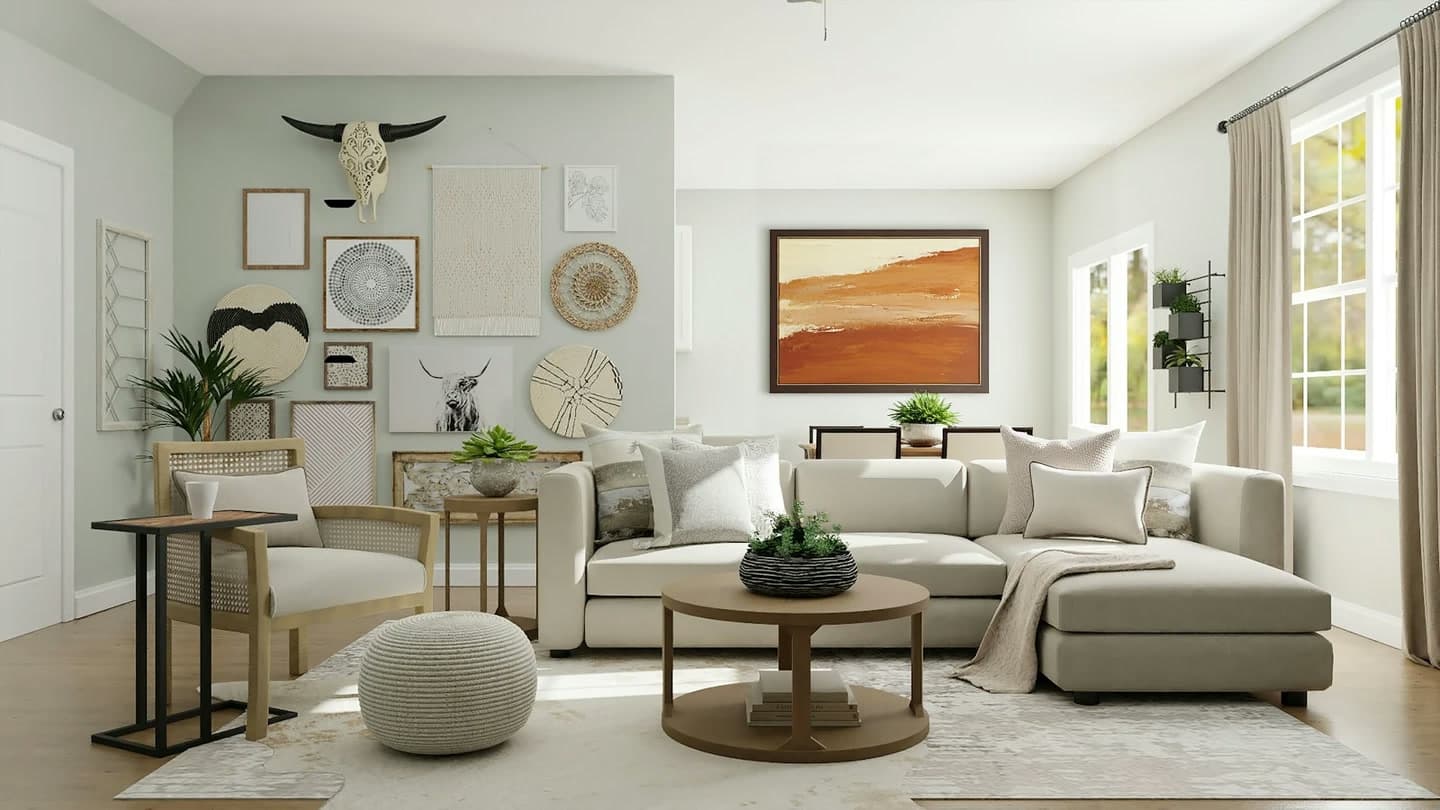
Scene reference image
Placement
Preset position · bottom center
Fast mode
on
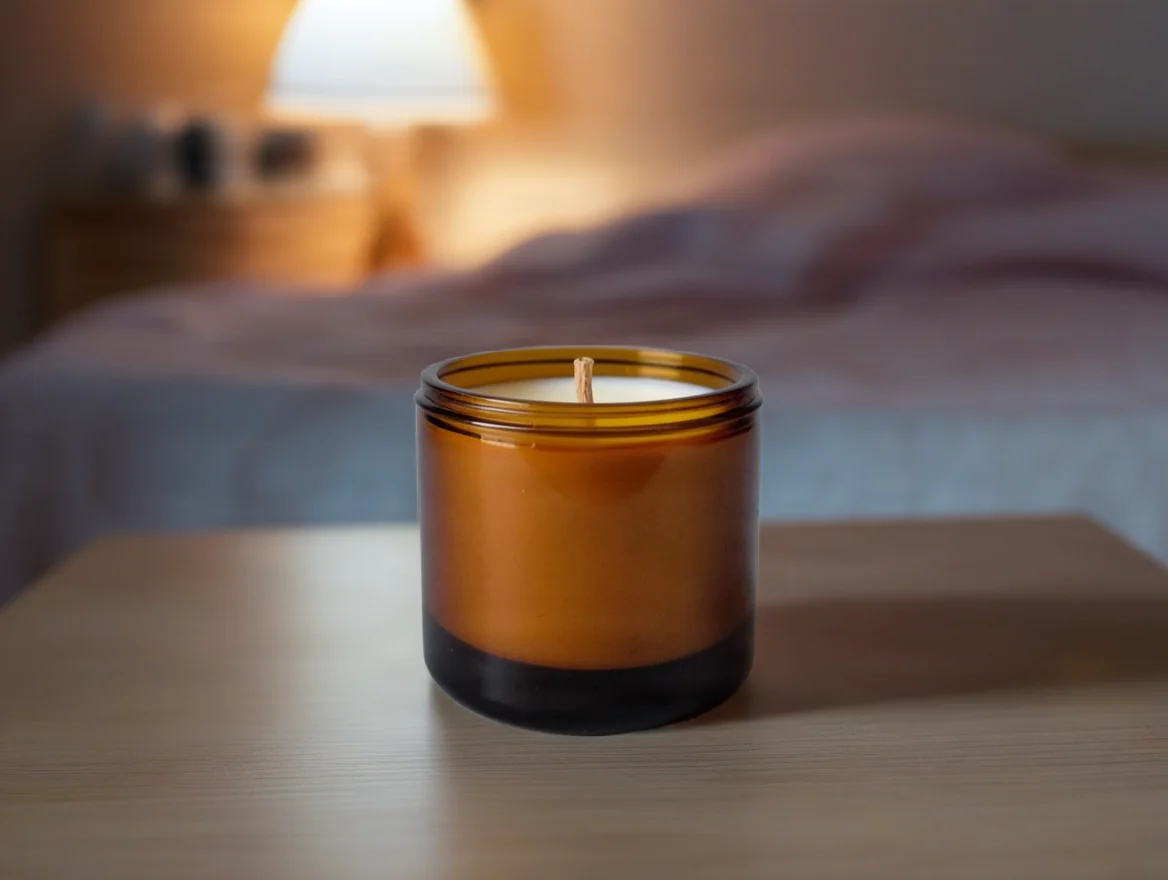
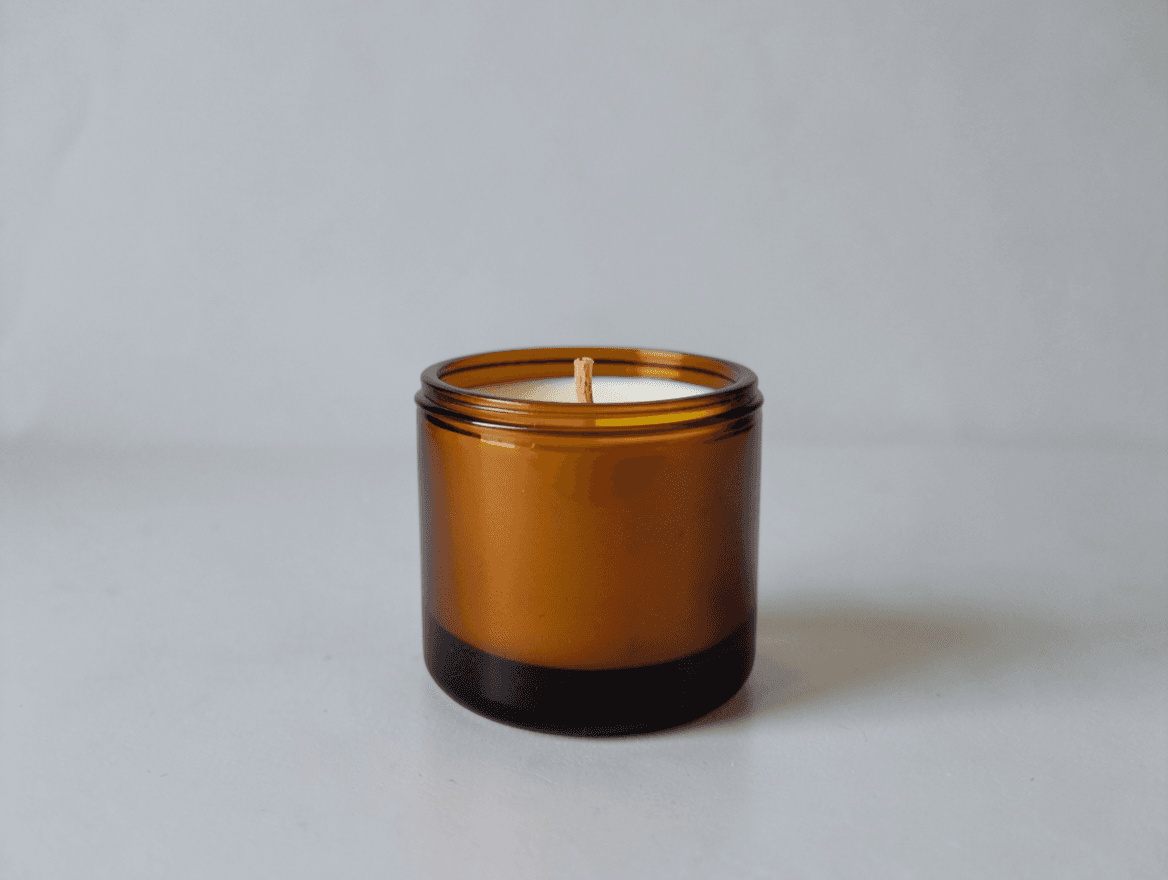
Candle kept in place on a bedside table · After
Candle kept in place on a bedside table · Before
BeforeAfter

1 reference image / 1168 × 880

Keep original position

Candle kept in place on a bedside table

Keep original position with original size: the amber candle keeps its exact spot and scale, the output keeps the 1168 × 880 input size, and the background becomes a bedroom at dusk.

Scene input
English scene description
Placement
Keep original position · original size on
Fast mode
on
Prompt · English

On a wooden bedside table in a calm bedroom at dusk, soft warm lamp light, linen bedding blurred in the background

Related image models

Choose an adjacent model by task, output tier, and reference-image needs.

About Bria Product Shot

Bria Product Shot API puts your product photo in a new scene from an English description or a reference image, with preset or original placement. Try it online.

The Playground and API use the same model ID: bria-product-shot. Upload a product photo, then set the new background with an English scene description or a scene reference image (pick one). Place the product at a preset spot (measured 1024×1024 for square input) or keep its original position.

Provider
Bria
Task
Image-to-Image / Editing
References
1 product image (+ optional scene reference)

Model specifications

Choose inputs and output settings for your creative goal with Bria Product Shot.

Reference images
1 product image (+ optional scene reference)
Output formats
PNG
Scene input
English scene description or a scene reference image (pick one)
Placement
Preset position (default)Keep original position
Preset positions
10 positions, bottom center by default
Output size
Preset position: measured 1024 × 1024 for square input (scene description or reference)Input size (keep original position + original size)
Input formats
JPEG / PNG / WEBP, up to 12 MB
Prompt length
1-1,000 characters, English

Each request takes one product image and returns one image. Scene mode, placement and fast mode do not change the price; see live pricing and your task records for charges.

How to use Bria Product Shot

One product photo plus an English scene description or a scene reference — three steps to a product shot.

Product
1
01

Upload the product

JPEG, PNG or WEBP up to 12 MB. A clear product with complete edges works best.

Input

Product + scene

Output

Product shot

02

Pick the scene and placement

Describe the scene in English or upload a scene reference image (pick one), then choose a preset position or keep the original position.

Playground
POST /v1/tasks
03

Save and integrate

Check the result in Playground, copy it to your storage, then create asynchronous tasks with the same model ID.

API Quickstart

Copy a minimal request below. See Docs for parameters, callbacks, task retrieval, and errors.

Endpoint
POST /v1/tasks
Model ID
bria-product-shot
cURL
curl -X POST "https://api.hiapi.ai/v1/tasks" \
  -H "Authorization: Bearer YOUR_API_KEY" \
  -H "Content-Type: application/json" \
  -d '{
  "model": "bria-product-shot",
  "input": {
    "image_url": "https://dev-static.hiapi.ai/model-onboarding/bria-product-shot/2026/10/21/1792546029235-98cf020f23ff79b2-p1-serum-src.png",
    "prompt": "On a white marble countertop beside a window, soft morning light, a few green leaves in the background",
    "placement_type": "manual_placement",
    "manual_placement_selection": "bottom_center"
  }
}'

The create request immediately returns a taskId; image generation continues asynchronously.

Read the full API documentation
Need to compare models and billing tiers?View live pricing for all models

Frequently asked questions

Can I use a scene description and a scene reference together?

No, pick one. Leave out the reference image when you write an English scene description (prompt), and leave out the prompt when you follow a reference image. Switching mode in the Playground clears the other one.

Does the scene description have to be in English?

Yes. Describe the new scene or background in English, up to 1,000 characters; the Playground asks you to rewrite non-English text.

What does optimize description do?

It expands your scene description automatically and is on by default. It applies only to scene-description mode and is not sent with a reference image.

How can the product be placed?

Preset position (manual_placement, the default) (with either a scene description or a scene reference) puts the product at a chosen spot, bottom center by default; measured 1024×1024 for square input. Keep original position (original) keeps the product where it is in the input photo.

When can I keep the original size?

Only with keep original position: on keeps the input size, off scales to about 1 MP. It is not sent in preset-position mode.

What format and size is the output?

One PNG per request. Preset position (with a scene description or a scene reference) measured 1024 × 1024 for square input; with keep original position and keep original size on, the output keeps the input size (measured: 1168 × 880 in, 1168 × 880 out).

What is the difference between fast and standard mode?

Fast mode (on by default) returns results sooner; turn it off for the standard mode. Both cost the same.

What product images work?

JPEG, PNG or WEBP up to 12 MB, as a publicly reachable http(s) URL. A clear product with complete edges works best.

How is it billed?

Per output image, one image per request. See the live pricing on this page for the current rate.