Gemini Omni 1.1 Flash API creates videos with ambient sound for product films and social posts. Try it online and explore examples and API guidance.

Provider: Google

Category: video generation

Endpoint: /v1/tasks

Status: Available

Cost: See live page pricing

Back to Models

Gemini Omni 1.1 Flash

by GoogleVideo

Create video with ambient sound from text, images, first and last frames or an existing clip for product showcases, social posts and storyboard previews.

Pricing

Standard Usage

900 Credits/ video

Input

Frames

Use images to control the first and last frame.

Optional
0 / 5000
Estimated cost900 Credits / videoper video

Output

Ready for generation

Configure your parameters and click "Run" to see the output here.

--

Examples with text, images, key frames and video

Explore lantern light, teapot textures, a blooming flower and a night-time mood. Start with text, images or video to shape the shot you want.

Text to video

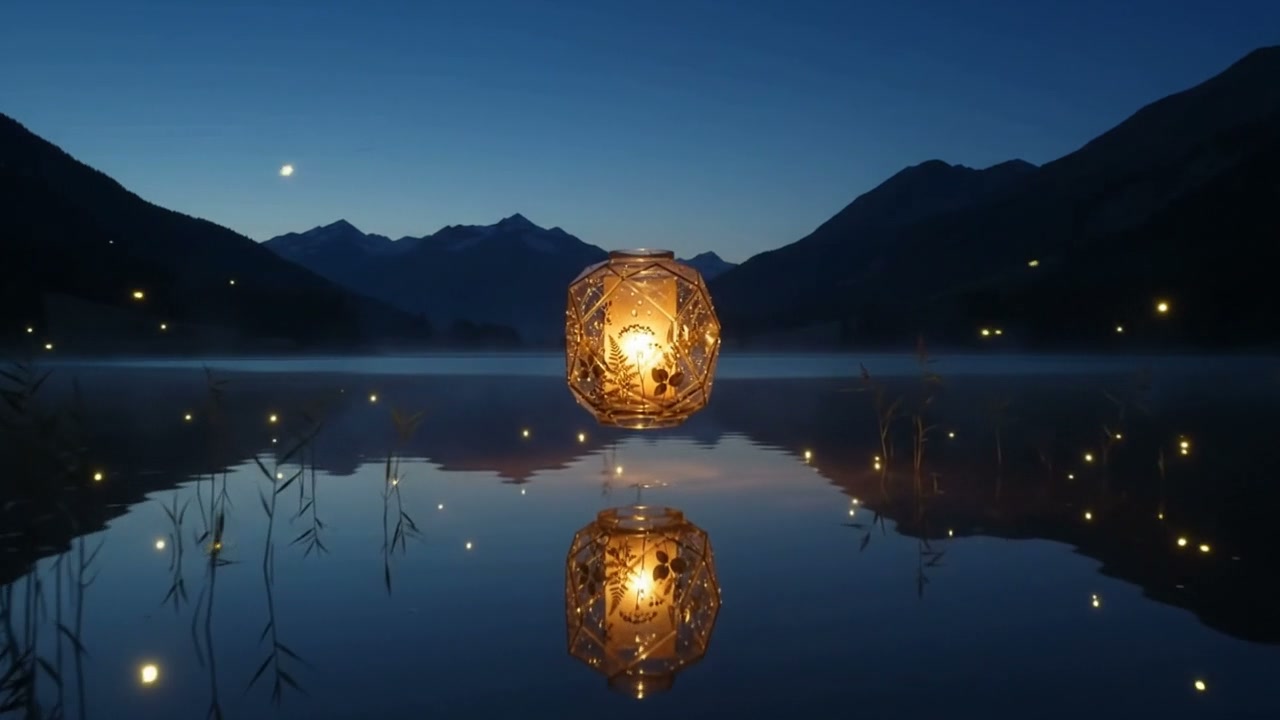
A lakeside lantern glows as the camera moves closer

A glass lantern glows against a cool lake, casting warm light onto the water as mist and reeds frame the quiet scene. Use this kind of shot for a product-film opening or a mood sequence.

8s16:9720p

Prompt

A single uninterrupted cinematic product-film shot at blue hour: a sculptural glass lantern floats above a mirror-still alpine lake. The camera begins in a wide landscape view and glides slowly forward as warm light blooms inside the lantern, revealing delicate botanical silhouettes and tiny suspended droplets. The reflection remains physically accurate, mist drifts across the water, subtle wind moves nearby reeds, and the color palette transitions from deep cobalt to amber gold. Photorealistic materials, elegant controlled motion, no cuts, no people, no text, no logos, no watermark. Natural ambient sound: quiet water, soft glass resonance, distant alpine wind.

Input · prompt only
Output video

Reference image to video

Bring a teapot into a rainy-window product film

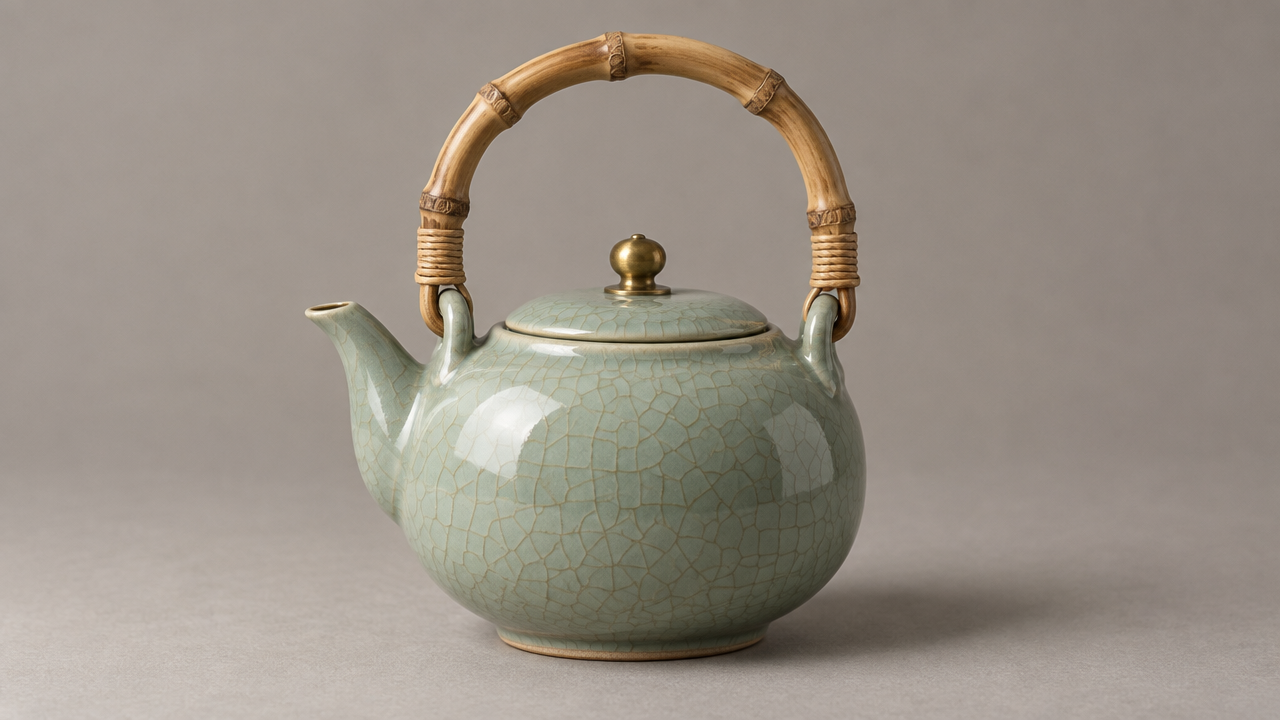
Use the product photo as a reference to place the celadon teapot on a walnut tea table. The camera moves around its bamboo handle and brass knob as soft window light crosses the glaze and steam brings the still life into motion.

4s16:9720p

Prompt

Use the celadon teapot from the reference image as the hero product. One continuous shot: the same teapot with its crackle glaze, bamboo handle and brass knob sits on a low walnut tea table beside a rain-streaked window on a quiet afternoon. Steam curls slowly from the spout while the camera makes a gentle half orbit from the front to the side, soft window light gliding across the glaze. Calm, tactile product film, no people, no text, no logo, no watermark. Natural ambient sound: soft rain on glass and a faint kettle hiss.

Input · reference image
Bring a teapot into a rainy-window product film: Input · reference image
Output video

First and last frame

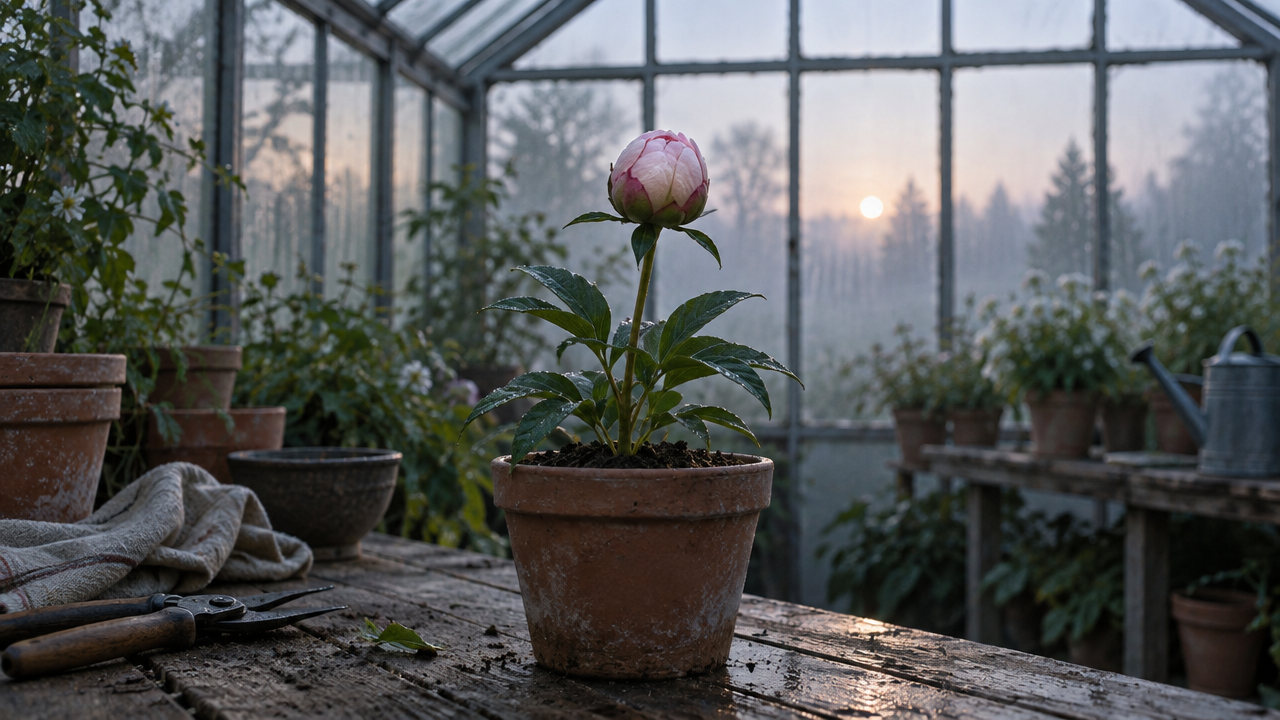
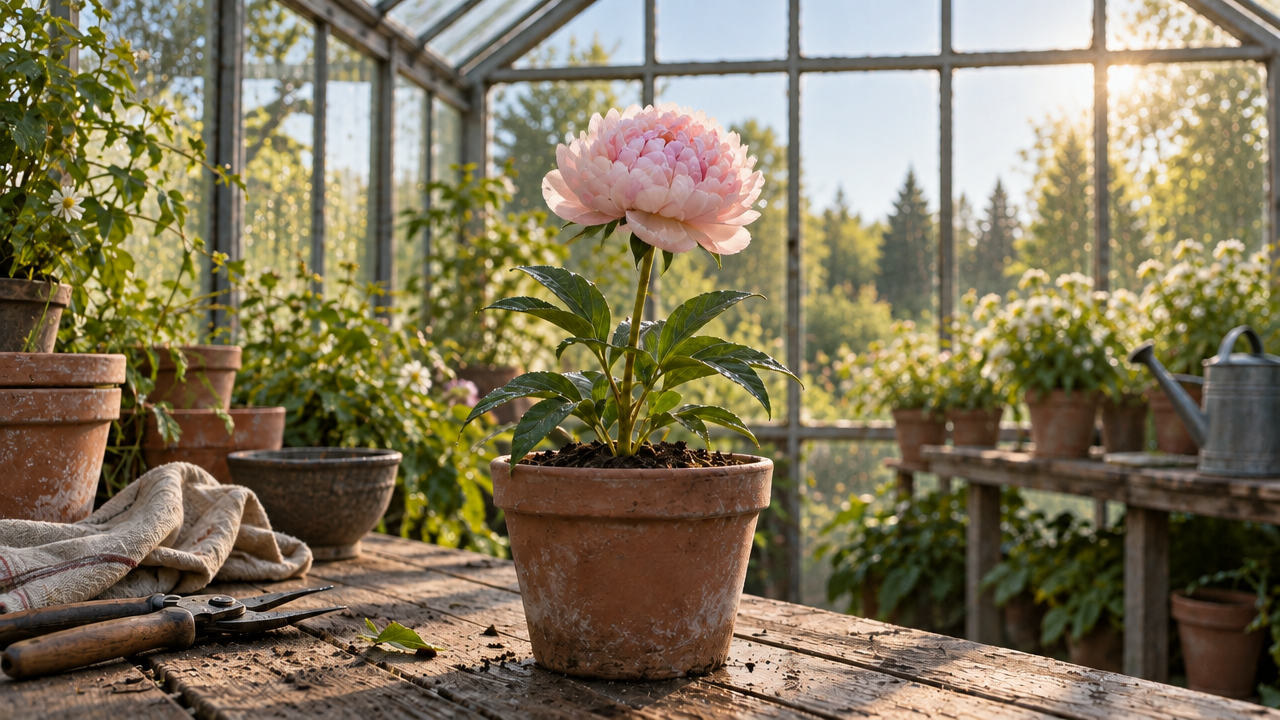
Connect a closed bud and a flower in full bloom

A bud at dawn and a sunlit bloom provide the first and last frames. Petals open layer by layer as the light warms, creating a fixed-camera time-lapse for growth and changes of state.

4s16:9720p

Prompt

A smooth time-lapse in one continuous locked-off shot: in a quiet greenhouse, the closed pale pink peony bud slowly swells and unfurls into a full layered bloom while the cool misty dawn light warms into bright golden late-morning sun streaming through the glass. Leaves sway slightly, dust motes drift in the light. No people, no text, no logo, no watermark. Natural ambient sound: soft birdsong and a gentle greenhouse hum.

Input · first frame
Connect a closed bud and a flower in full bloom: Input · first frame
Input · last frame
Connect a closed bud and a flower in full bloom: Input · last frame
Output video

Video to video

Restyle the lake lantern in indigo and amber

Use the original lantern silhouette and push-in as a reference, shifting the cool lake to indigo and amber with firefly-like glints on the water. Explore another mood for an existing shot.

8s16:9720p

Prompt

Transform the reference video into a refined cinematic night sequence while preserving the lantern silhouette and smooth camera movement. Shift the palette from blue hour to deep indigo and warm amber, add slow drifting firefly-like reflections across the lake, keep the reflection physically coherent, one continuous shot, no people, no text, no logos, no watermark. Natural ambient sound: quiet water, soft glass resonance, and distant night wind.

Input · source clip
Output video

Explore related video models

For multiple reference types, image-driven video or character motion transfer, explore these models and their input requirements.

About Gemini Omni 1.1 Flash

Gemini Omni 1.1 Flash creates landscape or portrait video with ambient sound from text, reference images, first and last frames, or an existing clip.

Extend product images into showcase clips, connect key frames into transitions, or explore another palette and mood for existing footage. Use the shots for product pages, social content and storyboards before production.

Provider
Google
Task
Text, reference image, frames and video-to-video
Output
Landscape or portrait video with ambient sound
Model ID
gemini-omni-1.1-flash

Gemini Omni 1.1 Flash specifications

Choose an input approach for your material, then set the format and resolution. Images and video share 7 input slots; one video uses 2.

Prompt

  • Required, up to 20,000 characters
  • Describe picture, camera and sound

Reference images

  • image_urls, 0–7 images
  • Up to 20MB each

First / last frame

  • A last frame needs a first frame
  • First frame excludes reference images and video

Source video

  • video_list, 1 clip, uses 2 input slots
  • Source ≤30s and ≤100MB; output length follows it

Duration

  • Required: 4 / 6 / 8 / 10 seconds
  • 8 seconds preselected in the Playground

Aspect ratio and resolution

  • 16:9 · 9:16
  • 360p / 720p (default) / 1080p / 4k

Seed

  • Optional, 0–2147483647

Endpoint

  • POST /v1/tasks
  • Async task with callback
View live pricing

How to use the Gemini Omni 1.1 Flash API

Prepare the material, describe the shot and download the video after submitting.

Images
Frames
Video
7 input slots
01

Prepare material for the result you want

Start with an idea, reference images, first and last frames, or an existing clip. Images guide appearance, frames guide the opening and ending, and video guides composition and motion.

Subject
Action
Camera & sound
02

Describe the shot and choose its format

Describe the subject, action, camera and ambience, then choose landscape or portrait.

Playground
POST /v1/tasks
03

Submit and collect the video

Create an async task with gemini-omni-1.1-flash, then receive the result via callback.url or poll GET /v1/tasks/:id and download the video from output[].url.

Gemini Omni 1.1 Flash API quickstart

The example restyles a lake-lantern clip as a new night scene. Add your API key to submit the request; see the API docs for other inputs, parameters and callbacks.

curl -X POST "https://api.hiapi.ai/v1/tasks" \
  -H "Authorization: Bearer YOUR_API_KEY" \
  -H "Content-Type: application/json" \
  -d '{
  "model": "gemini-omni-1.1-flash",
  "input": {
    "prompt": "Transform the reference video into a refined cinematic night sequence while preserving the lantern silhouette and smooth camera movement. Shift the palette from blue hour to deep indigo and warm amber, add slow drifting firefly-like reflections across the lake, keep the reflection physically coherent, one continuous shot, no people, no text, no logos, no watermark. Natural ambient sound: quiet water, soft glass resonance, and distant night wind.",
    "video_list": [
      {
        "url": "https://static.hiapi.ai/admin-assets/gemini-omni-1-1-flash/2026/09/02/1788359834997-73681ce500c88b7c-gemini-omni-1-1-flash-golden.mp4",
        "start": 0,
        "ends": 8
      }
    ],
    "duration": 8,
    "aspect_ratio": "16:9",
    "resolution": "720p"
  }
}'
Replace example URLs with publicly accessible media.Open full API docs

Video creation guide

Product showcases, social clips and storyboard previews

Upload a product photo and describe the setting and motion to create a showcase clip, or supply first and last frames to preview the transition between two images.

Start with text, images or videoVideo with ambient soundLandscape and portraitFrame-guided transitions
View input options
Product showcases, social clips and storyboard previews

Choose a creation mode for your material

Without source material, describe the subject, action, camera and sound in text to create a shot for a brand-film opening or a storyboard.

Use an existing clip as a subject and motion reference, then describe a new palette or mood to create different versions of the footage.

Input material and video examples

See examples using text, product photos, key frames and video, plus portrait framing and ambient sound.

01

Atmospheric shots from text

Describe a glass lantern, lake mist and a slow push-in to create a shot of the lantern glowing and warm light reaching the water for a brand-film opening.

For rainy scenes or lake shots, describe rain on a window, water or wind in the prompt to add ambience to the video.

Lake lantern: warm light and a slow push-in

02

Product clips from photos

Upload a celadon teapot photo and describe a rainy window, soft light, steam and an orbiting camera to create a product shot highlighting the glaze, bamboo handle and brass knob for product pages or ads.

For several showcase clips of the same product, keep the reference photo and vary the descriptions of setting, light and camera movement.

Reference image: celadon teapot
Product shot: rain, steam and soft light

03

Connect two states with key frames

Provide images of a bud and a bloom from the same camera position to guide petals opening and light warming, for growth sequences or transition previews.

Keep the subject position and aspect ratio similar in both images to reduce camera changes; if only the opening is planned, use a first frame alone.

First frame: a bud at dawn
Last frame: a sunlit bloom
Transition: petals open and the light warms

04

Restyle a reference clip

Upload the lake-lantern clip and describe an indigo and amber night scene to create a new shot guided by its silhouette and push-in, for alternative versions of the footage.

With a reference video, output length follows that clip, so upload one that matches your target length.

Reference clip: a blue-hour lake
Restyled shot: indigo and amber night

05

Portrait close-ups with ambience

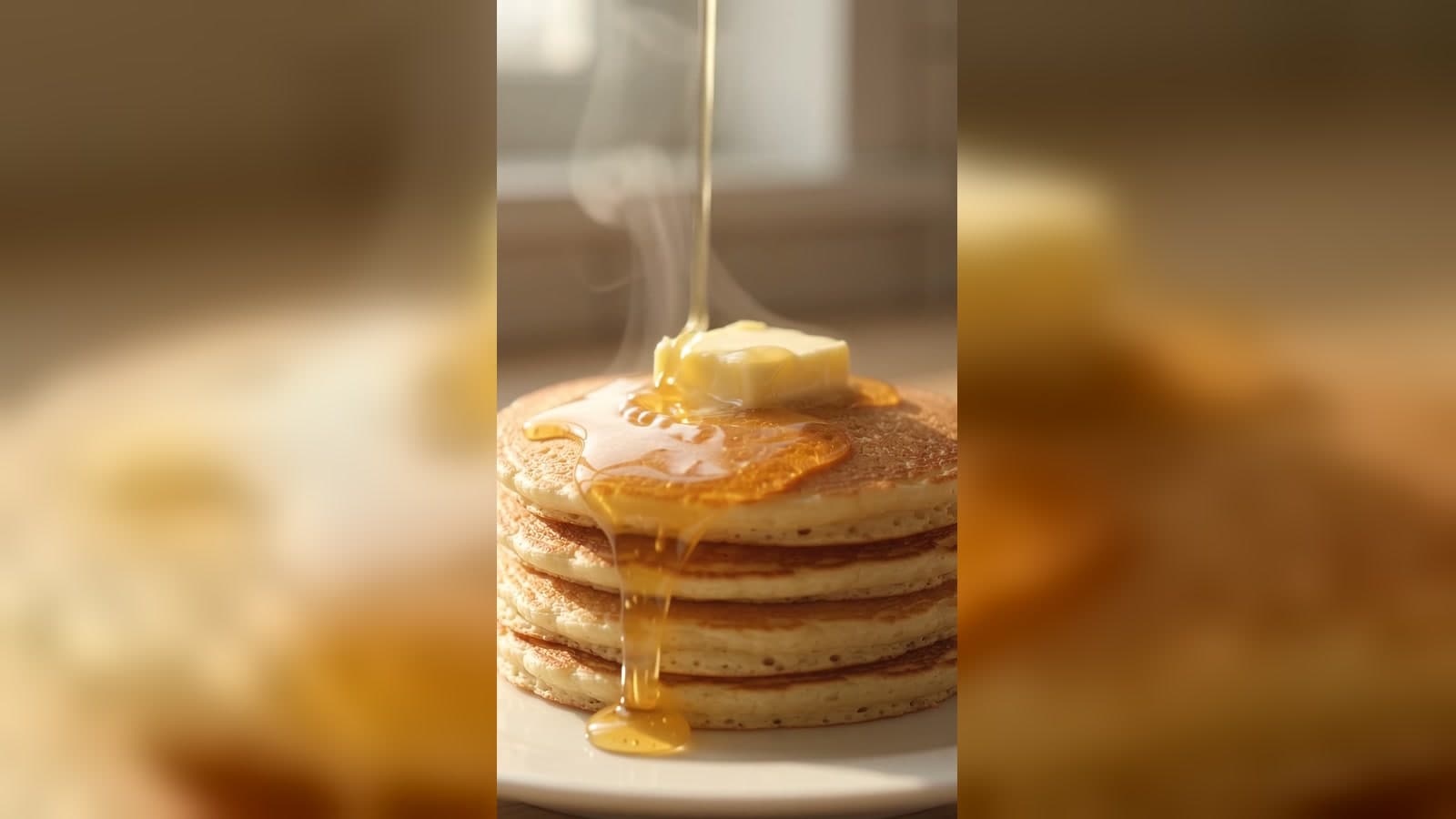
Describe pouring milk, latte art forming and a cup sliding toward the camera to create a portrait close-up with pouring sounds and café ambience for café posts or product clips.

Edit and caption the video; if you have voice-over or music, replace the generated ambience track.

Portrait close-up: latte art and café ambience

Use cases

Product pages and ads

Create showcase clips from product photos and scene descriptions for product pages or ad edits.

Café and brand social posts

Describe hand movements and café sounds to create portrait clips for daily store updates.

Storyboards and transition previews

Use first and last frames to preview products opening, lighting changes or transitions when planning shots before production.

Visual exploration with existing footage

Restyle existing video with a new palette description to compare different versions of the footage.

Choose your input

Choose material based on whether you need to reference appearance, key frames or existing movement.

An idea

Start with text describing the scene, action and sound.

A product or character image

Use reference images to guide appearance and a prompt to add setting and motion.

Key frames

Guide the opening with a first frame and the ending with a last frame. Use this approach separately from other reference media.

An existing clip

Upload video and describe a new palette or mood to create a restyled clip guided by its composition and motion.

Try it in the Playground, then integrate it

Choose input material and enter a prompt in the Playground to view the video, then integrate requests to the same model into your app once the result fits your needs.

Download selected videos into your asset library, then edit, caption and adjust the audio.

Try the Playground

Upload material and view the generated video.

Integrate into your app

Text, images, key frames and video share one model.

Continue production

Download videos for editing, captions and audio work.

Try Gemini Omni 1.1 Flash

Enter a prompt or upload images, key frames or video to create shots for product showcases or social posts.

Need to compare models and billing tiers?View live pricing for all models

Frequently asked questions

How do I start with text, images or a video?

Start with a prompt for an idea, reference images for a product or character's appearance, or a first frame for the opening, with an optional last frame to guide the ending. Upload a reference video to change an existing shot's mood. All these approaches use the same model.

Which inputs cannot be combined?

first_frame_url cannot be sent together with image_urls or video_list, and last_frame_url only works alongside first_frame_url. image_urls can be combined with video_list, but all media share 7 input slots and one video takes 2 of them, so a request with a video can carry at most 5 images.

How do I get the length I want when reworking video?

With a reference video, output length follows that clip. Upload a clip that matches your target length; do not rely on duration or start and ends to trim the output. Supply at most one reference video, up to 30 seconds and 100MB. The request still requires duration with a value of 4, 6, 8 or 10.

How do I choose the format and resolution?

Use 16:9 for product pages and landscape films, or 9:16 for mobile shorts. Check composition and motion at 360p or 720p, then choose 1080p or 4k for your display needs.

Can I add ambience to the scene?

The output includes ambient sound. Describe rain on a window, quiet lake water or café background sounds in your prompt so audio is part of the scene. Replace the track in editing if you need your own audio.

What are the image requirements?

Each image can be up to 20MB and must be a publicly reachable URL; files uploaded in the Playground are converted to links automatically. First and last frames work best when they share the same framing and aspect ratio.

Where can I check current costs?

See the live pricing page. The Playground shows an estimate for your selected settings before you submit.

How do I get the result?

Create an async task with POST /v1/tasks and read data.taskId. Receive the terminal status through callback.url or poll GET /v1/tasks/{taskId}; when the status is success, download the video from output[].url.

HiAPI Blog

Gemini Omni 1.1 Flash guides and tutorials