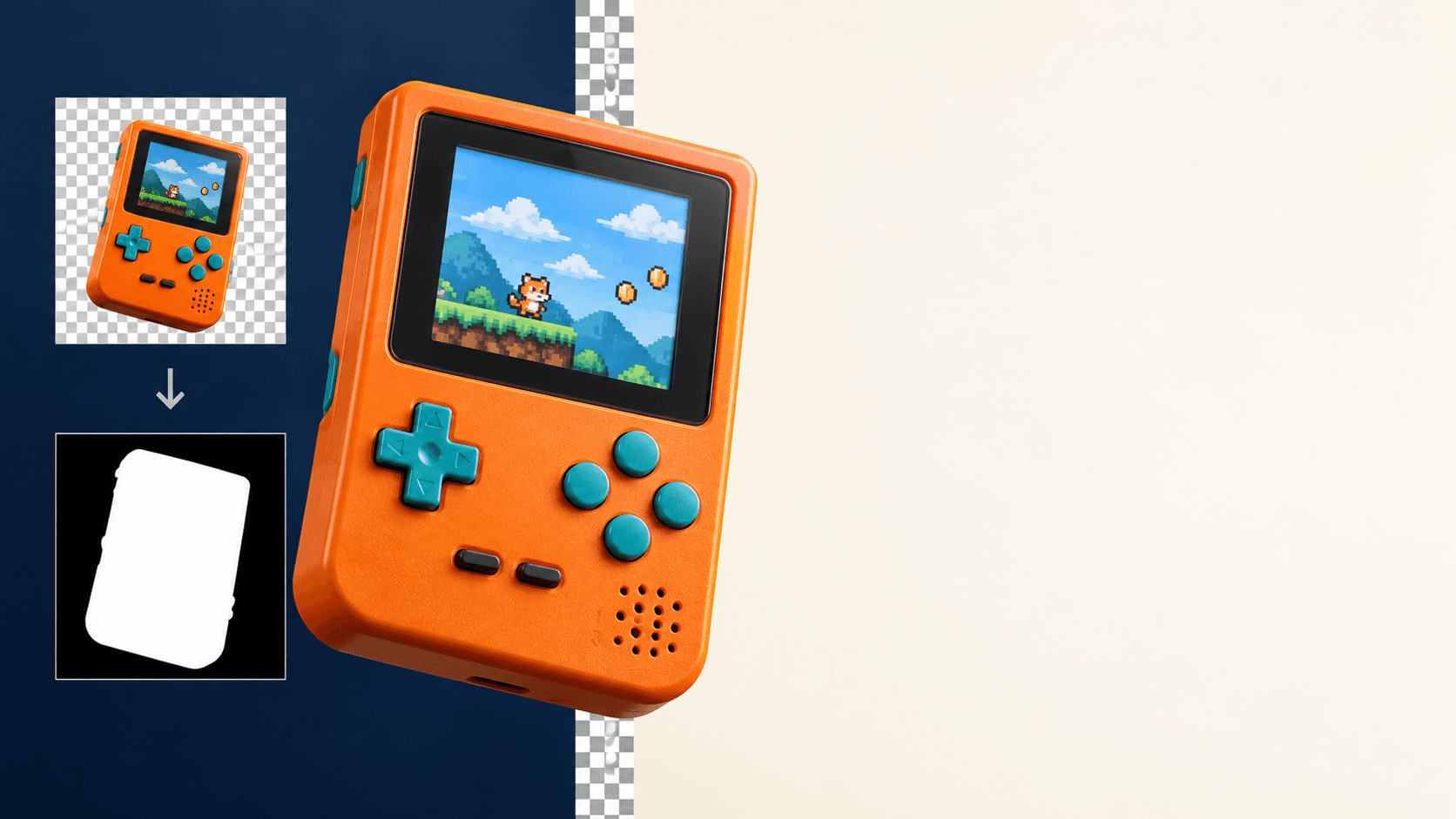
For a bicycle repair shop homepage, I would put the bike near the center and leave room on the left for the shop name and a booking button. An orange toolbox could echo the frame accents; an ivory one would blend into the workshop and draw more attention to the bike.
In GPT Image 2.5, this takes two steps: generate the workshop from a description, then upload the image to edit the toolbox. Follow the steps below and adapt the prompts to your own shop or product.
Give the first image a job
“Bicycle repair shop” could produce a storefront or a wall full of tools. “Website hero image with room for a headline on the left” gives the composition a purpose.
Open GPT Image 2.5 Text to Image, sign in, and paste the prompt below. For a wide website image, start with 16:9 and 1K, then click Run.
Create a wide website hero image for a city bicycle repair shop. Center a
commuter bicycle on a repair stand in a clean, bright workshop with a tool
wall and an orange toolbox on the right-side workbench. Use deep green,
orange, and warm ivory as the palette. Leave clean negative space on the
left for a headline. Commercial product photography, crisp detail, no
readable text, brand marks, or watermark.
To adapt it, replace the shop type and subject. Keep the left-side space if your page needs a headline there. Add the heading and button in your website layout, where you can change the wording later.
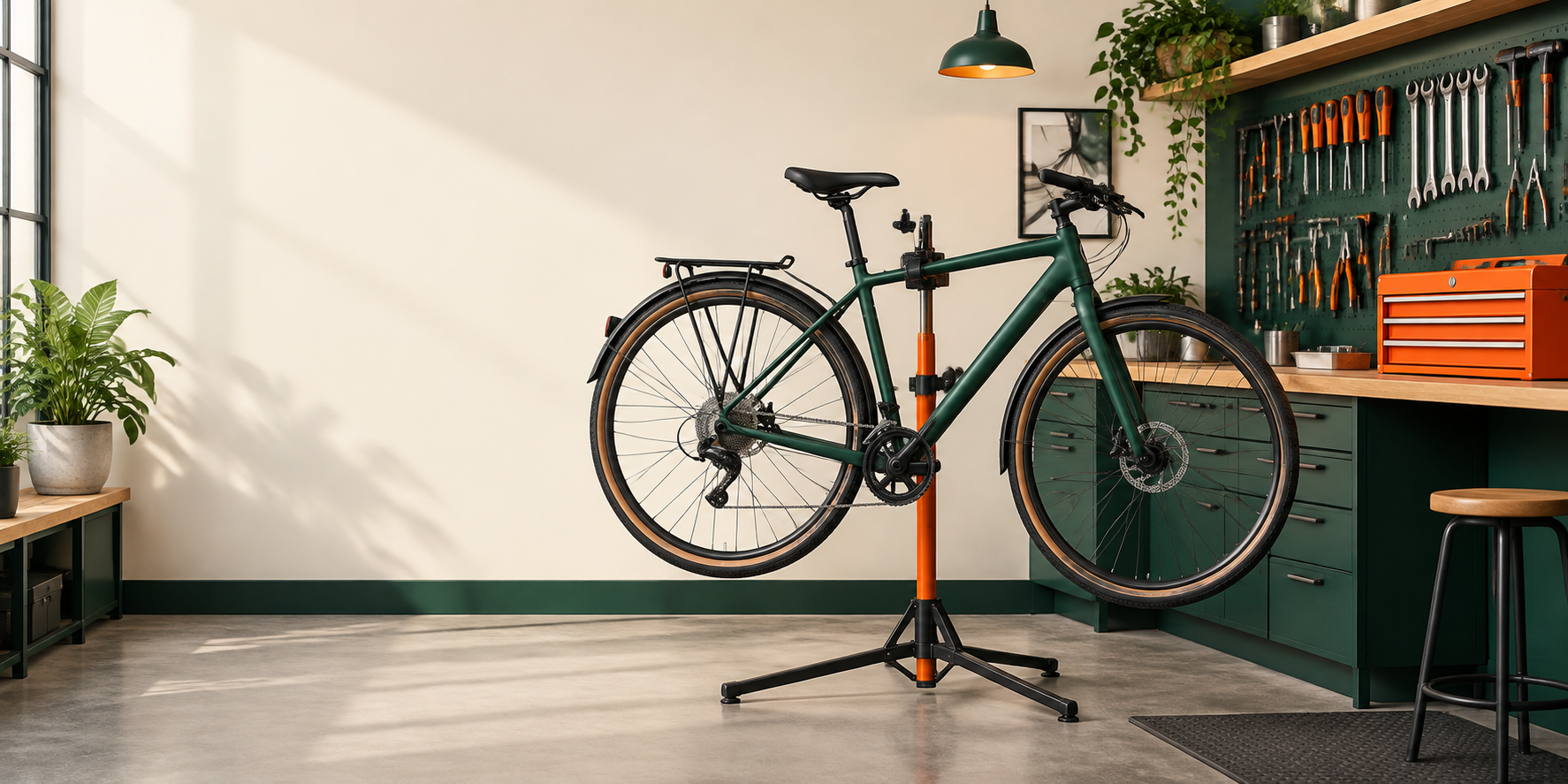
Illustrations: workshop color-edit examples generated with GPT Image 2.
In this image, the green bicycle and repair stand are the main subject. The wall and floor on the left leave room for a heading, while the orange toolbox sits on the right-hand workbench. Try the image behind your website text before deciding whether that space is enough.
Click Export all to save the image. Use that file as the reference in the next step.
Tell the editor which object to recolor
Open Image to Image and upload the saved image. Describe the target object, its new color, and the parts to preserve.
Name the object, its location, and its current color: the orange toolbox on the workbench at the right.
Change only the orange toolbox on the workbench at the right side of the
image: make it matte warm ivory while preserving its shape, position, and
shadows. Keep the bicycle, repair stand, tool wall, deep green and orange
palette, left-side negative space, camera angle, and aspect ratio
unchanged. Do not add text, a logo, or a watermark.
The prompt names the bicycle, repair stand, and empty space because those parts already work. When adapting it to your image, describe the parts you want to keep just as specifically.
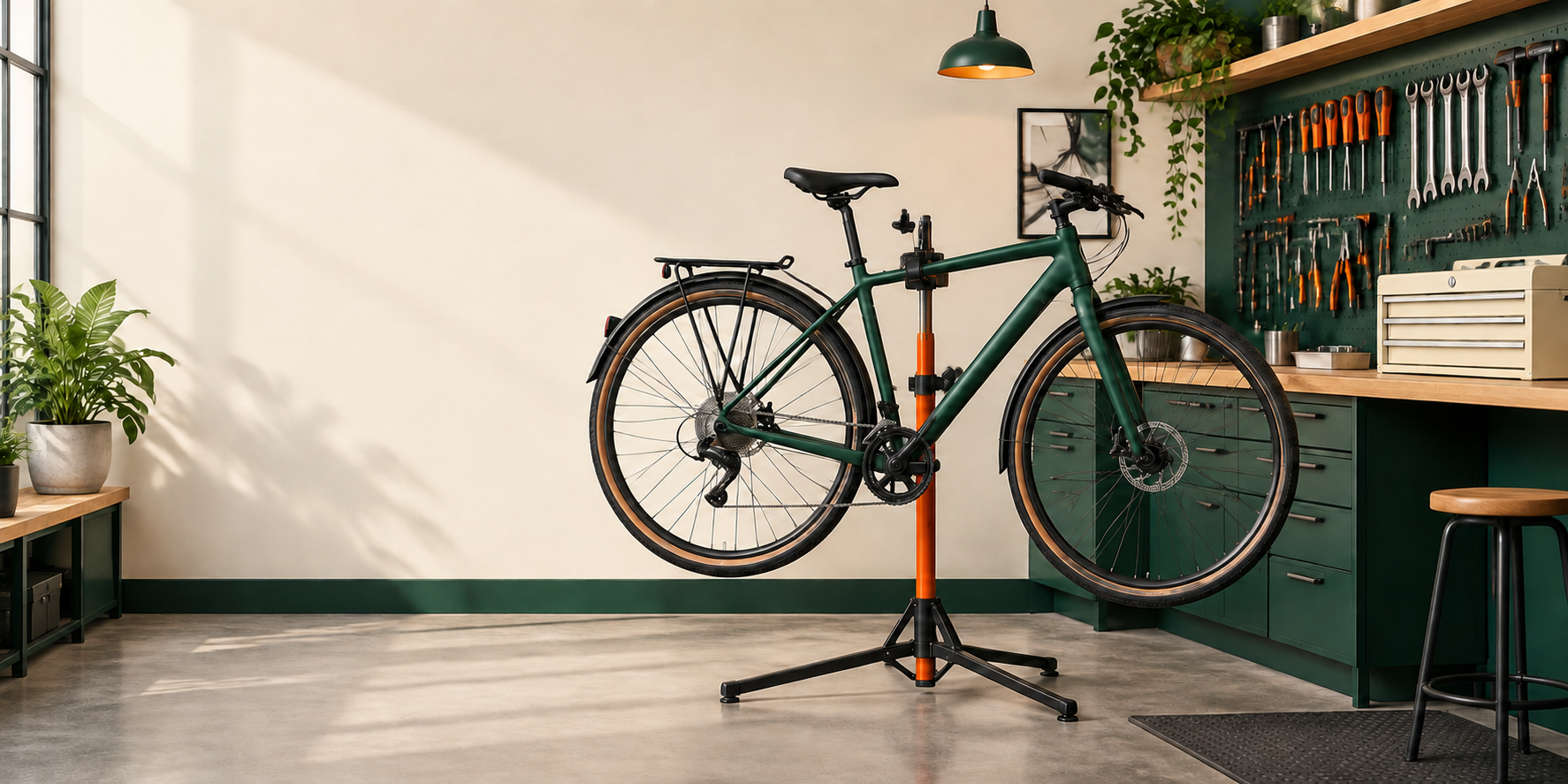
In this example, the toolbox is now ivory. The bicycle position, repair stand, and space on the left are broadly preserved. Compare the rest of the image too: a local edit can change nearby details. For another attempt, upload the original and add the wheel or tool-wall details you want to preserve to the prompt.
Check the image in the webpage
Place the image on the homepage and add your shop name and booking button on the left. You can now see how much room the text needs.
Switch to the phone preview and center the crop on the bicycle, keeping the wheels and frame visible. Save the original and the ivory-toolbox version separately, then choose the one that suits your page colors.
If you already have an image to edit, start at Image to Image. To automate submission, waiting, and collecting the result, follow the GPT Image 2 / 2.5 n8n tutorial.