HiAPI
  • Models
  • Pricing
Search

Search HiAPI models, tools, and resources.

  • Models
  • Pricing
HiAPI

One API, All AI Models

Generate images, video, and audio with leading models through one production-ready API.

Get a free API key

AI Image API

  • All image models
  • GPT Image 2.5 Flare
  • GPT Image 2.5 Sunburst
  • GPT Image 2
  • Nano Banana 2
  • Seedream 5.0 Pro
  • Qwen Image 2.0 Pro
  • FLUX 1.1 Pro

AI Video API

  • All video models
  • Seedance 2.5
  • FLUX.3 Video
  • Seedance 2.0
  • Veo 3.1
  • Kling 3.0 Omni

AI Audio API

  • All audio models
  • MiniMax Music 2.6
  • MiniMax Music 1.5
  • ElevenLabs v3
  • Text to music
  • Text to speech

Product

  • Model marketplace
  • Playground
  • Pricing
  • Image API Cost Calculator
  • Free GPT Image 2 Generator
  • Free Background Remover
  • Free Nano Banana Image Generator
  • Outfit Preview
  • Product Photo Lab

Developers

  • Agent setup
  • Documentation
  • API Reference
  • Agent Skills
  • LLM integration index
  • Blog

Company

  • About
  • Contact support
  • Terms of Service
  • Privacy Policy

© 2026 hiapi. All rights reserved.

Open source on GitHubPython SDK on PyPI
  • Make the transparent PNG in five steps
  • A transparent file can still have a bad edge
  • FAQ
  • Do I need to write code?
  • What if I already have a product photo?
GuideSep 18, 20264 min read

GPT Image 2 Transparent Background: Generate a PNG Without Code

Choose the transparent background in the Playground, then judge the edges where the image will actually be used.

hiapiGPT Image 2Transparent BackgroundPNG

Latest models

Explore models

Contents
  • Make the transparent PNG in five steps
  • A transparent file can still have a bad edge
  • FAQ
  • Do I need to write code?
  • What if I already have a product photo?

Generate it with HiAPI

Choose a model, enter your prompt, and see the result.

HiAPI Blog

Related articles

HiAPI

Generate it with HiAPI

Want to place a game console on a poster without bringing a white rectangle along with it? A transparent image lets the color underneath show around the subject, whether you use a yellow product card or a dark event poster.

You can generate this kind of asset in GPT Image 2 without writing code. Here is the online workflow, using an orange handheld console—and what to do about the colored fringe left around its edges.

Make the transparent PNG in five steps

  1. Open the GPT Image 2 Playground.
  2. Describe one clear subject and say what should be absent around it.
  3. Choose 1K for the size and Transparent for the background.
  4. Run the image and download the PNG.
  5. Drag it into your own design. Try both a light and a dark area before you publish or send it to a customer.

For the sample below, the subject is an orange retro handheld console. It has a blank dark screen and four teal buttons, so the result is easy to recognize when you place it on a new background.
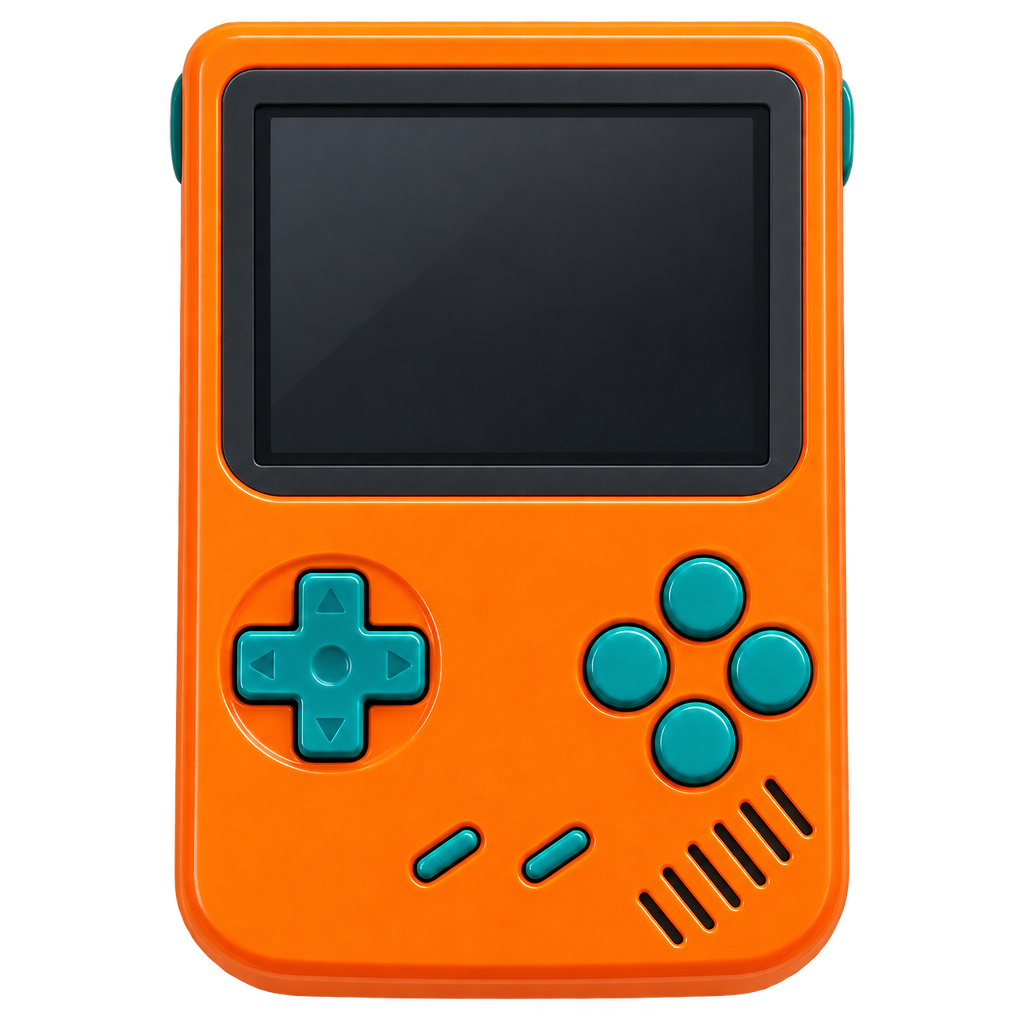
Real GPT Image 2 transparent handheld-console output

View original PNG

Original prompt used for the sample:

One original orange retro handheld game console with a blank dark screen and four teal buttons, isolated as a clean product cutout, no text, no logo, no cast shadow, transparent background.

A transparent file can still have a bad edge

The sample has a transparent background, but a warm fringe is still visible around parts of the console. That can show up immediately when the image moves from a checkerboard preview to a white product card or a dark poster.

If the edge looks dirty, open the PNG in the editor you already use and gently erase or clean the colored fringe around the subject. Check the result on the background where it will appear. If you do not want to retouch it, generate another version with the same subject and compare the two images side by side. Hair, glass, fur, dark objects, and soft shadows deserve the same check.

FAQ

Do I need to write code?

No. The Playground is enough for this workflow: describe the subject, choose 1K and Transparent, download the PNG, and test it in your design.

What if I already have a product photo?

This walkthrough generates a new image from text. If you already have a product photo and only want to remove its background, a background-removal tool is the more direct approach; there is no need to redraw the product.

For current settings and a direct generation test, open the GPT Image 2 model page. For the same model's cost details, see the GPT Image 2 pricing guide.
Latest models

View all models
  • GPT Image 2.5 FlareFrom $0.050/image
  • GPT Image 2.5 SunburstFrom $0.050/image
  • GPT Image 2From $0.030/image
  • Nano Banana 2From $0.051/image

Explore models

TextImageVideoAudio
Back to blog
GPT Image 2.5 FlareFrom $0.050/image
GPT Image 2.5 SunburstFrom $0.050/image
GPT Image 2From $0.030/image
Nano Banana 2From $0.051/image
View all models
TextChat and reasoning
ImageGenerate and edit
VideoText and image to video
AudioSpeech and music
Start generating
View model pricing
View all articles
ElevenLabs Text-to-Dialogue API for E-Commerce Audio: Product Video Voiceovers and Ad Reads

ElevenLabs Text-to-Dialogue API for E-Commerce Audio: Product Video Voiceovers and Ad Reads

MiniMax Music 2.6: Generate Background Music for Short-Form Video and Ads

MiniMax Music 2.6: Generate Background Music for Short-Form Video and Ads

Using glm-5.3 for E-commerce Copywriting and Support Replies

Using glm-5.3 for E-commerce Copywriting and Support Replies

DeepSeek V4 Pro for E-Commerce: Product Copy and Support Replies

DeepSeek V4 Pro for E-Commerce: Product Copy and Support Replies

Using HappyHorse 1.1 Image-to-Video to Make Short-Form Video via the hiapi API

Using HappyHorse 1.1 Image-to-Video to Make Short-Form Video via the hiapi API

Using happyhorse-1.1/reference-to-video to Make Short-Form Video via the hiapi API

Using happyhorse-1.1/reference-to-video to Make Short-Form Video via the hiapi API

Start generating