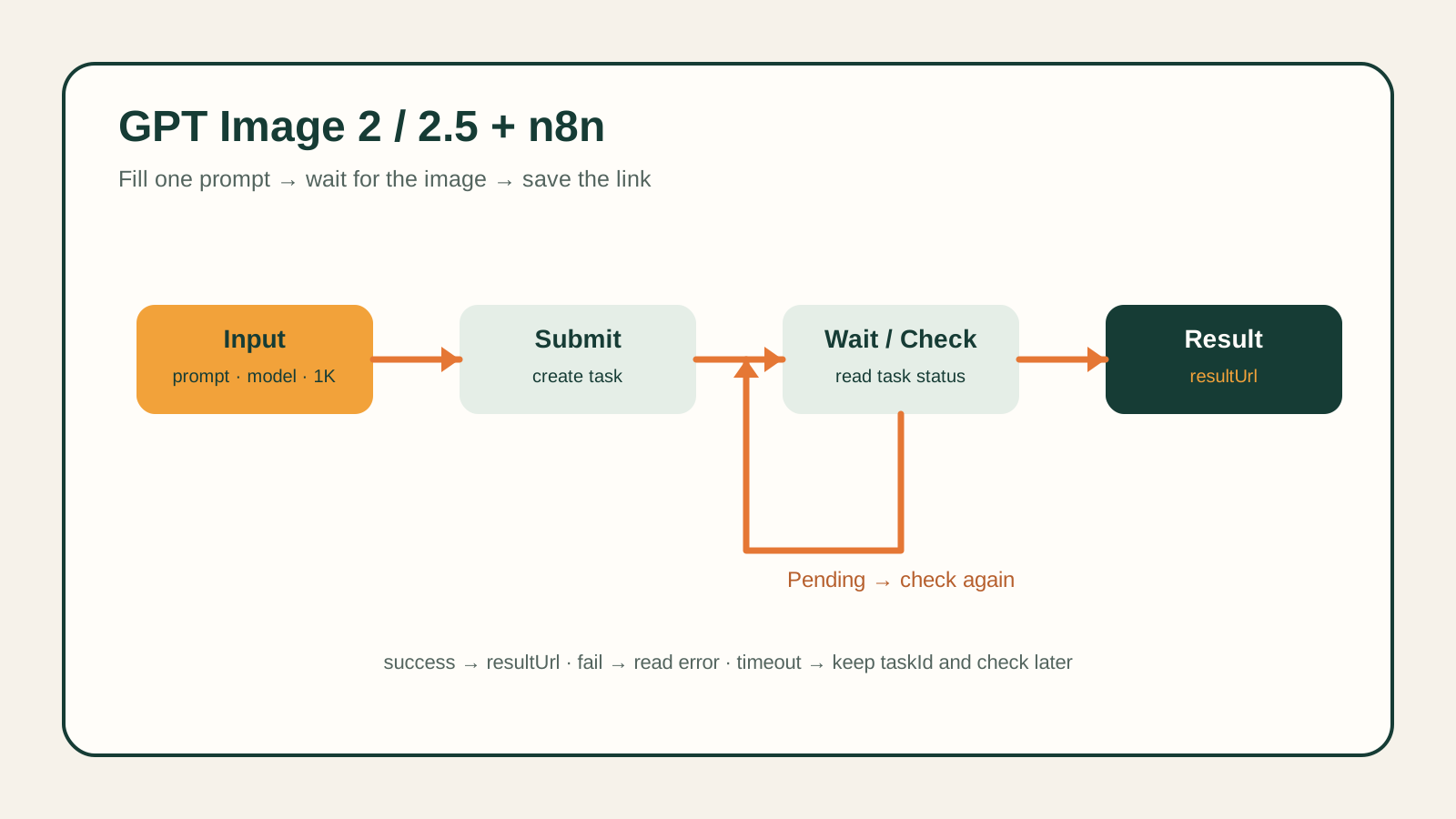
Turning a prompt into an image URL takes two steps in n8n: submit a task, then check its progress. Submission returns a task ID. Once generation finishes, querying that ID returns the image address.
This workflow handles that waiting step: submit once, pause, check the same task, and continue until an image URL or failure arrives. Import it, connect your credential, and enter a prompt to run the workflow.
Import the template and connect your credential
Download the n8n workflow JSON and import it into your n8n instance.
The default is GPT Image 2.5 Flare text-to-image at 1:1 and 1K. See the GPT Image 2.5 Flare page for the model entry and current information. Before running it, connect your API key:
- Open Credentials and create a Header Auth credential.
- Set Name to
Authorization. Set Value toBearer YOUR_API_KEY, replacing the placeholder with your key. Keep the space after Bearer. - Save it, then select that credential in both Submit Task and Get Task.
Both nodes need it: one submits the request and the other checks the task. Store the key in Credentials and reference that credential from both request nodes.
For the first run, change only the prompt
Open Workflow Input and find prompt. The template starts with a product image of an orange retro handheld console. You can use this prompt:
A clean product photo of an orange retro handheld game console on a warm
ivory studio surface, no text, no watermark.
Keep the other defaults and click Execute Workflow. The template checks every five seconds, up to 36 checks. While it is waiting, open the execution data to follow the task status.
To use GPT Image 2, change model to gpt-image-2/text-to-image. The default 2.5 value is gpt-image-2.5-flare/text-to-image. Both text-to-image entries use the template's prompt, aspect_ratio, and resolution fields.
Find resultUrl in Final Output
When the workflow reaches Final Output, open its data. On success, copy resultUrl into a browser to see the image, or pass the value to a storage or content node.
Keep taskId too. It identifies this generation if you need to check it later. The template collects the result URL; downloading or storing the file is a separate step you can connect afterward.
If there is no image, check how the run ended
A fail status comes from the service. Read error in Final Output and address the reported input or account issue before deciding whether to generate again.
A timeout means the template reached its polling limit. The remote task may still be running. Keep its taskId and create another HTTP Request node to check it: choose GET, use https://api.hiapi.ai/v1/tasks/YOUR_TASK_ID, replace the final placeholder, and select the same Header Auth credential. This GET request returns the existing task’s latest status.
If an HTTP Request node fails before Final Output, inspect that node's response. For 401/403, check authentication and permissions; for 400, check the input; for 429, check rate limiting; for 5xx, read the service error. After a network error during submission, establish whether a task was created before submitting again.
To make an image in the browser before connecting automation, follow the GPT Image 2.5 tutorial.