If your product visuals live or die on the text in them — sale badges, price call-outs, label copy, banner headlines — Ideogram V4 is the model to reach for on hiapi. It's the platform's typography specialist, and in three separate e-commerce assets generated for this guide (a promo banner, a product label mockup, and a flash-sale graphic), every word rendered cleanly on the first pass, aside from the design's own copy choices. Below is what actually worked, the real prompts behind each image, and a batch script for turning a whole product list into on-brand graphics.
Why Ideogram V4 for E-Commerce Visuals
Most general-purpose image models still fumble multi-word headlines, price tags, or label copy — extra letters, warped kerning, or text that trails off mid-word. That's the exact failure mode e-commerce graphics can't tolerate: a banner with garbled text looks broken, not stylized. Ideogram V4 is built around accurate in-image text, which makes it a better fit than a generalist model specifically for:
- Promotional banners with headline + subheadline copy (e.g., "SUMMER SALE" / "UP TO 40% OFF")
- Product label mockups where brand name and product copy need to read correctly
- Sale and countdown graphics with short, high-contrast text call-outs
It's a text-to-image-only model — there's no image-to-image mode, so it's suited to generating a graphic from a written brief, not editing an existing product photo. If you need to edit or composite onto an existing shot, that's a job for an i2i model instead; see the Ideogram V4 model page for the full input schema.
Ideogram V4 Pricing: Three Speed Tiers
Ideogram V4 exposes three rendering_speed tiers, and the price scales with it — as of 2026-09, per the hiapi pricing page:
| Tier | Price per image | Use it for |
|---|---|---|
TURBO | $0.05 | Fast drafts, testing prompt variations |
BALANCED | $0.10 | Default — production-quality banners and labels |
QUALITY | $0.17 | Final hero assets where fine text detail matters most |
All three examples below were generated at BALANCED, which is enough resolution and text fidelity for standard product banners and labels. Save QUALITY for a hero image you're going to blow up large (e.g., a homepage banner), and use TURBO while you're still iterating on copy and layout.
Three Real Outputs
1. Promotional Banner With Headline Copy
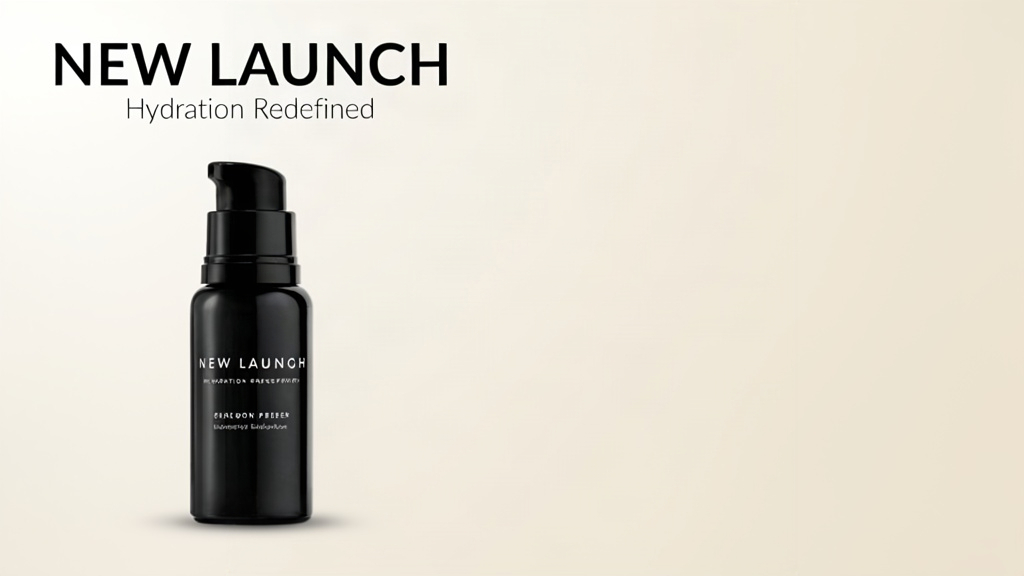
Prompt used (rendering_speed: BALANCED, aspect_ratio: 16:9):
A clean e-commerce promotional banner, 16:9. Bold headline text "SUMMER SALE" in large modern sans-serif at the top, subheadline text "UP TO 40% OFF" below it in a smaller weight. Minimalist product photography style background with soft pastel gradient (peach to cream), a pair of white wireless earbuds and a matte black smartwatch arranged bottom-right on a subtle podium. Plenty of negative space on the left for text. Studio lighting, soft shadows, high-end retail catalog look.
Both lines of copy came out legible and correctly spelled on the first generation — no retries needed. The negative-space instruction in the prompt is doing real work here: without it, Ideogram V4 tends to center the headline over the product photography, which hurts legibility once you drop the banner into a real page layout.
2. Product Label Mockup
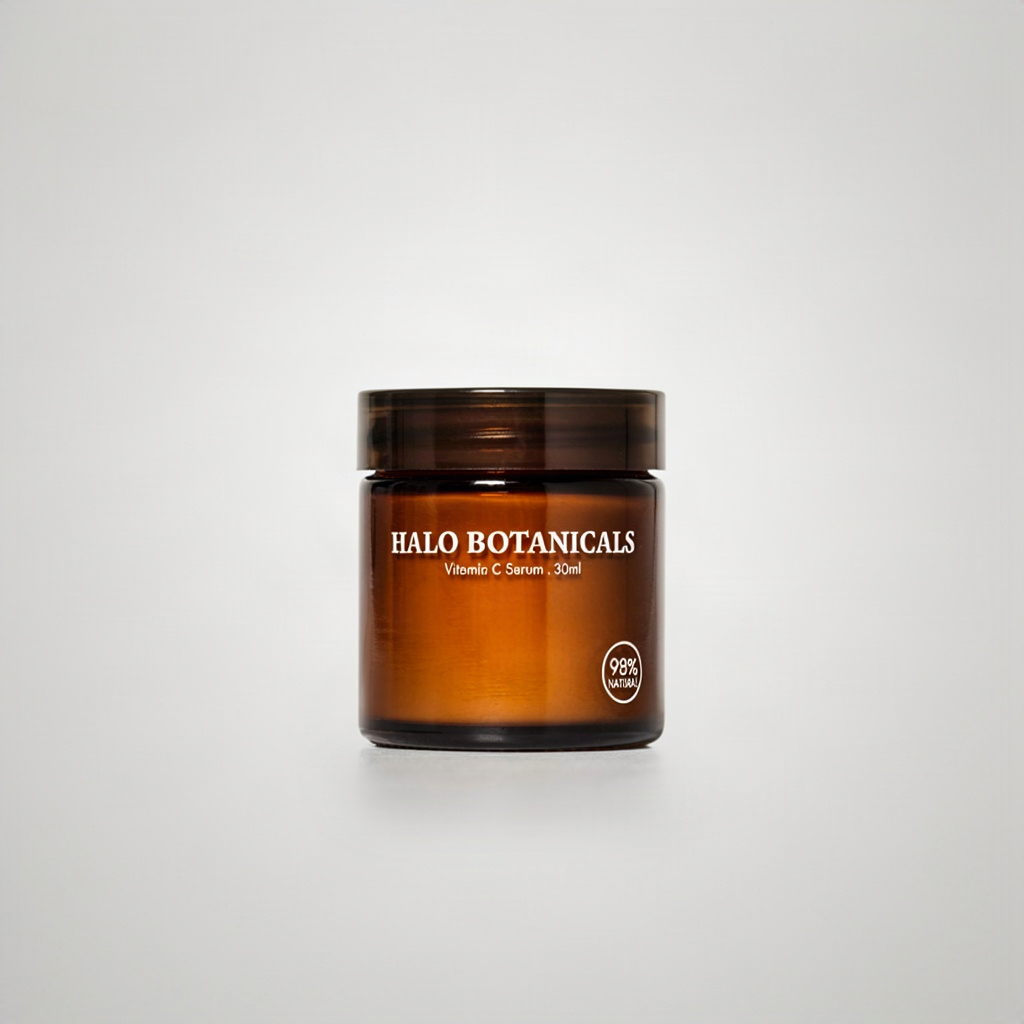
Prompt used (rendering_speed: BALANCED, aspect_ratio: 1:1):
A product label mockup for a skincare jar, square 1:1. White ceramic jar centered on a light beige background, label wrapped around the jar reads brand name text "AURELIA" at the top in an elegant serif font, and below it smaller text "HYDRATING FACE CREAM — 50ML" in a clean sans-serif. Soft studio lighting, subtle shadow beneath the jar, minimal skincare packaging photography style.
This is the harder case: small label copy wrapped onto a curved surface is exactly where text rendering tends to break down. Ideogram V4 held both the brand name and the smaller product-description line legible on the first try — worth a manual proofread pass regardless (see the note below), since curved-label text is the most failure-prone layout we tested.
3. Flash-Sale Banner

Prompt used (rendering_speed: BALANCED, aspect_ratio: 16:9):
A flash-sale banner for an online store, 16:9. Large bold text "FLASH SALE" in bright red-orange on a dark navy background with a subtle diagonal light streak pattern. Below it smaller text "24 HOURS ONLY" in white. A red price tag graphic in the bottom-right corner with text "-50%" on it. Modern, high-contrast, urgent retail marketing style with clean geometric shapes, no clutter.
Three separate text elements (headline, subheadline, price-tag call-out) in one composition, all legible. High-contrast color schemes like this dark-navy-plus-red-orange combo seem to help — it's the same pattern across all three generations here: strong background/foreground contrast correlates with cleaner text edges.
One rule regardless of how good the model tests: proofread every rendered word before you publish. Text-rendering accuracy on Ideogram V4 is very high, not 100% — an occasional run will still clip a letter or misjudge kerning on a longer line. Check every generation against the intended copy before it goes live, and regenerate if anything's off; don't ship AI-rendered text into a live storefront unchecked.
Calling Ideogram V4 From the hiapi API
Ideogram V4 runs on hiapi's async task endpoint. You submit a task, poll until it finishes, then download the output — there's no synchronous image response.
import time
import requests

API_KEY = "YOUR_API_KEY"
BASE_URL = "https://api.hiapi.ai/v1/tasks"

def generate_image(prompt, rendering_speed="BALANCED", aspect_ratio="16:9"):
    payload = {
        "model": "ideogram-v4",
        "input": {
            "prompt": prompt,
            "rendering_speed": rendering_speed,
            "aspect_ratio": aspect_ratio,
        },
    }
    response = requests.post(
        BASE_URL,
        headers={
            "Authorization": f"Bearer {API_KEY}",
            "Content-Type": "application/json",
        },
        json=payload,
    )
    response.raise_for_status()
    task_id = response.json()["data"]["taskId"]

    while True:
        poll = requests.get(
            f"{BASE_URL}/{task_id}",
            headers={"Authorization": f"Bearer {API_KEY}"},
        ).json()["data"]
        if poll["status"] == "success":
            return poll["output"][0]["url"]
        if poll["status"] == "fail":
            raise RuntimeError(poll.get("error"))
        time.sleep(5)

image_url = generate_image('Bold headline text "FLASH SALE" on a dark navy banner')
print(image_url)
Only three input fields are accepted: prompt (required), rendering_speed (required — one of TURBO, BALANCED, QUALITY), and aspect_ratio (optional, e.g. 16:9, 1:1, 9:16, 4:3, 3:4). There's no negative_prompt, seed, or image-input field on this model — full parameter reference is on the Ideogram V4 model page.
Batch-Generating a Full Product Image Set
For a real catalog you're not calling this one banner at a time — you're running a list of products or campaigns through the same pipeline overnight. Here's a batch version that reads a CSV of prompts and downloads every result:
import csv
import os
import time
import requests

API_KEY = os.environ["HIAPI_API_KEY"]
BASE_URL = "https://api.hiapi.ai/v1/tasks"
OUT_DIR = "output"

def create_task(prompt, rendering_speed, aspect_ratio):
    payload = {
        "model": "ideogram-v4",
        "input": {
            "prompt": prompt,
            "rendering_speed": rendering_speed,
            "aspect_ratio": aspect_ratio,
        },
    }
    resp = requests.post(
        BASE_URL,
        headers={"Authorization": f"Bearer {API_KEY}", "Content-Type": "application/json"},
        json=payload,
    )
    resp.raise_for_status()
    return resp.json()["data"]["taskId"]

def wait_for_result(task_id, timeout_s=300, poll_interval=5):
    deadline = time.time() + timeout_s
    while time.time() < deadline:
        data = requests.get(
            f"{BASE_URL}/{task_id}",
            headers={"Authorization": f"Bearer {API_KEY}"},
        ).json()["data"]
        if data["status"] == "success":
            return data["output"][0]["url"]
        if data["status"] == "fail":
            raise RuntimeError(f"task {task_id} failed: {data.get('error')}")
        time.sleep(poll_interval)
    raise TimeoutError(f"task {task_id} did not finish in {timeout_s}s")

def run_batch(csv_path):
    os.makedirs(OUT_DIR, exist_ok=True)
    with open(csv_path, newline="", encoding="utf-8") as f:
        reader = csv.DictReader(f)
        for row in reader:
            name = row["name"]
            prompt = row["prompt"]
            rendering_speed = row.get("rendering_speed") or "BALANCED"
            aspect_ratio = row.get("aspect_ratio") or "16:9"
            print(f"generating {name}...")
            task_id = create_task(prompt, rendering_speed, aspect_ratio)
            url = wait_for_result(task_id)
            image_bytes = requests.get(url, timeout=60).content
            with open(os.path.join(OUT_DIR, f"{name}.jpg"), "wb") as out:
                out.write(image_bytes)
            print(f"  saved {name}.jpg")

if __name__ == "__main__":
    run_batch("products.csv")
products.csv just needs a name and prompt column, with optional rendering_speed / aspect_ratio overrides per row:
name,prompt,rendering_speed,aspect_ratio
summer-sale-banner,"Bold headline ""SUMMER SALE"" on pastel gradient background",BALANCED,16:9
label-aurelia-cream,"Skincare jar label reading ""AURELIA"" and ""HYDRATING FACE CREAM""",BALANCED,1:1
flash-sale-24h,"Dark navy flash sale banner with ""24 HOURS ONLY"" and a ""-50%"" price tag",BALANCED,16:9
Run it overnight against a full product or campaign list, then batch-review the output folder before anything ships — the proofreading step doesn't go away just because you're generating in bulk.
Prompting Tips for Clean Typography
A few patterns held up across all three test images:
- Quote the exact copy. Wrap the literal text you want rendered in quotation marks inside the prompt (
text "SUMMER SALE"), rather than describing it indirectly. This is the single biggest factor in getting the exact wording back. - Separate headline and subheadline explicitly. Describing two lines of copy as two distinct instructions ("bold headline... below it smaller text...") produced cleaner hierarchy than one run-on sentence.
- Ask for contrast, not just color. High-contrast background/foreground pairs (dark navy + red-orange, pastel + dark text) consistently rendered crisper letterforms than low-contrast palettes.
- Leave explicit negative space. If you need copy in a specific zone, say so ("plenty of negative space on the left for text") — otherwise the model is free to place text wherever it thinks looks best compositionally, which isn't always where your layout needs it.
- Keep label copy short. Curved-surface label mockups are the least forgiving layout for text; short brand names and short secondary lines proofread cleanly far more often than a full paragraph of packaging copy.
FAQ
Can Ideogram V4 edit an existing product photo instead of generating a new banner? No — it's text-to-image only, with no image-to-image input. If you need to place text onto an existing product photo, generate the text element separately or use an i2i-capable model for that step.
Does Ideogram V4 support portrait or square aspect ratios for Instagram/social posts?
Yes — aspect_ratio accepts values like 9:16 and 1:1 in addition to 16:9, so the same prompting approach works for square product tiles or vertical social banners.
Which rendering_speed should I default to for a real catalog run?
BALANCED — it's the tier used for every example in this guide and holds up for standard banners and labels. Reserve QUALITY for large hero assets and TURBO for cheap iteration while you're still dialing in copy.
Do I still need to proofread if the text renders correctly most of the time? Yes. Ideogram V4's text accuracy is very high but not guaranteed — treat every generated graphic like a proof from a print shop: check it before it ships, not after a customer flags a typo.
Ready to generate your own set? Grab an API key and try a prompt on the Ideogram V4 model page, or check the hiapi API docs for a quickstart if you're wiring this into an existing catalog pipeline. If you're still comparing models for product photography specifically (rather than typography-heavy graphics), Best AI Models for E-Commerce Product Images walks through how Ideogram V4 stacks up against photo-focused options, and Building an E-Commerce Product Image Workflow With GPT Image 2 covers the batch-pipeline pattern this guide's script is based on.