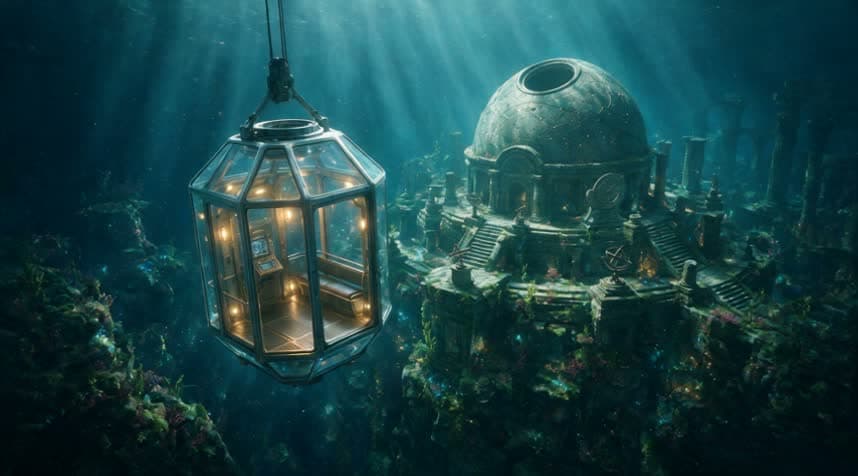
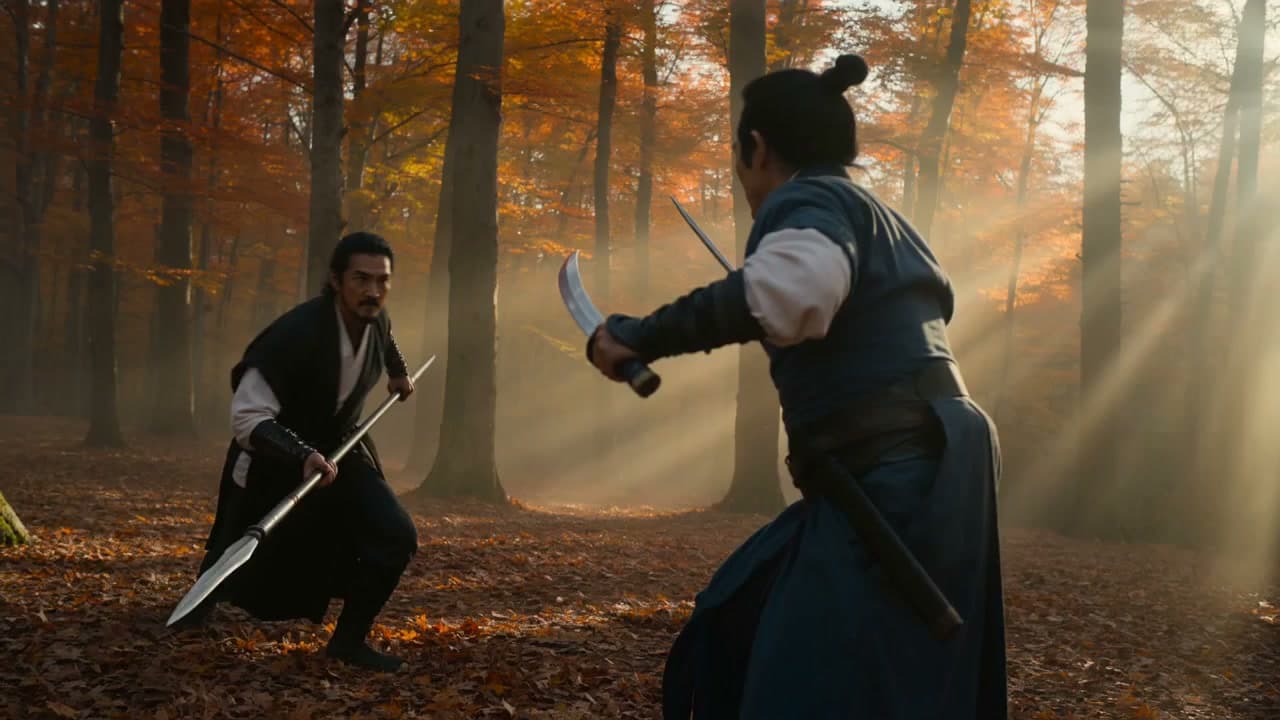
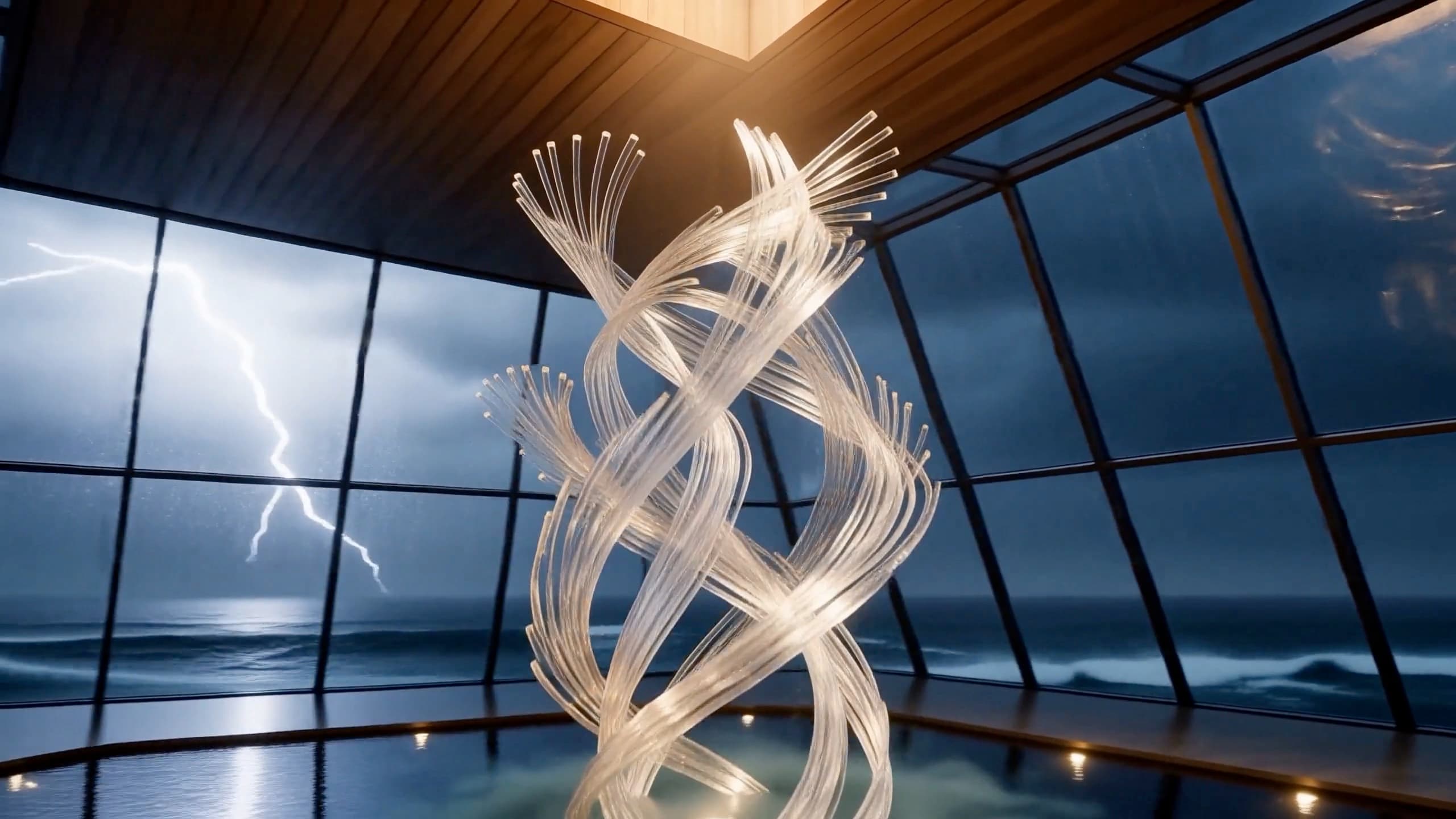
1. Dreamina Seedance 2.5 is officially here
Dreamina Seedance 2.0 opened the door to multimodal creation. Since then, we have kept exploring how to give creators ultimate "control" and more room to tell stories. Today, Dreamina Seedance 2.5 officially arrives as the new benchmark for professional creation!
A look back at Dreamina multimodal: Seedance 2.0 supports four input modes: image, video, audio, and text.
If Dreamina Seedance 2.0 let you enjoy being the "director," then Dreamina Seedance 2.5 gives you a full professional digital film set: longer, more realistic, and better at following instructions, so your creations land exactly where you aim.
We rebuilt key parts of the model based on the most common feedback about Seedance 2.0.
2. Parameter settings
Dreamina Seedance 2.5 upgrades multimodal generation across the board. It still supports first frame, first and last frames, and multimodal reference inputs. It also greatly relaxes the limits on how many reference assets you can use and how long they can be, and it adds audio-only driving. That gives you more flexible, wider creative room.
Images
| Item | Limit |
|---|---|
| Count | Up to 30 per generation |
| Formats | JPEG, PNG, WebP, BMP, TIFF, GIF, HEIC, HEIF |
| Aspect ratio | 0.4–2.5 |
| Side length | 300–6000 px |
| File size | Under 30 MB each |
Official stability advice: subject images work best with 1–8 subjects. You can try 9–12, but stability drops. If you need several angles of the same subject, splitting them into separate single-angle images is usually more stable than combining several angles in one image.
Video
| Item | Limit |
|---|---|
| Count | Up to 10 clips |
| Clip length | 2–30 seconds (actual tolerance about 1.8–30.2 seconds) |
| Total length | No more than 30 seconds (actual tolerance about 30.2 seconds) |
| Formats | MP4, MOV |
| Resolution | 480p–4K |
| Frame rate | 24–60 FPS |
| Clip size | No more than 200 MB each |
For video editing, the official advice is to keep the source video under 20 seconds. 1–5 reference images are usually more stable. You can try 6–8, but you will rely more on generating several times and picking the best.
Audio
| Item | Limit |
|---|---|
| Count | Up to 10 clips |
| Clip length | 2–30 seconds |
| Total length | No more than 30 seconds |
| Formats | WAV, MP3 |
| Clip size | No more than 15 MB each |
| Audio-only driving | Supported; you don't have to pair it with images or video |
Output
- Standard generation length: 4–30 seconds, about 97–721 frames.
- Output resolution: 480p, 720p.
- Long video: switch to Long Video to choose 30–180 seconds.
3. Features and interface
Four creation modes
Open the AI Video page in Dreamina and select Dreamina Seedance 2.5. Then switch modes from the mode menu:
- Omni Reference: multimodal references from images, video, and audio.
- Smart Edit: upload a video and change it with text.
- Long Video: generate a 30–180 second video in one go.
- First and last Frames: constrain the first and last frames.
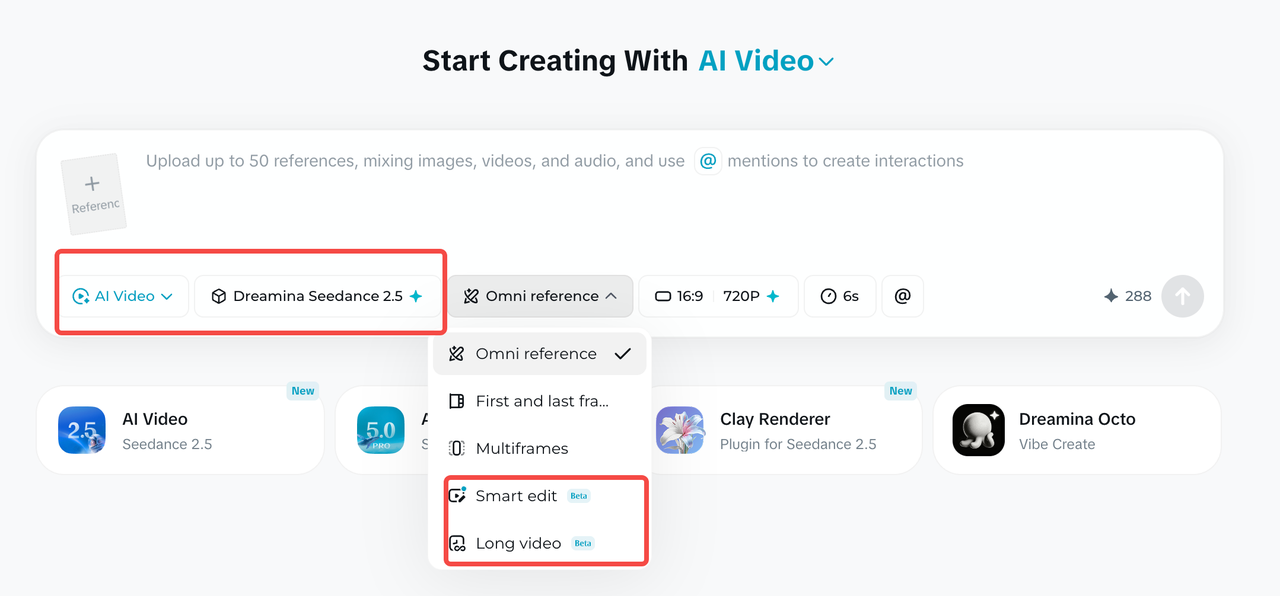
Long Video: generate 30–180 seconds in one go
- Write your full video script or prompt.
- Open the mode menu, which may show Omni Reference by default, and select Long Video.
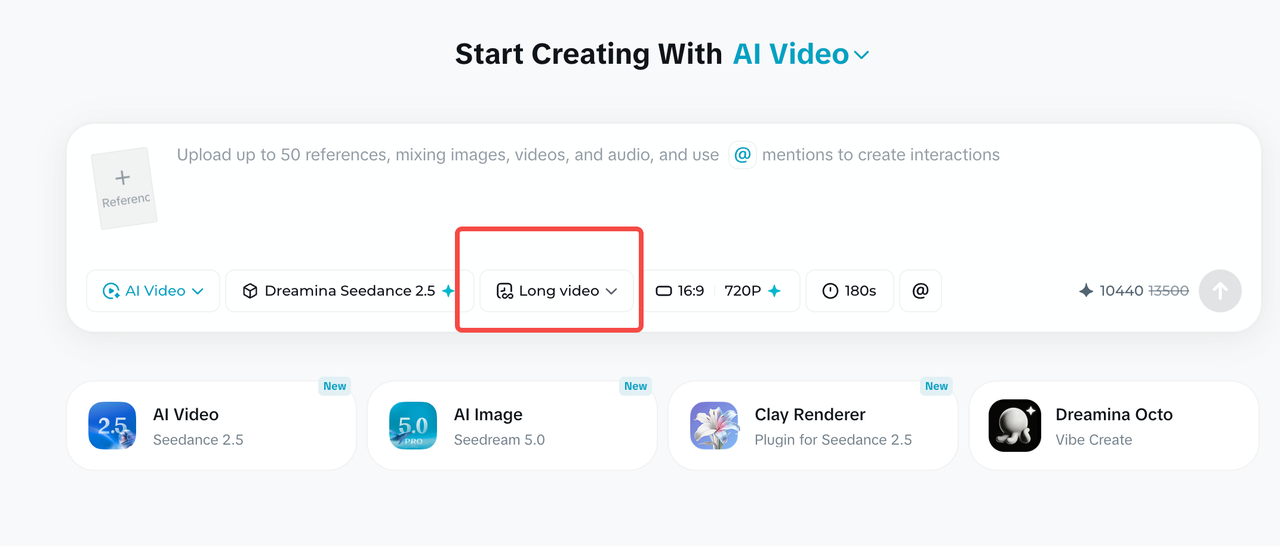
- Click the clock icon in the toolbar.
- Drag the timeline or type a value to choose 30–180 seconds.
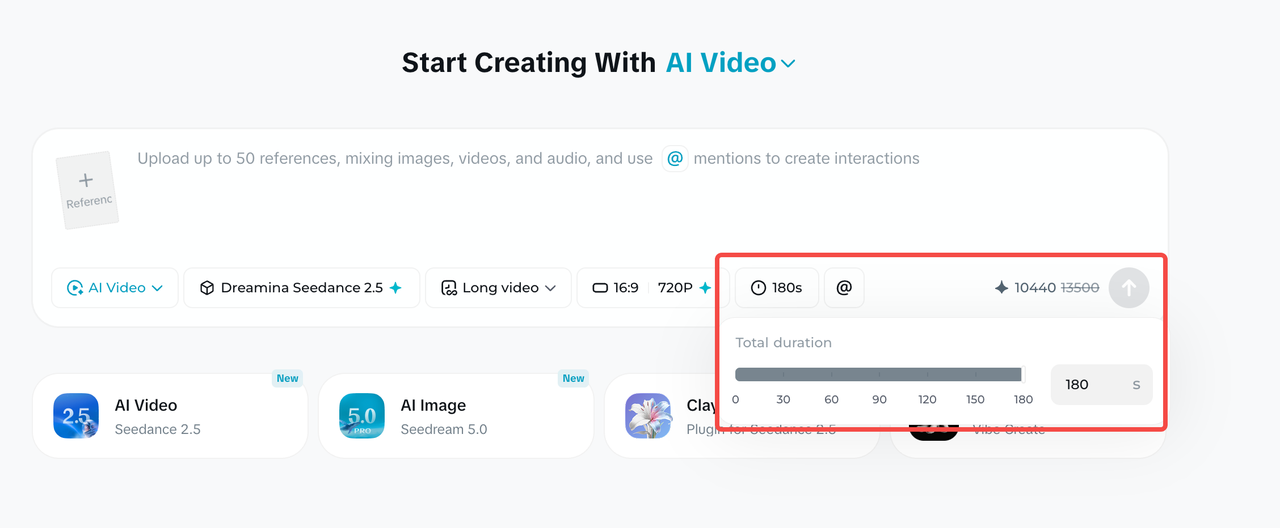
- Confirm the aspect ratio, resolution, and duration, then click Generate.
Extend Video: keep extending a video
Extend Video is only available for source videos of 30 seconds or less. Each time, you can add 4–30 seconds. Your prompt should describe only the new part.
- In the generation feed, select the target video and click Extend Video below it.
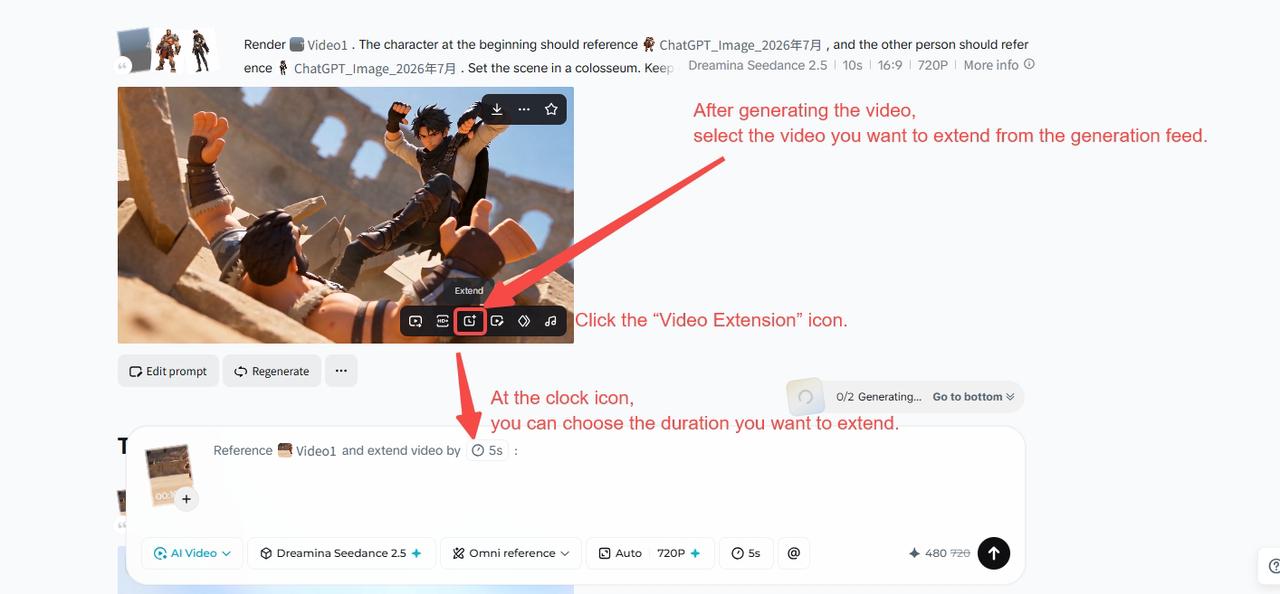
- Click the clock, then drag the timeline or type the length to add.

- In the text box, describe the visuals, action, and transition for the new segment, then generate the full video.

Here is the official English example:
Reference the content of @video1, extend the video by 10s to continue the story. Require to use a "mask transition" at the cut (hard cuts are prohibited, objects appearing out of thin air are prohibited). Shot A shows the muscular warrior in @image1 who is defending (close-up), a gust of wind blows, a normal-sized fallen leaf drifts towards the camera, the leaf completely covers the camera causing the full screen to go dark; then the camera pulls back through the leaf, directly revealing the next scene: the young ranger in @image2 is leaning against a tree, raising his bow and arrow taking aim. Require the scene to be switched naturally. Naturally switch from the warrior's close-up to the ranger's medium shot.
Smart Edit: change a video with text
Smart Edit is for changes you can describe clearly in words, without marking anything with a brush. Use this structure:
[What to change] + [Action and change description] + [Time range it applies to]
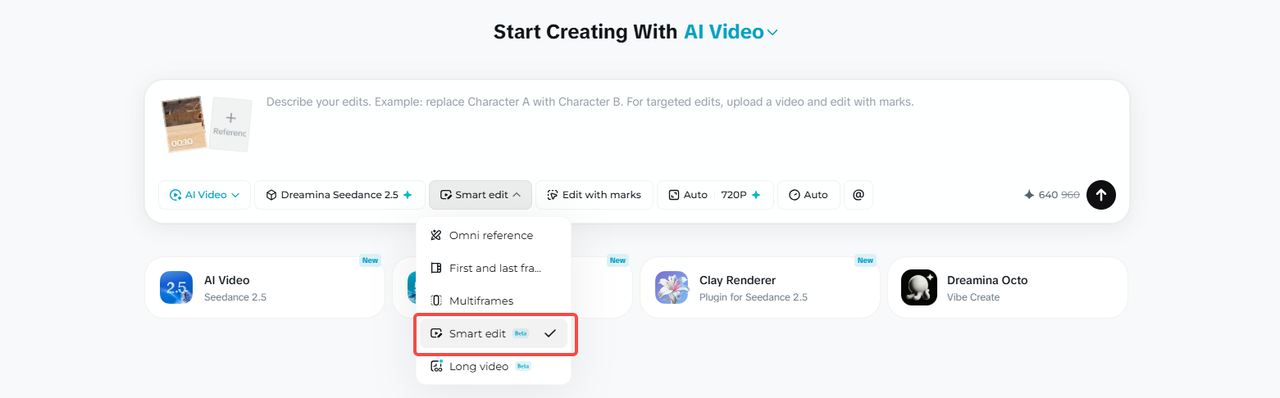
Official example:
Modify everything entirely from 0 to 8 seconds of the overall video. Change the whale in the video to a white dragon. Remove the BGM.
Edit with marks: mark an area, then edit it
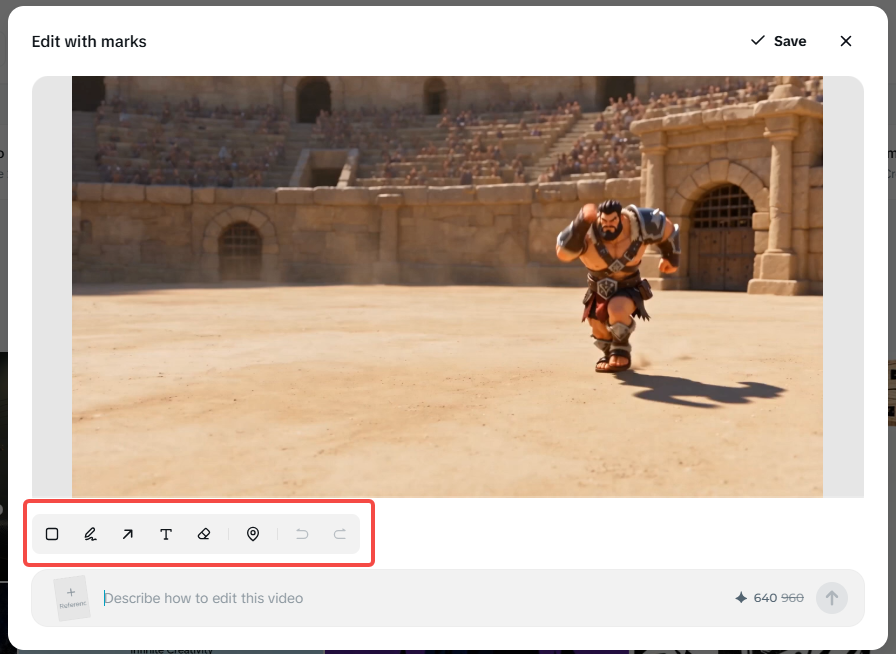
After you upload a local video, an Edit with marks button appears in the input area. Use it when you want to "change only this spot in the frame." You can mark objects with a box, brush, arrow, or anchor point.
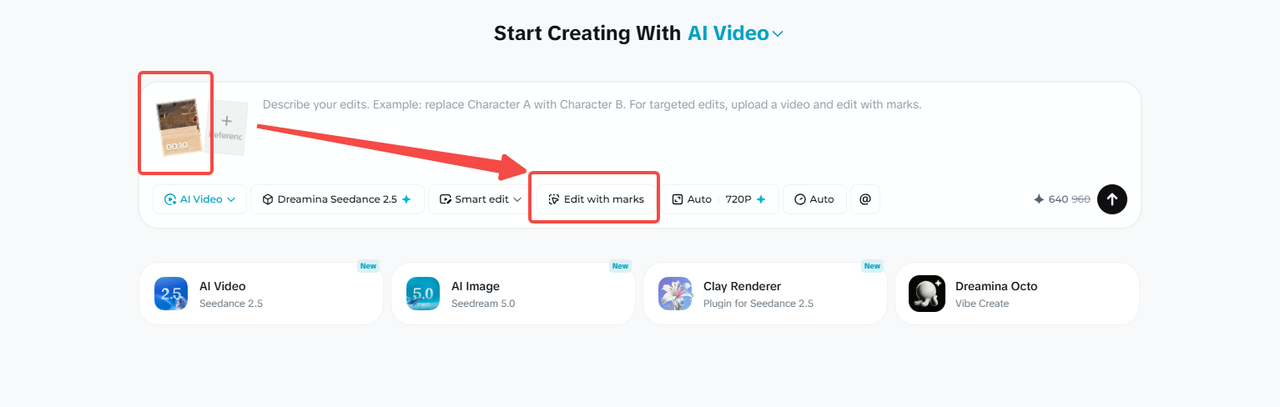
In the marking screen, circle the target, add your text instructions, and confirm. The system adds the marked frame and timestamp to the input, then edits the whole clip or the specified time range as requested.
Edit Video: edit a video you already generated
Edit Video works on finished videos in the generation feed. Select the edit button below a video. From there, you can replace characters, change outfits, adjust the camera angle, remove objects, or change the background. The main difference from Edit with marks is the entry point: Edit Video edits generated videos, while Edit with marks can also handle locally uploaded videos.
4. Basic prompt formula
The official basic prompt formula:
Full prompt = [Asset notes] + [One-sentence summary] + [Detailed plot description] + [Global additions]
| Module | How to write it |
|---|---|
| Asset notes | In upload order, state whether each asset is a reference for a character, scene, action, voice, or camera |
| One-sentence summary | Subject + location + event + theme/style + special camera movement |
| Detailed plot | Along the timeline, write the visuals, camera movement, action, dialogue, sound effects, and transitions |
| Global additions | Lock in the camera position, environment, lighting, sound, character consistency, and anything prohibited |
An excerpt from the official English example:
Realistic nature documentary style, cinematic realistic lighting. In the morning mist, within a vast wetland reed bed @image1, an elegant red-crowned crane is spreading its wings and dancing. @image2 The red-crowned crane features snow-white feathers, a bright red crown, a slender and upright posture, and light, noble movements.

0s-3s: A red-crowned crane stands quietly in the shallow water with an elegant posture. It slowly begins to unfold its broad black-and-white wings with gentle movements. The airflow from the flapping wings creates ripples on the water surface.

3s-8s: The red-crowned crane leaps lightly on the water, its feet alternately tapping the surface, splashing crystal-clear water droplets. Its slender neck tilts backward with its beak pointing to the sky.

Low-angle, slight handheld camera feel, moving up and down slightly to follow the crane's jumping trajectory. Natural environmental sounds: flowing water, the powerful flapping of wings, and the crane's call. The overall atmosphere is peaceful, ethereal, and highly aesthetic.
5. Realistic character formula
Here is the prompt formula for realistic human characters:
Character = [Age/Race] + [Skin Color/Skin Texture] + [Facial Details] + [Eye/Soul] + [Hairstyle/Hair Color] + [Clothing/Clothing Texture] + [Body Type/Emotion/Temperament] + [Other Requirements]
Chinese version of the formula:
角色 = 年龄/种族 + 肤色/皮肤质感 + 五官细节 + 眼神/灵魂 + 发型/发色 + 服装/衣着质感 + 体型/情绪/气质 + 其他要求
The character details in the formula include:
- Skin: cool or warm undertone, real pores, fine lines, freckles, or natural blemishes.
- Facial features: eye shape, brow ridge, nose bridge, lip shape, cheekbones, and jawline. Describe at least 3–4 of these.
- Gaze: where the character is looking, the underlying emotion, and relationships with other characters.
- Hair: specific color, texture, style, and how it looks in the wind or after movement.
- Clothing: cut, color, fabric, how new or worn it is, and how it is worn.
- Posture: build, shoulder line, composition, movement, and overall presence.
Official English example:
22-year-old East Asian woman, with a highly classical, gentle cinematic face. Cool-toned fair skin, revealing a delicate and moist texture, retaining realistic fine pores and natural skin texture. Slender and elegant eyes, a delicate and straight nose bridge, full lips with a faint, gentle smile at the corners, and a soft jawline. Extremely affectionate and expressive gaze, eyes shimmering like spring water. Jet-black hair pinned into a casual yet elegant classical low bun, secured only by a plain jade hairpin. Wearing a minimalist, pure white traditional cross-collar dress. Slender figure with delicate narrow shoulders, exuding a gentle, graceful, and deeply affectionate classical romantic aura.
6. Timestamp control
Seedance 2.5 lets you set specific timestamps in the text. You can pin instructions to exact seconds to control how actions unfold and when scenes change, so the video follows your script precisely.
Official English timestamp example:
0-5s: Open with a close-up of the Overlord from @Image 2. The camera slowly circles his upper body and transitions into a medium shot. The Overlord spins and turns, his body and back flags sweeping quickly past the lens to form a natural occlusion.

6-10s: The camera steadily circles Consort Yu in a medium shot from @Image 1, following her water sleeves through the arc. She raises her arm, flicks her wrist, unfurls the sleeves, and half-turns.

11-20s: The male warrior from @Image 3 enters with an aerial flip. The camera slowly pulls back from a medium-close shot of the warrior to a full stage view. At the end, all three face the audience and strike a synchronized Peking opera finale pose.
7. Multilingual video
Seedance 2.5 fully supports multilingual input, including less widely used languages. It is optimized first for Chinese, English, Spanish, Indonesian, and Malay, and it also covers Thai, Arabic, Portuguese, Vietnamese, Japanese, and Korean. Creators can express their ideas directly in the language they know best.
8. Removing subtitles and background music
Seedance 2.5 greatly improves generation stability. It fixes the problem of random subtitles and unrelated background music, so you get cleaner base footage for adding your own text and music later.
To remove background music while keeping the voices and other elements in the original video, use:
Remove the background music from @Video 1. Keep the original dialogue, voice, ambient sound, and on-screen subtitles unchanged.
9. Upgraded multimodal references
You can input up to 30 images, 10 video clips, and 10 audio clips in a single generation. The upgrade is not just about higher counts. It also includes:
- Transferring the motion, camera language, mood, and creative structure of a reference video.
- Separating or removing background music while keeping voices and visual elements.
- Local removal, object replacement, and changes to spatial perspective.
- Referencing more voices, and keeping each person's identity distinct when several people share the frame.
- Green-screen editing, seamless video transitions, and multi-panel storyboard references.
10. Clay Renderer
Clay Renderer lets 3D workflows such as Maya and Blender first lock down spatial structure, character positions, motion paths, and camera positions with an untextured clay model. The model then adds materials, lighting, and style.
Prompt formula:
[What to take from the clay render] + [Character/scene reference] + [Materials and lighting] + [Style] + [Full story sequence]
Official English example:
Refer to @Clay Render 1 for camera movement, pacing, shot-size transitions, subject trajectory, and blocking. Refer to @Image 2 for character design, scene, materials, lighting, color, and fairy-tale atmosphere, and render the white model as a dreamy, warm, 3D animated short with a childlike fantasy feel. The story unfolds as follows: flight through a fantasy sky → mythical beasts flying alongside through a sea of clouds → a dive into the ocean → weaving through the deep with manta rays → passing through a mirrored rift in spacetime → picking stars from the cosmos → transforming back into the bedroom → father tucking in the blanket → the picture book closes and holds on the final frame.
11. Official asset input advice
| Scenario | Official advice |
|---|---|
| Asset input limits | Up to 30 images, 4K supported; up to 10 video clips, no more than 30 seconds total; up to 10 audio clips, no more than 30 seconds total. |
| Number of subjects in audio/video | 1–5 subjects work best. You can try 6–10, but stability drops and you may need several generations. |
| Length of subject audio/video | 5–10 seconds works best. Longer clips reduce stability, and you may need several generations. |
| Number of subjects in images | 1–8 subjects work best. You can try 9–12, but stability drops and you may need several generations. |
| Subject images from different angles | With 1–5 subjects, single-angle and multi-angle both work. With more than 5 subjects, single-angle is more stable. If you need several angles, split them into separate images instead of putting several angles in one image. |
| Video editing length | Under 20 seconds works best. Longer videos reduce stability, and you may need several generations. |
| Number of video reference images | 1–5 reference images work best. You can try 6–8, but stability drops and you may need several generations. |
12. FAQ
What is the longest video I can generate?
Dreamina's Long Video mode generates 30–180 seconds in one go, up to 180 seconds. A standard generation is 4–30 seconds. Extend Video can add 4–30 seconds to a source video of 30 seconds or less. Combined over several rounds, it can reach up to 60 seconds.
How many reference assets can I upload at once?
Up to 30 images, 10 video clips, and 10 audio clips. Video and audio each have a total length limit of 30 seconds. These counts are maximums, not stability advice. For complex tasks, start with fewer assets and add more step by step.
How do I make characters look less AI-generated?
Don't just write "real person, cinematic." Describe each item in turn: age/race, skin tone and pores, facial features, gaze, hairstyle, clothing material, and build and presence. Keep realistic details like freckles, fine lines, messy strands of hair, and worn fabric. In scenes with several people, give each person a distinct face shape, hair color, outfit, and position.
How do I control a long video with timestamps?
Write the global setup first. Then split the duration into continuous, non-overlapping ranges, such as 00:00-00:06 and 00:07-00:13. For each range, write the camera, subject action, dialogue/sound, and transition. Finish with global consistency rules and anything prohibited.
Can I call Seedance 2.5 directly on HiAPI now?
Yes. Seedance 2.5 is live on HiAPI as seedance-2.5/text-to-video, seedance-2.5/image-to-video and seedance-2.5/reference-to-video, at $0.204 per second for 720p text-to-video. A single API task runs 4 to 30 seconds at 720p or 1080p; Long Video, Extend and Smart Edit are Dreamina app features. See Seedance 2.5 explained for specs and pricing.