Most product catalogs still ship with one clean studio shot per SKU. That's fine for a listing thumbnail, but it falls apart the moment you need a lifestyle image for an ad, a seasonal banner, or a marketplace listing that wants to see the product "in a home." Reshooting for every scene means a photographer, a studio, and days of turnaround per product.
We ran a small, real test to see whether qwen-image-3.0/image-to-image can close that gap: start from one studio product photo, and use image-to-image edits to place it into three different lifestyle scenes without a second photoshoot. Here's what happened, the exact prompts we used, and a batch pattern for scaling it past one product.
Why image-to-image beats reshooting every scene
A text-to-image model asked to "draw a coffee dripper on a kitchen counter" will draw a coffee dripper — not necessarily your coffee dripper, with the same proportions, materials, and branding. Image-to-image models solve a different problem: they take a real photo as a reference and generate a new image that keeps the subject recognizable while changing the surrounding scene, lighting, or styling.
For e-commerce, that distinction matters. Buyers compare the lifestyle shot against the product photo on the same listing — if the shapes don't match, it reads as fake or bait-and-switch. The test below checks whether qwen-image-3.0's image-to-image mode holds that consistency across three genuinely different settings.
The test: one product photo, three ready-to-use scenes
We started with a single self-produced studio photo of a ceramic pour-over coffee dripper, generated with gpt-image-2/text-to-image on a plain white background — the kind of base shot most sellers already have on file.
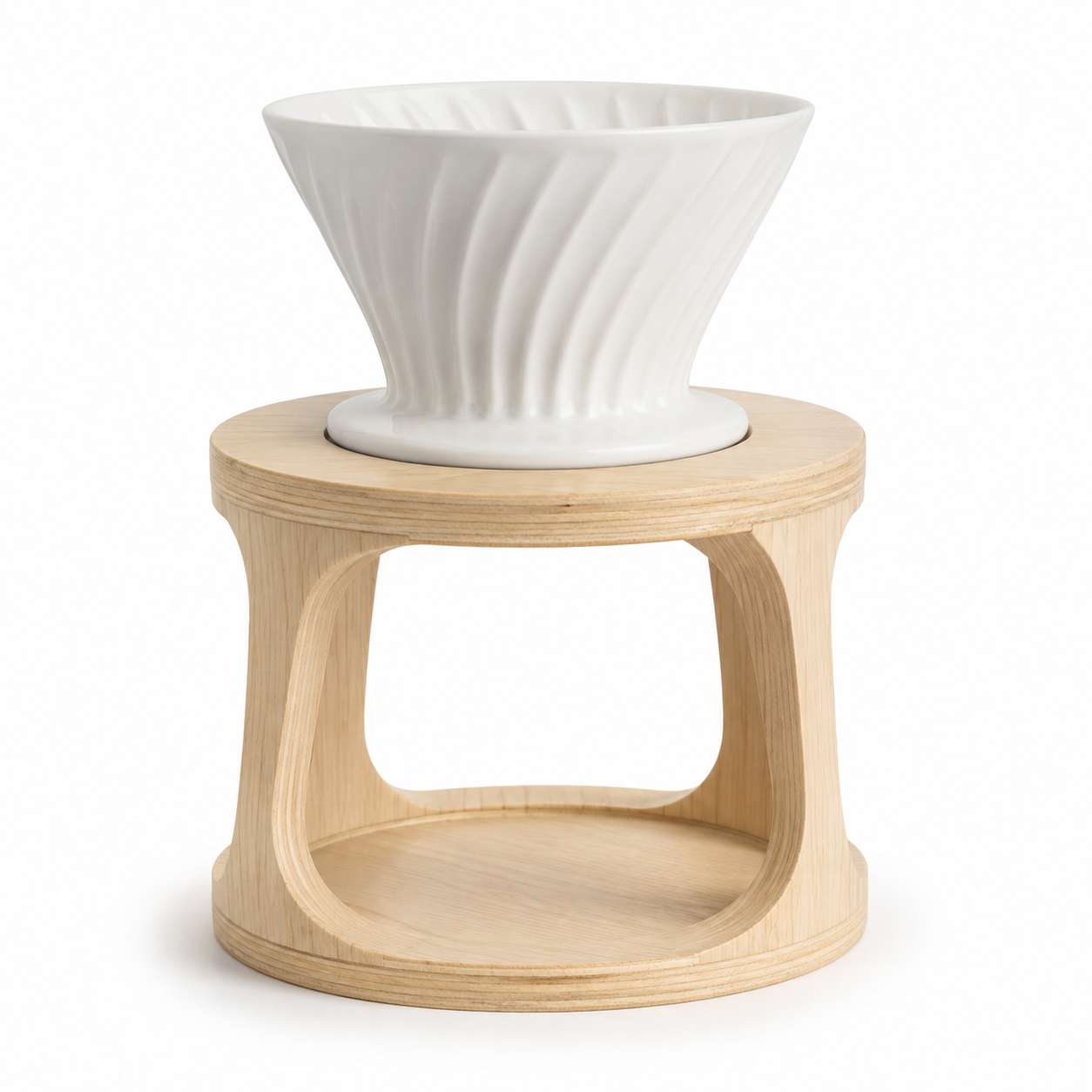 Prompt: "Professional e-commerce studio product photograph of a white ceramic pour-over coffee dripper with a light birch wood stand, centered, straight-on angle, on a seamless pure white background, soft even studio lighting, subtle natural shadow beneath the base, crisp focus, no text, no logo, no props, high-resolution commercial catalog photography."
From there, we fed that photo into qwen-image-3.0/image-to-image three times, once per scene, keeping the reference image identical and only changing the prompt.
Scene 1: Kitchen counter, morning light
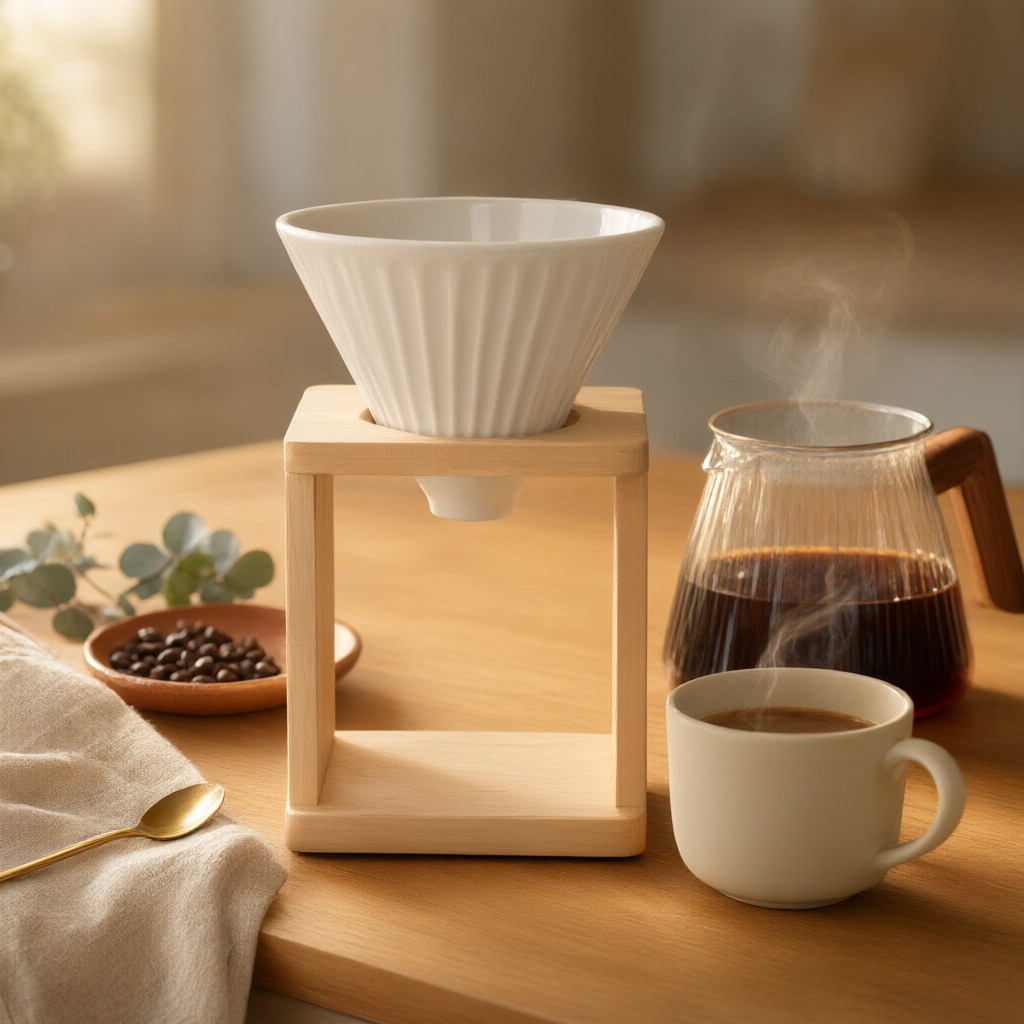 Prompt: "White ceramic pour-over coffee dripper with birch wood stand on a warm wooden kitchen countertop, morning light"
This is the everyday-use shot — the one that answers "what does this look like on my counter."
Scene 2: Café tabletop
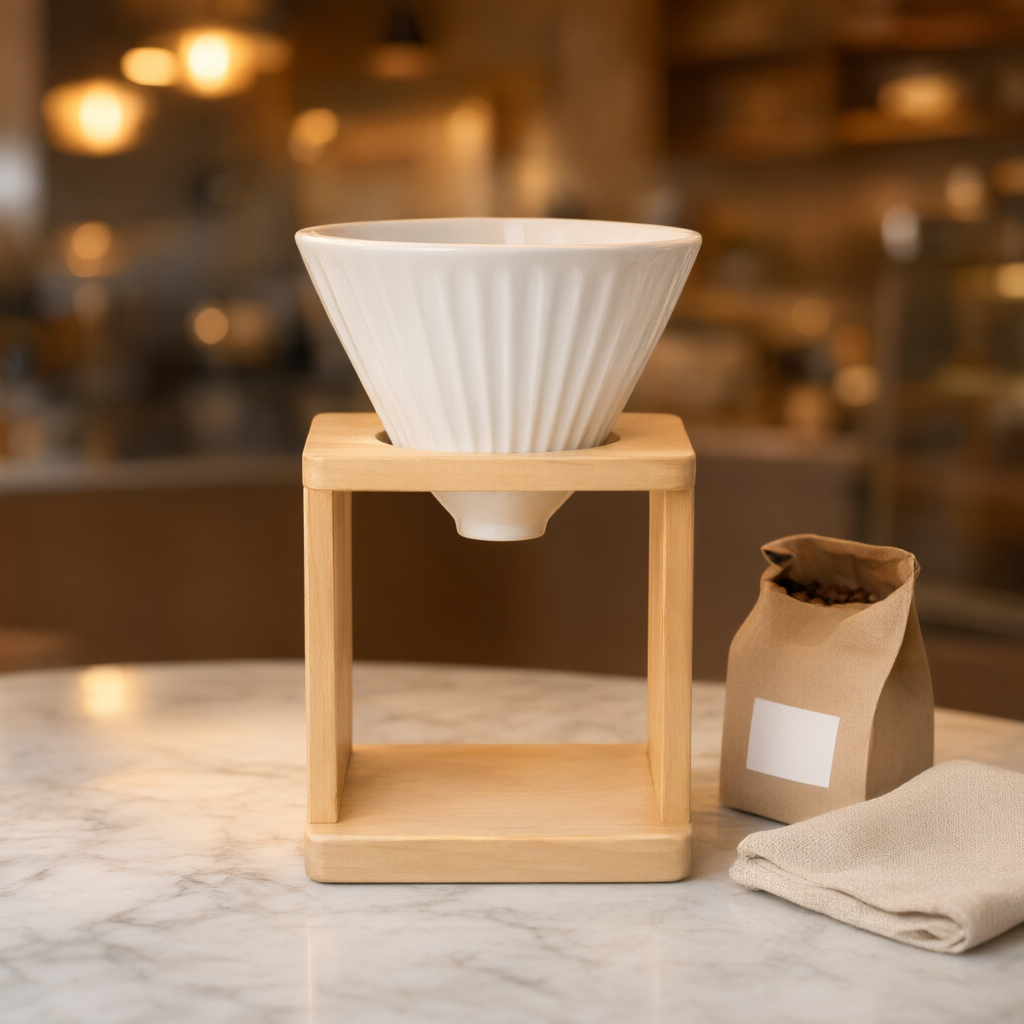 Prompt: "White ceramic pour-over coffee dripper with birch wood stand staged on a marble cafe counter"
A more editorial, aspirational setting for social ads or a homepage banner.
Scene 3: Holiday gift styling
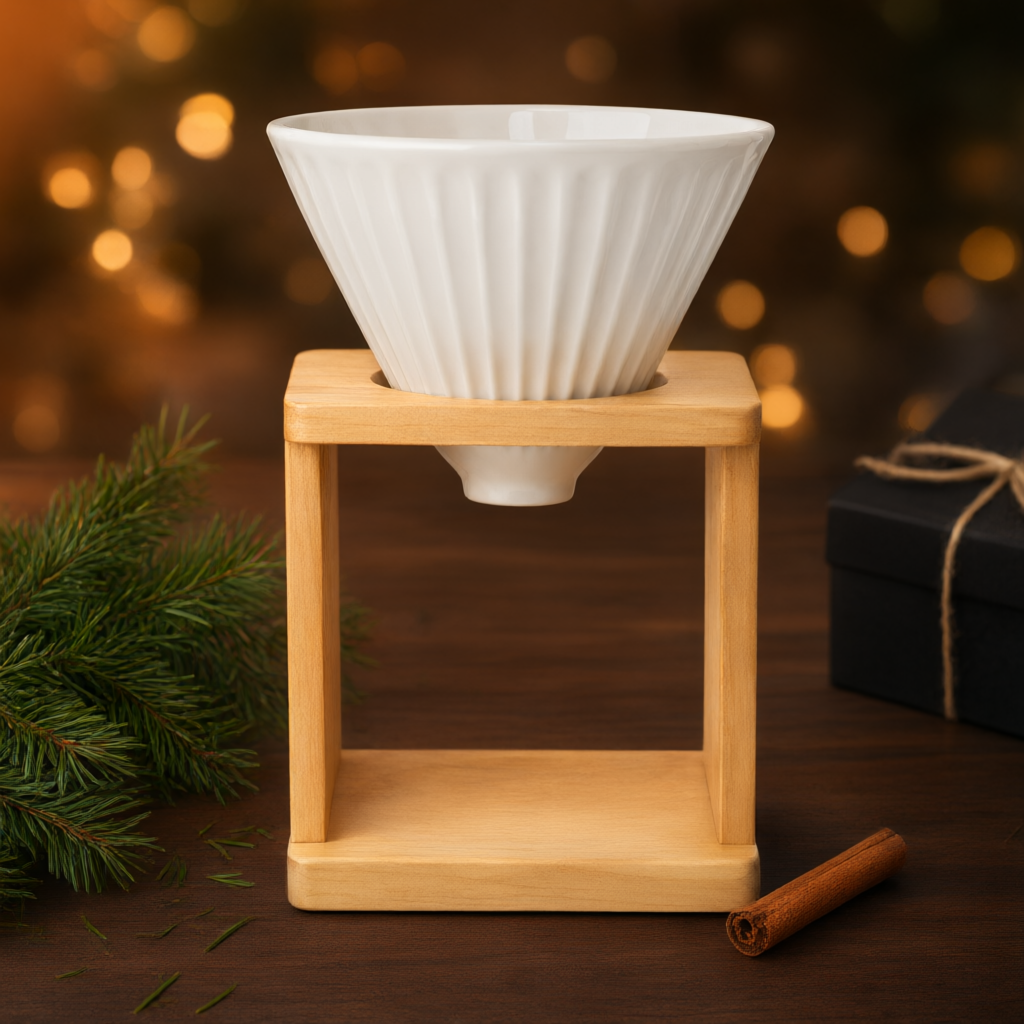 Prompt: "White ceramic pour-over coffee dripper with birch wood stand styled for a winter holiday gift photo"
Same product, seasonal framing — useful for a gift-guide listing without waiting for a holiday-specific shoot.
What the test actually showed
- Product identity held up across all three scenes. The dripper's shape, the birch stand, and the ceramic color stayed consistent — this is the property that matters most for e-commerce, since a mismatched product shot undermines buyer trust.
- Each edit took under a minute. All three scenes finished well within a typical single-digit-minute wait, so a small catalog of 20-30 products is a same-afternoon job, not a multi-day shoot.
- Prompt specificity beats prompt length. The prompts above are short on purpose — naming the material, the object, and the setting was enough. Vague prompts ("make it cozy") produced less predictable scene changes in our earlier scratch tests.
- One reference image was enough for this product. qwen-image-3.0/image-to-image accepts up to three reference images per call; for a simple hero object like this one, a single clean reference photo already gave consistent results, so we didn't need to spend the extra reference-image cost.
Base tier vs. Pro tier: which one to reach for
Both tiers work the same way — same references, same prompt structure — but the base tier is what we used for all three scenes above and it was consistently on-model. Reach for the Pro tier when a product has intricate materials (glass, patterned fabric, fine metal texture) or a busy composition where you're paying closer attention to material fidelity than to speed. On pricing (checked against hiapi's live pricing page): the base tier runs about $0.036 per image plus a small per-reference-image fee, and the Pro tier is roughly 40% more per image with the same per-reference fee — cheaper, either way, than a reshoot.
Scaling this to a full catalog
The point of image-to-image here isn't one photo — it's turning one base shot into a whole scene library. The pattern is a simple loop: keep the reference image fixed, iterate the prompt.
import os
import requests

API_BASE = "https://api.hiapi.ai/v1/tasks"
TOKEN = os.environ["HIAPI_API_KEY"]

def edit_scene(base_image_url: str, scene_prompt: str) -> str:
    resp = requests.post(
        API_BASE,
        headers={"Authorization": f"Bearer {TOKEN}"},
        json={
            "model": "qwen-image-3.0/image-to-image",
            "input": {"prompt": scene_prompt, "image_urls": [base_image_url]},
        },
        timeout=60,
    )
    task_id = resp.json()["data"]["taskId"]

    while True:
        task = requests.get(
            f"{API_BASE}/{task_id}",
            headers={"Authorization": f"Bearer {TOKEN}"},
            timeout=30,
        ).json()["data"]
        if task["status"] == "success":
            return task["output"][0]["url"]
        if task["status"] == "fail":
            raise RuntimeError(task["error"])

base_photo = "https://your-cdn.example.com/products/dripper-base.jpg"
scenes = [
    "on a warm wooden kitchen countertop, morning light",
    "staged on a marble cafe counter",
    "styled for a winter holiday gift photo",
]
for scene in scenes:
    url = edit_scene(base_photo, f"White ceramic pour-over coffee dripper with birch wood stand {scene}")
    print(url)  # download immediately — output URLs expire
Swap in your own product photo and a list of scene descriptions, and the same loop produces a full lifestyle set per SKU. Each output URL is temporary, so download and store it (your own CDN, or wherever your catalog images live) as soon as the task finishes.
FAQ
Can I use a photo I already have as the reference, or does it need to be studio-shot? A clean, well-lit photo works best because the model preserves what it sees — a cluttered or poorly lit reference carries that clutter into every scene. A plain-background studio shot, like the one used in this test, gives the most predictable results.
How many reference images should I send per call? qwen-image-3.0/image-to-image accepts 1-3. For a single hero object, one reference was enough in our test. Multiple references are more useful when you need the model to reconcile a product from several angles at once.
Will it keep my logo or label text intact? Small printed text and logos are the hardest thing for any image model to preserve exactly across an edit. Treat this workflow as reliable for shape, color, and material — and manually double-check any label or logo text on the output before publishing, same as you would for any AI-generated image (hiapi's image-to-image comparison covers this trade-off across other models too).
Does this replace product photography entirely? No — you still need one solid base photo per product. What it replaces is the second, third, and fourth shoot for every lifestyle variant you want.
What if a scene comes out wrong? Re-run the same prompt — outputs aren't identical run to run — or tighten the prompt with more specific staging detail, the way each scene prompt above names a specific surface and light condition rather than a vague mood.
Key takeaways
- One studio product photo plus qwen-image-3.0/image-to-image produced three distinct, on-model lifestyle scenes without a second photoshoot.
- Product identity (shape, material, color) stayed consistent across all three scenes in this test.
- Short, specific prompts — naming the object and the setting — outperformed vague mood-based prompts.
- A single reference image was enough for a simple hero object; save the extra reference-image fee unless the product needs multi-angle reconciliation.
- The same loop pattern scales linearly: one base photo and a list of scene prompts produces a full lifestyle set per SKU.
Ready to try it on your own catalog? Start from the qwen-image-3.0/image-to-image model page to test a scene edit on your own product photo, or see how it stacks up against other editing models in hiapi's image-to-image roundup.