Why product photography is the easiest win here
Most teams trying an image model for e-commerce start with a hero shot and stop there. The more useful workflow is two steps: generate a clean studio product shot first, then feed that exact image back into the model to produce a lifestyle variant — same product, same shape and color, different setting. seedream-5.0-flash on hiapi supports both in one API: plain text-to-image for the studio shot, and image-to-image editing (image + prompt) for the lifestyle remix, through the same POST /v1/tasks call.
This post walks through both calls against a real product (a ceramic pour-over coffee dripper), with the exact prompts and the two images they produced.
Step 1: the studio product shot (text-to-image)
The brief: white background, even lighting, enough negative space for a listing page to drop text on later. No reference image needed — this is a plain prompt + size call.
curl -X POST https://api.hiapi.ai/v1/tasks \
  -H "Authorization: Bearer sk-<your-key>" \
  -H "Content-Type: application/json" \
  -d '{
    "model": "seedream-5.0-flash",
    "input": {
      "prompt": "Professional e-commerce product photography of a matte charcoal-grey ceramic pour-over coffee dripper with a light wooden collar, placed on a seamless soft white studio backdrop, three-point softbox lighting with gentle reflections, slight 3/4 angle, sharp focus on surface texture, no text, no logos, no watermark, wide 16:9 composition with generous negative space on the right side.",
      "size": "2K"
    }
  }'
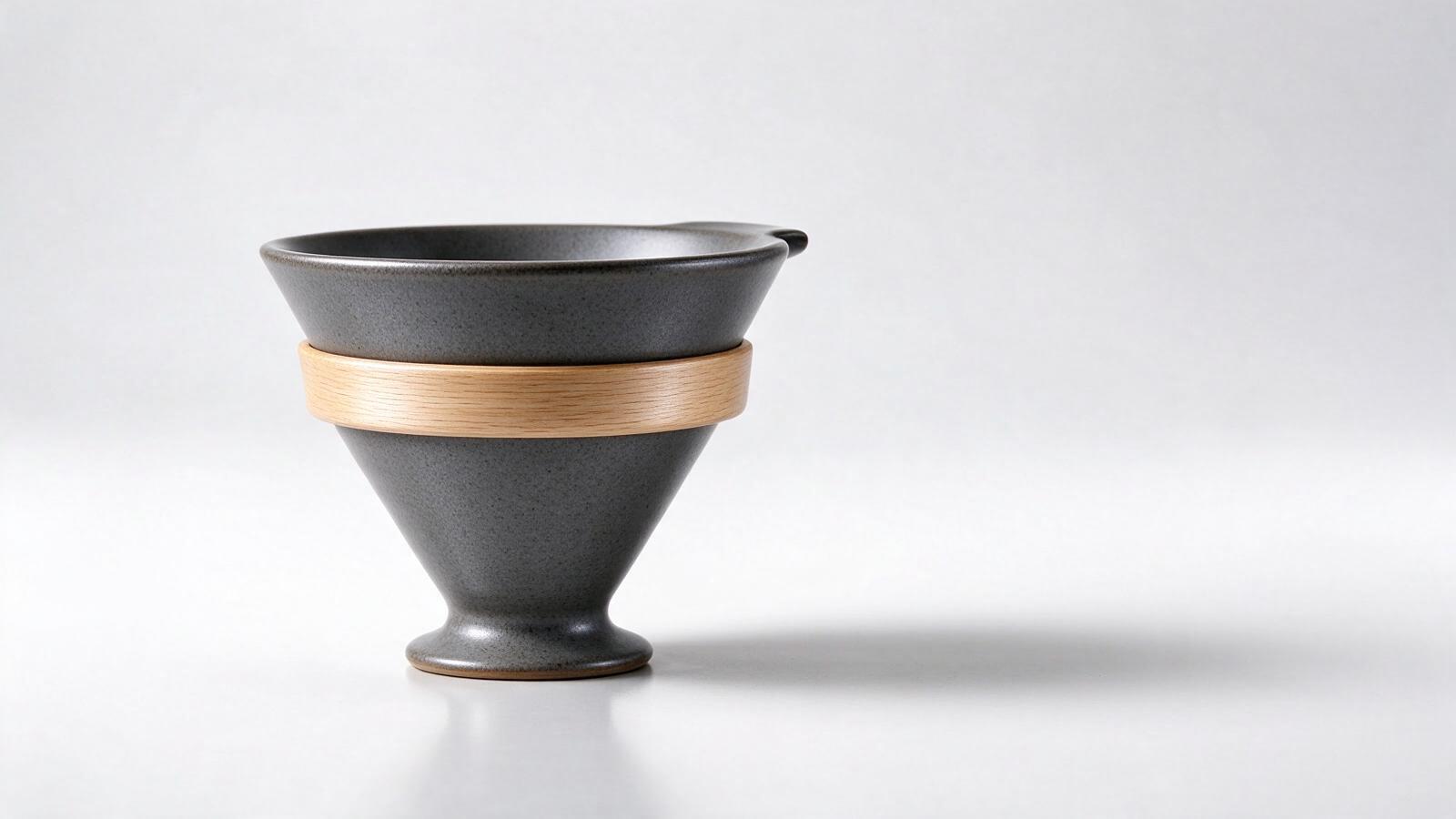
That's the exact prompt used to generate the image above — copy it as a starting template and swap in your own product description. The result came back as a single output[0].url after polling GET /v1/tasks/{id} until status reached success; download it immediately, since task output URLs expire.
Step 2: reusing the same shot for a lifestyle scene (image-to-image)
Instead of generating a second product from scratch, pass the studio shot's URL back in as the image field alongside a new prompt. The model keeps the product's shape, color and material consistent while changing everything around it:
curl -X POST https://api.hiapi.ai/v1/tasks \
  -H "Authorization: Bearer sk-<your-key>" \
  -H "Content-Type: application/json" \
  -d '{
    "model": "seedream-5.0-flash",
    "input": {
      "prompt": "Using this exact ceramic pour-over coffee dripper as the subject, keep the product'"'"'s shape, color and material identical, but place it on a rustic light-oak wooden kitchen counter next to a folded linen napkin and a small glass of steaming coffee, soft morning window light from the left, shallow depth of field, lifestyle e-commerce photography style, no text, no logos, no watermark.",
      "image": "https://static.hiapi.ai/blog/seedream-5-0-flash-ecommerce/cover.jpg",
      "size": "1600x900"
    }
  }'
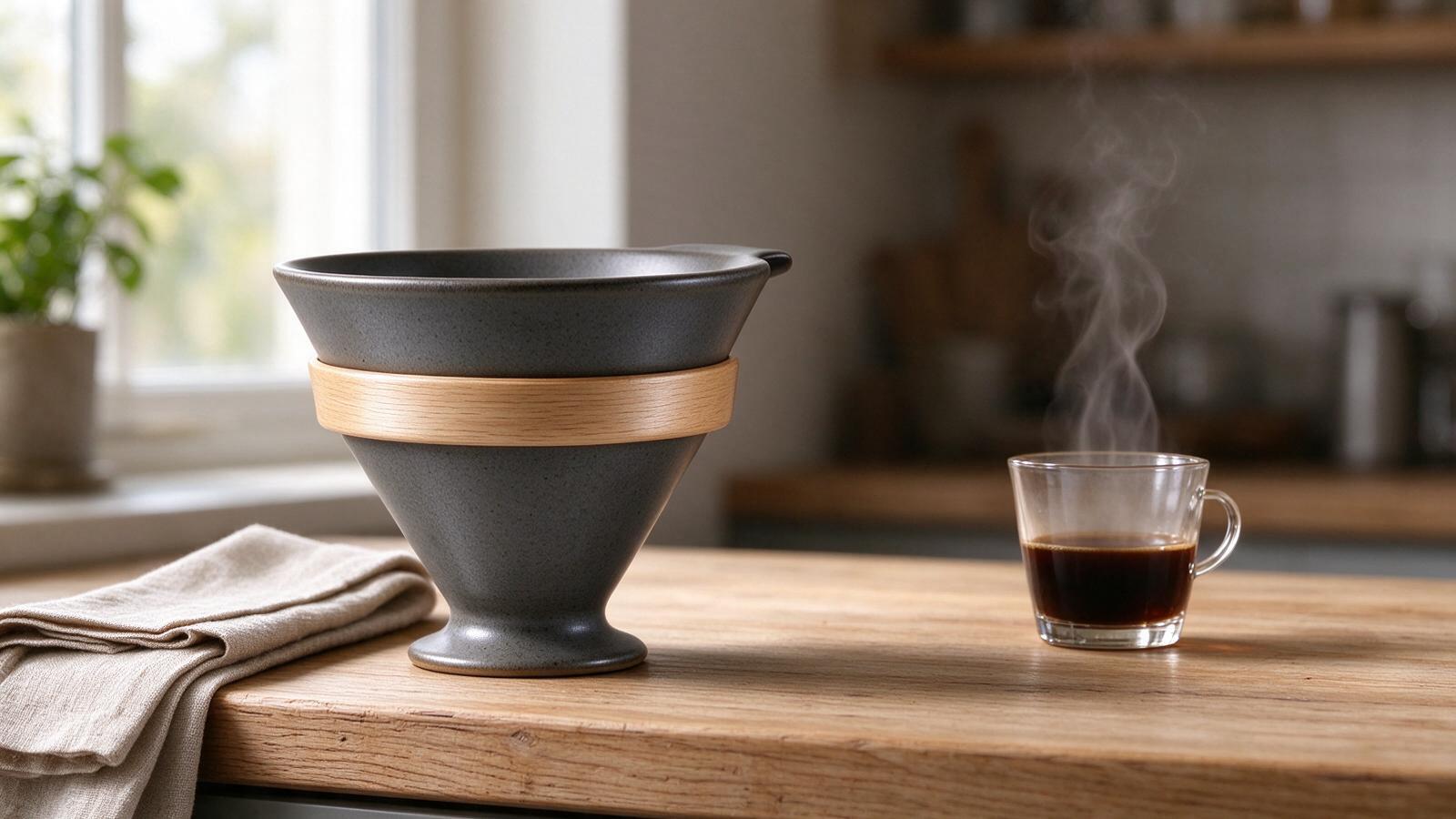
One thing worth flagging from testing this end-to-end: the image field needs to be a real, publicly reachable URL. A base64 data URI in the same field produced an opaque TASK_FAILED error on this model — upload the source image somewhere fetchable first, then pass its URL. That one swap was the difference between a failed task and the lifestyle image above.
A second edge case to know about before you plan around it: background: "transparent" (the parameter for cutting a product out to a clean PNG with no backdrop) consistently failed with TASK_FAILED task result could not be confirmed; contact support to verify billing status across several retries — with a base64 image, a URL string, and a URL wrapped in an array. If you need an isolated product cutout today, treat that specific mode as unreliable on this model and verify it yourself before depending on it in a pipeline; everything else in this guide (plain text-to-image and standard image-to-image edits) worked as documented.
What this costs at scale
seedream-5.0-flash is priced at $0.025 per image, flat, regardless of whether the call is text-to-image or image-to-image — check hiapi's pricing page for the current rate before budgeting a larger catalog run. For a product catalog, that means one studio shot plus three or four lifestyle variants per SKU lands under $0.15 in generation cost, before you factor in any human review pass.
FAQ
Can I generate a transparent-background product cutout with seedream-5.0-flash?
In testing, the background: "transparent" option failed consistently regardless of how the input image was passed. Standard opaque-background generation and image-to-image edits both work normally — the transparent-background path specifically is the one to verify yourself before relying on it.
Does the lifestyle image use the same product, or does the model redraw it?
It reuses the product from the first image as a visual reference via the image input, so the shape, color and material stay consistent — only the surrounding scene (surface, props, lighting) changes based on the new prompt.
Why did my image-to-image call fail with a base64-encoded image?
seedream-5.0-flash's image input is more reliable with a plain, publicly reachable URL than with a base64 data URI. Upload the source image first, then reference it by URL.
How is this different from just using a bigger text-to-image prompt for the lifestyle shot?
Describing the product from scratch in a second prompt risks subtle drift in shape, color or proportions between the two images. Feeding the actual generated image back in as image keeps the product itself fixed while only the scene around it changes.
Try it yourself
Check seedream-5.0-flash's current pricing and try it directly from the model page, or see how it stacks up against other options in our comparison of AI tools for e-commerce product images.