Each clip below is a real OmniHuman 1.5 output; in every case a recorded audio track sets the words and the length.
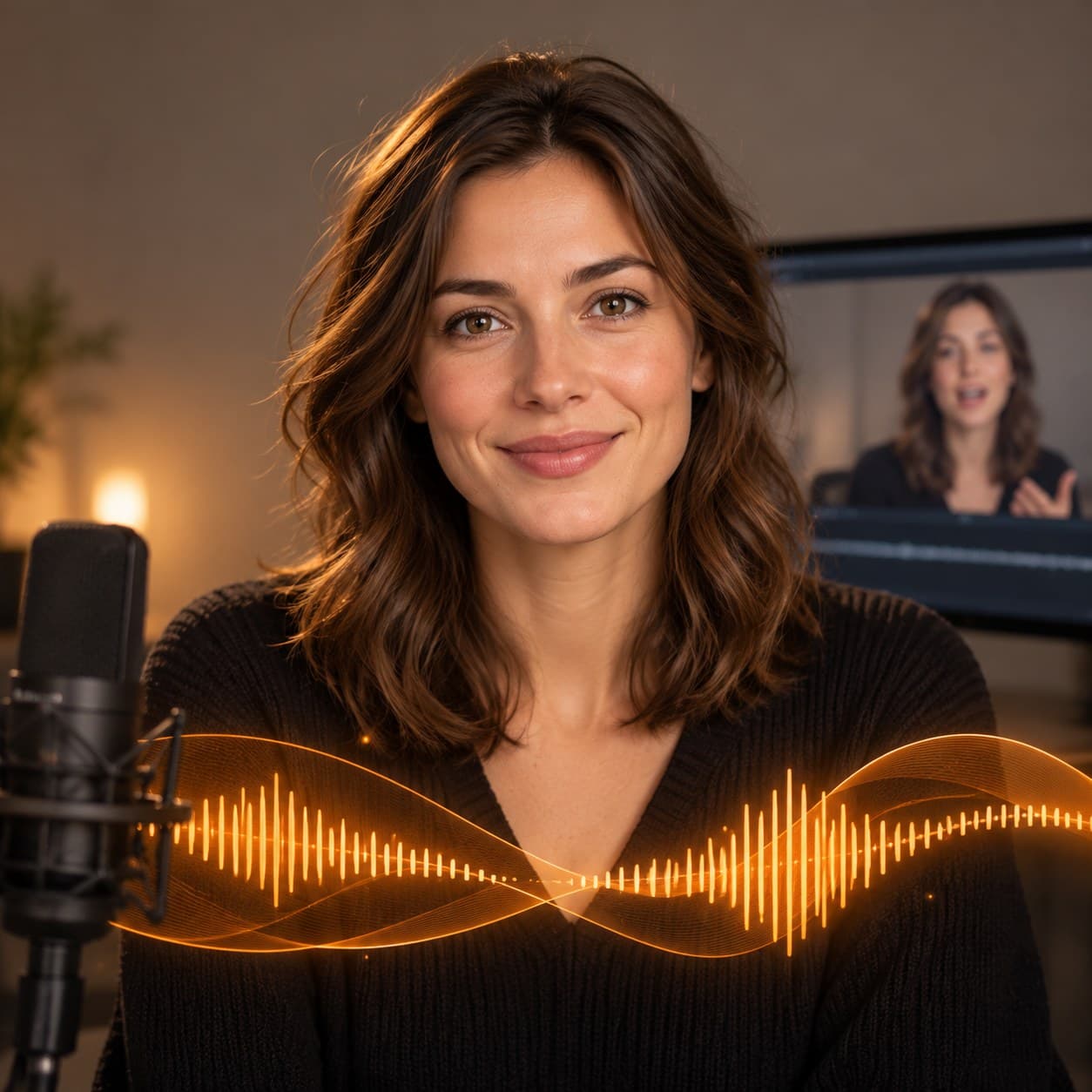
1. Landscape presenter: a product walkthrough
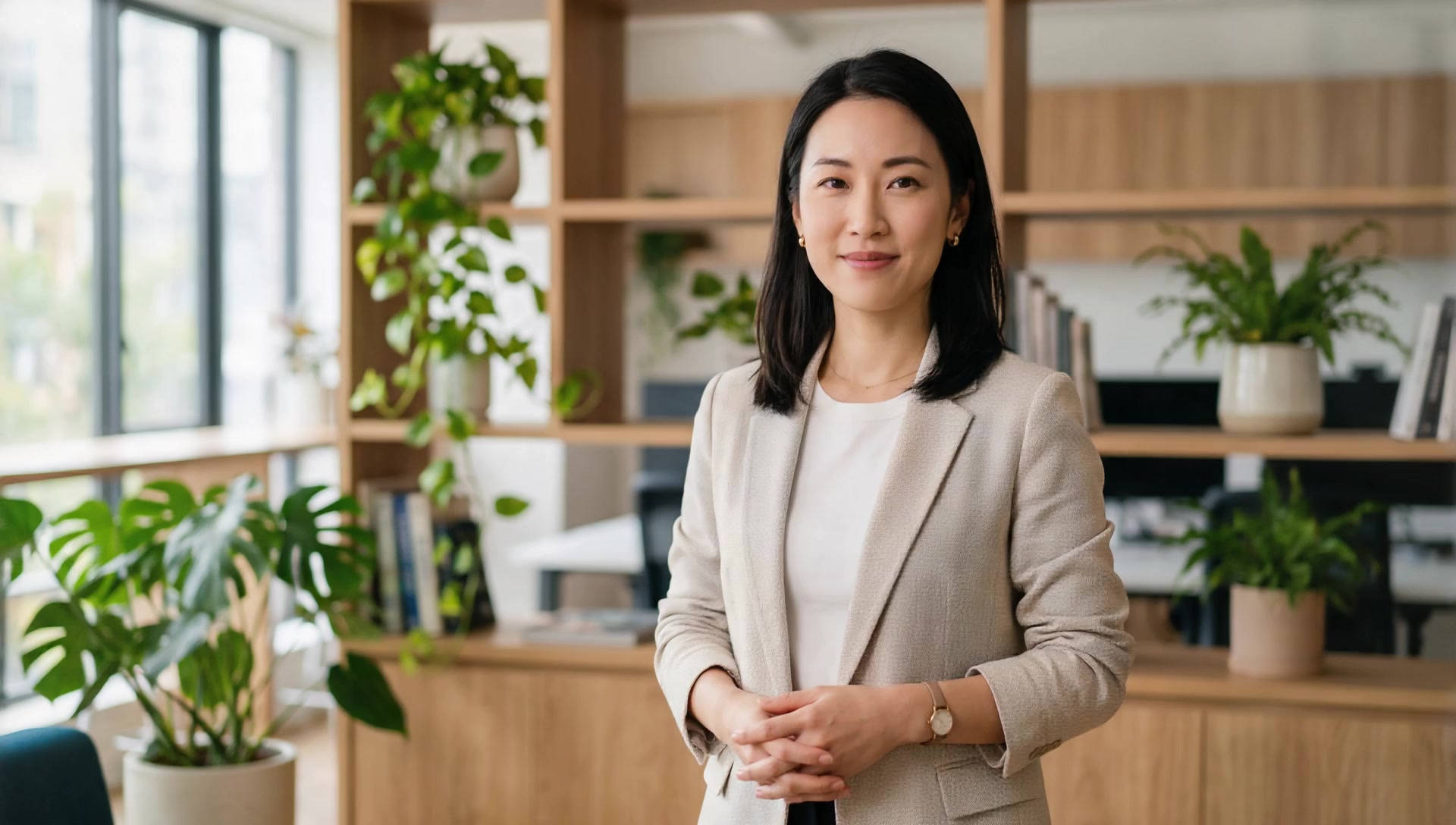
Settings: 16:9 landscape half-body portrait · 1080p · 8 seconds · $1.544 · Watch the MP4 →
Notice that the hands open on the feature line and the nods fall between phrases instead of landing on every word.
自然地微笑讲话,说到功能时双手轻轻打开做手势,偶尔点头
Three clauses cover three layers: expression, one gesture tied to a moment in the script, and a small "occasionally" motion that keeps the head from freezing. Nothing describes the voice, because the audio already carries it.
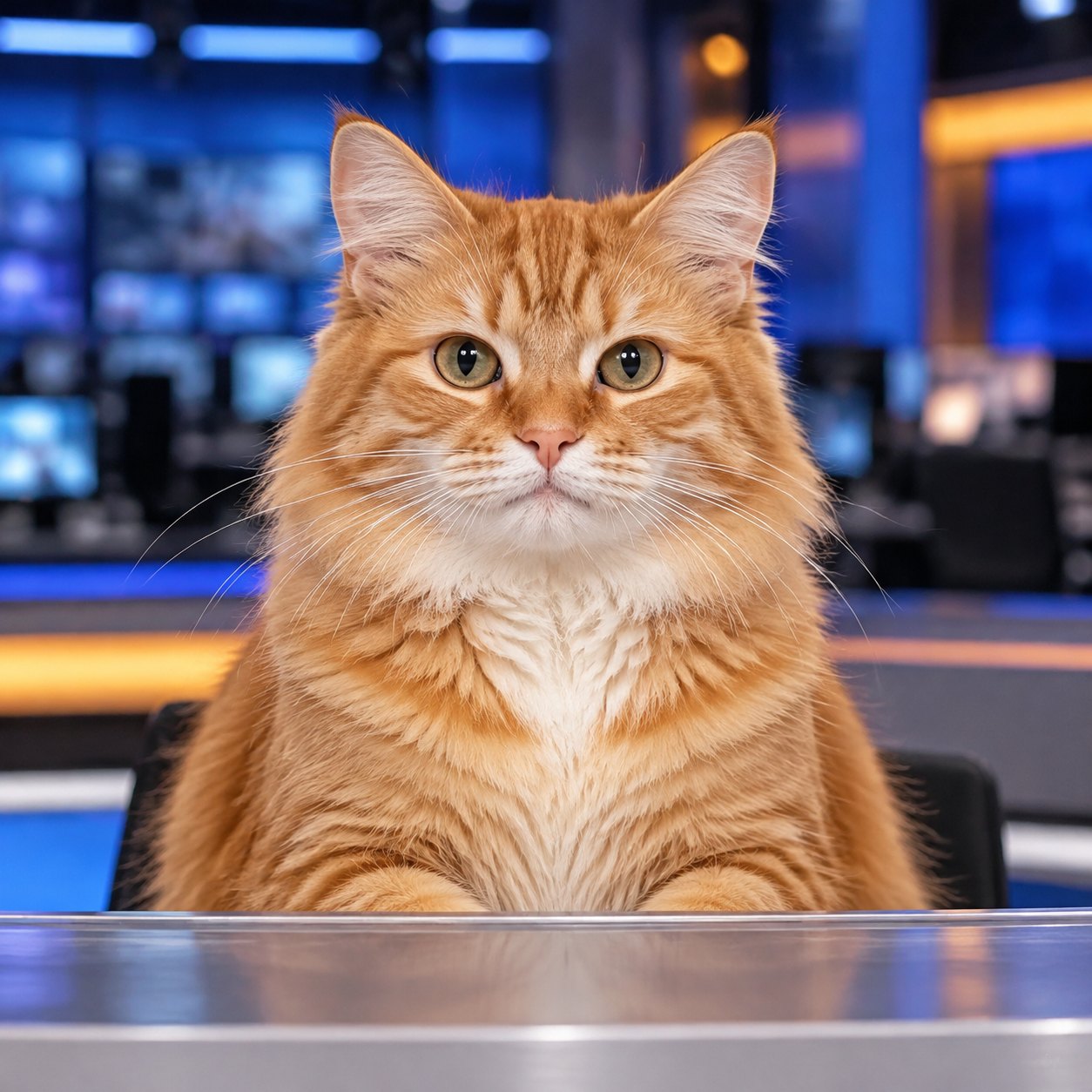
2. Cat anchor: a 1:1 news desk
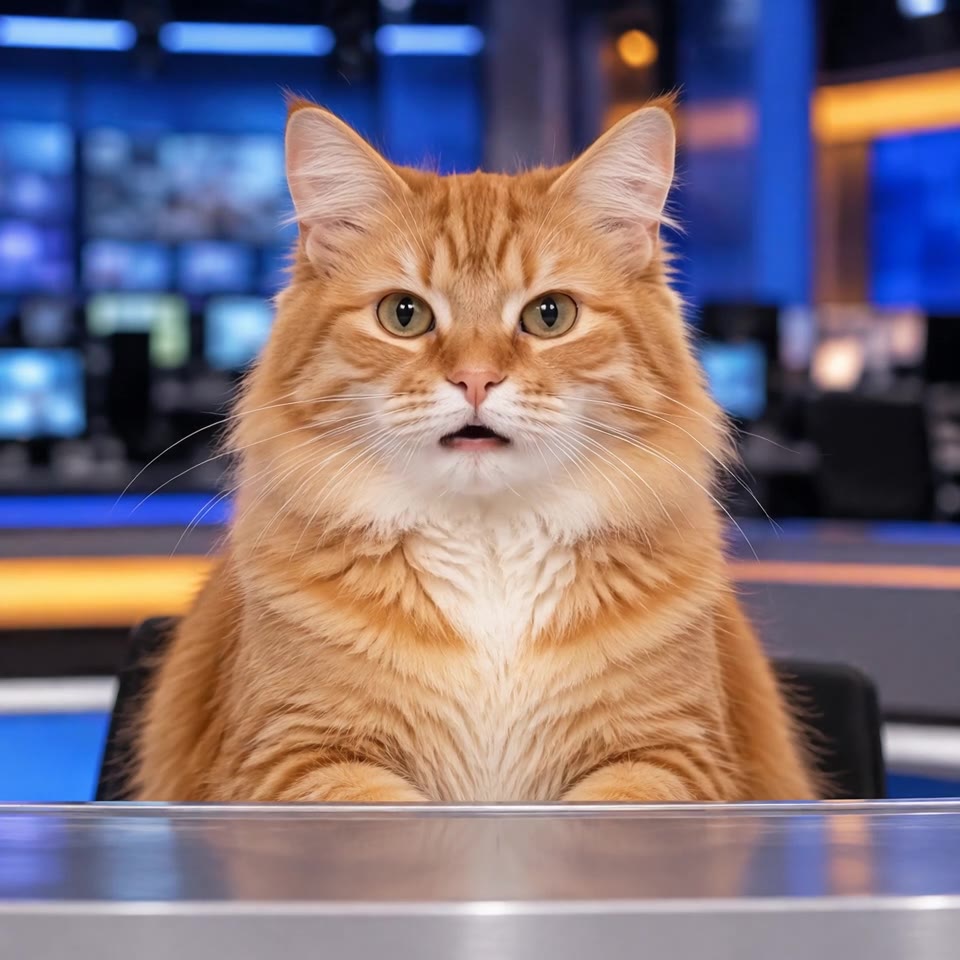
Settings: 1:1 portrait · 720p · 8 seconds · $1.544 · Watch the MP4 → Input portrait: cat-anchor-input.jpg
The cat holds eye contact with the lens for the whole read, and the motion stays on the face: ears and blinks instead of hands.
对着镜头自然地播报新闻,说话时耳朵轻动,偶尔眨眼
This keeps the grammar of a human presenter prompt and swaps the gesture vocabulary for what a cat can do. The opening phrase pins the gaze on camera, and "naturally" keeps the news cadence from turning stiff.
3. Full-body gesture: a 9:16 explainer
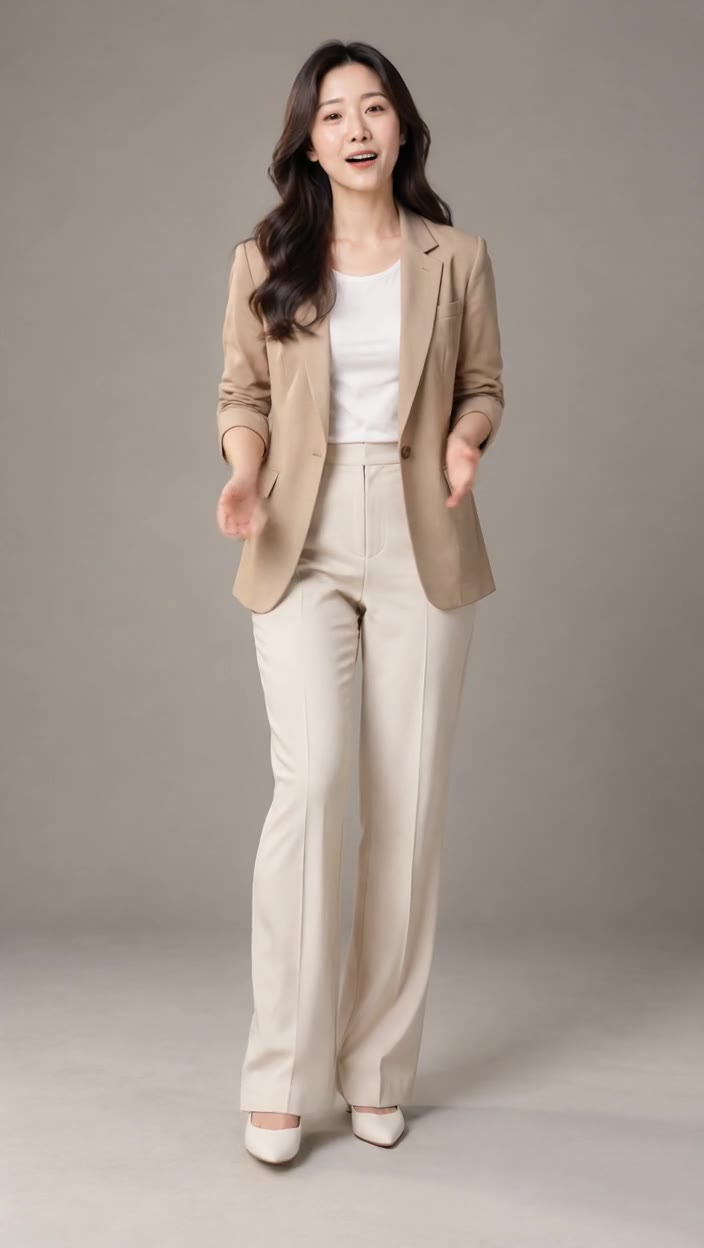
Settings: 9:16 full-body portrait · 720p · 8 seconds · $1.544 · Watch the MP4 →
In a full-body frame the hands have room, so the same three beats read as a person explaining rather than a talking head.
自然微笑讲话,双手随着讲解轻轻打开做手势,偶尔点头
The phrase for "as you explain" ties the hand movement to the explanation instead of a fixed loop, and the occasional nod adds a slower secondary motion in the head so the upper body does not lock up.
4. English intro: the same portrait, a different language
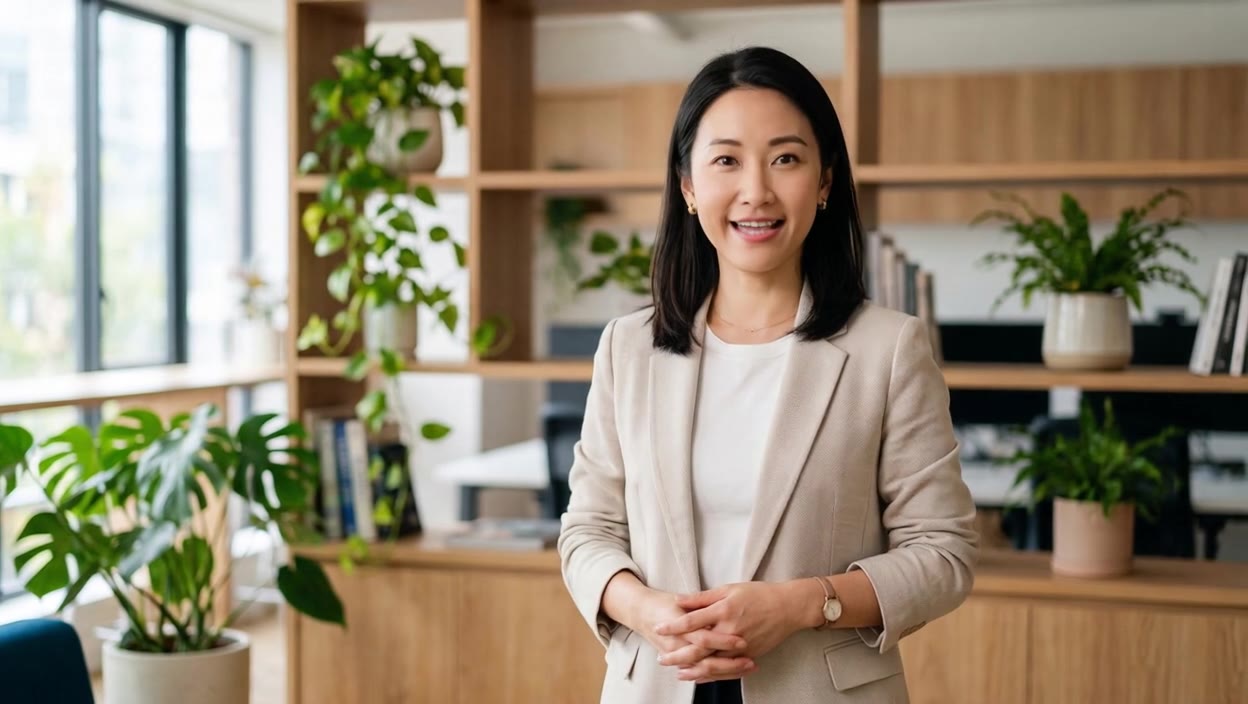
Settings: 16:9 landscape portrait, the same photo as case 1 · 720p · 7.5-second audio, billed as 8 seconds · $1.544 · Watch the MP4 →
The delivery is faster than the Chinese read, and the three beats still land: a slight smile, hands opening at the point, an occasional nod.
Speak naturally to camera with a slight smile, open your hands when making a point, and nod occasionally.
Nothing in the prompt mentions language; it names motion only, and the same three beats transfer from the Chinese audio to an English one on the same portrait.
5. Masked group shot: one speaker in a three-person frame

Settings: 16:9 three-person meeting photo · mask the same size, left man in white · 720p · 8 seconds · $1.544 · Watch the MP4 → Inputs: meeting photo · mask
The mask decides who is allowed to speak; the prompt gives the other two people something to do with their faces.
只有左侧的男士开口说话,中间和右侧的两位保持微笑聆听,身体轻微自然移动
The first clause restates the mask in words, and the second hands the middle and right people a job: smile, listen, move slightly. The frame stays alive without anyone competing for the line.
How to write your own
- Lead with expression, then gesture, then camera; one clause each is enough.
- Stay under 300 characters, in any of Chinese, English, Japanese, Korean, Spanish or Indonesian, and trim the audio first because the audio sets the clip length.
- For group shots, paint the mask before you write the prompt, then say who speaks and what everyone else does.
Choose a portrait close to your own footage, pair it with a recording of 15 seconds or less, and paste one of the prompts above. Open the OmniHuman 1.5 model page →
Related: OmniHuman 1.5 pricing · vs HeyGen Avatar IV · API getting-started guide