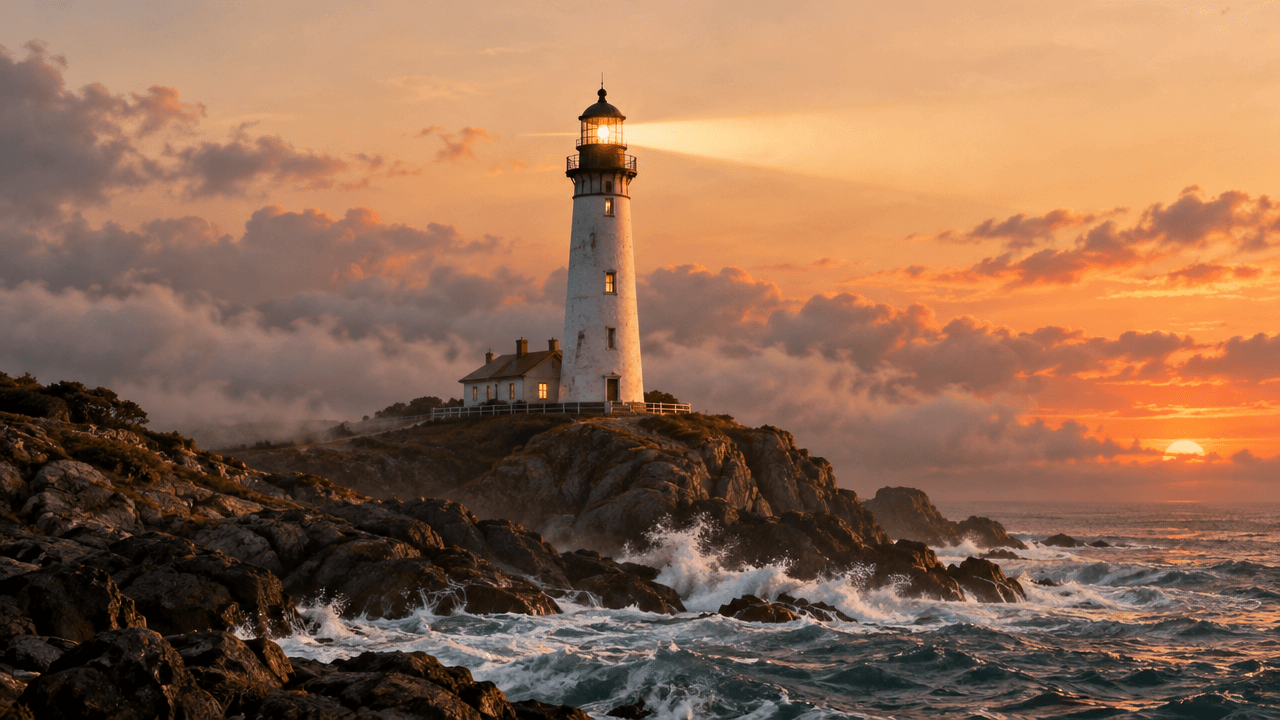
GPT Image 2.5 Sunburst is one of the sharper models on hiapi.ai for photorealistic product shots, macro detail, on-image text, and precise localized edits. Below are seven prompts we wrote and ran ourselves, each shown next to its real, unmodified output. Copy any of them, swap in your own product or scene, and adjust from there.
Every image below was generated at the medium quality tier ($0.0672 per output image) — the tier that gives the best balance of cost and fidelity for prompt experimentation. Full pricing and parameters live on the GPT Image 2.5 Sunburst model page.
Recipe 1: Studio Product Photography
A clean, centered product shot on a seamless backdrop — the default look most e-commerce listings need.
A photorealistic square studio product photograph of one matte charcoal-gray ceramic pour-over coffee dripper with a matching wooden collar, centered on a warm beige seamless backdrop. Soft diffused overhead studio lighting with a gentle gradient shadow beneath the dripper. Extremely sharp focus on the ceramic texture, no text, no logo, no props, professional e-commerce product photography style.
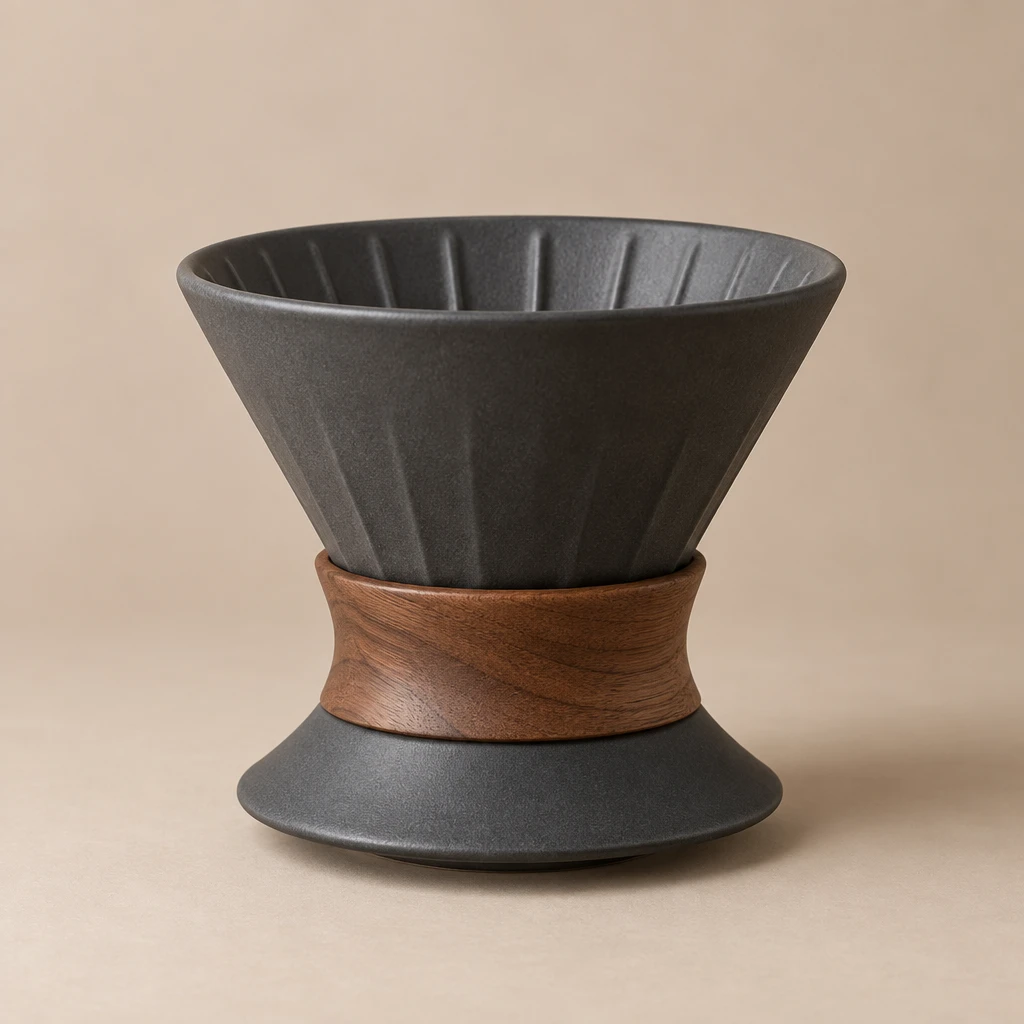
The pattern to reuse: describe the product's exact material and color, name the backdrop color, and spell out the lighting setup ("soft diffused overhead" reads very differently from "hard side light"). Ending with a style tag like "professional e-commerce product photography style" keeps the model from drifting into an illustrative look.
Recipe 2: Extreme Macro Texture
Macro shots sell texture — useful for food, materials, cosmetics, or anything where surface detail is the selling point.
An extreme macro photograph of raw honeycomb with amber honey pooling in a few open cells, shot at a slight diagonal angle. Warm golden backlighting makes the honey glow translucent, fine texture of the wax visible in sharp focus, shallow depth of field blurring the background into soft warm bokeh. Photorealistic, no text, no hands, no jar.
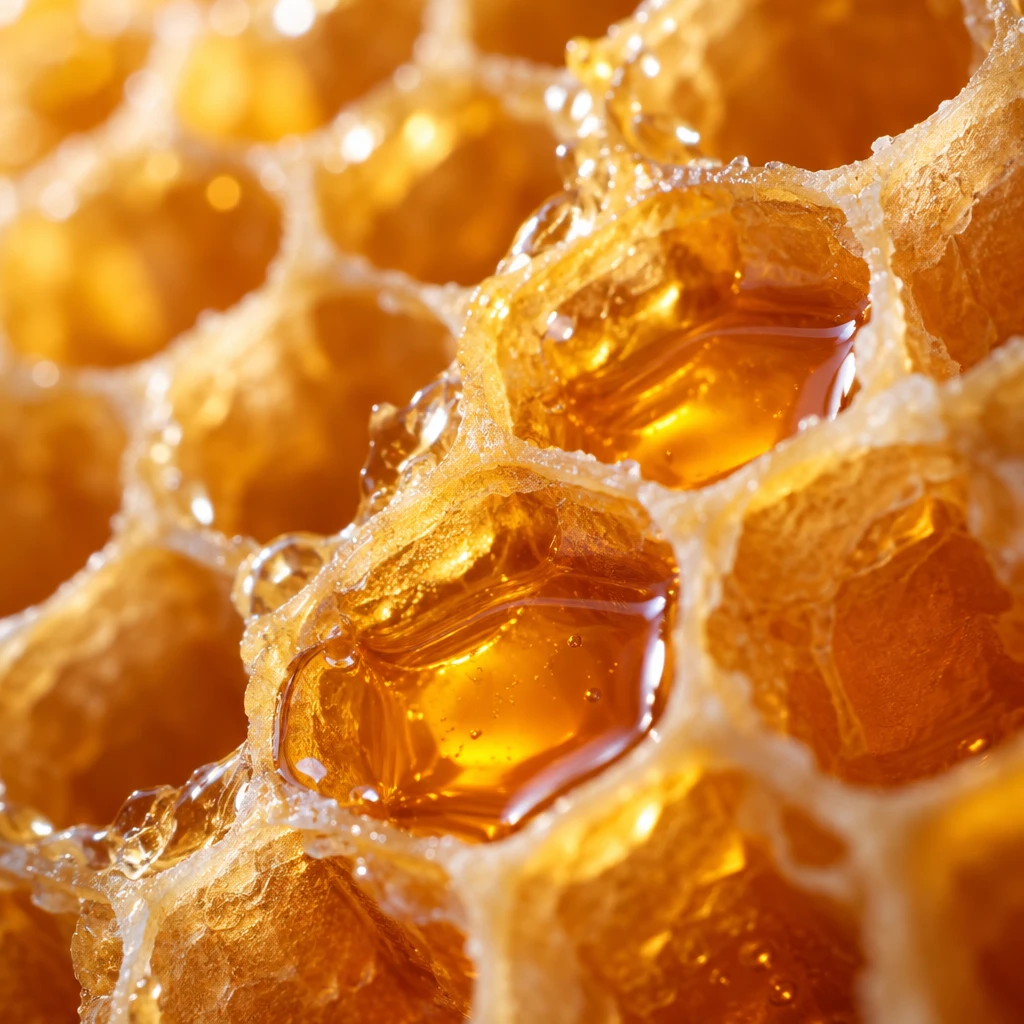
Naming the light direction ("backlighting") and the exact optical effect you want ("shallow depth of field," "soft warm bokeh") does more work than piling on adjectives. Macro prompts also benefit from telling the model what to leave out — here, no hands and no jar keep the frame focused purely on texture.
Recipe 3: Text-in-Image Product Poster
Sunburst renders on-image text cleanly, so you can generate a near-finished marketing asset in one pass instead of bolting text on in post.
A clean square English-language product launch poster on a soft cream paper background. Center-left: one minimalist amber glass dropper bottle for skincare serum, photorealistic, with a small blank label (no text on the bottle itself). Large bold dark-green headline text at the top reading exactly "NIGHT REPAIR SERUM" in a modern sans-serif font. Smaller subheading below it reading exactly "Small Batch. Cold Pressed." Bottom corner small text reading exactly "LAUNCHING OCT 1". All text must be crisp, correctly spelled, and evenly kerned.
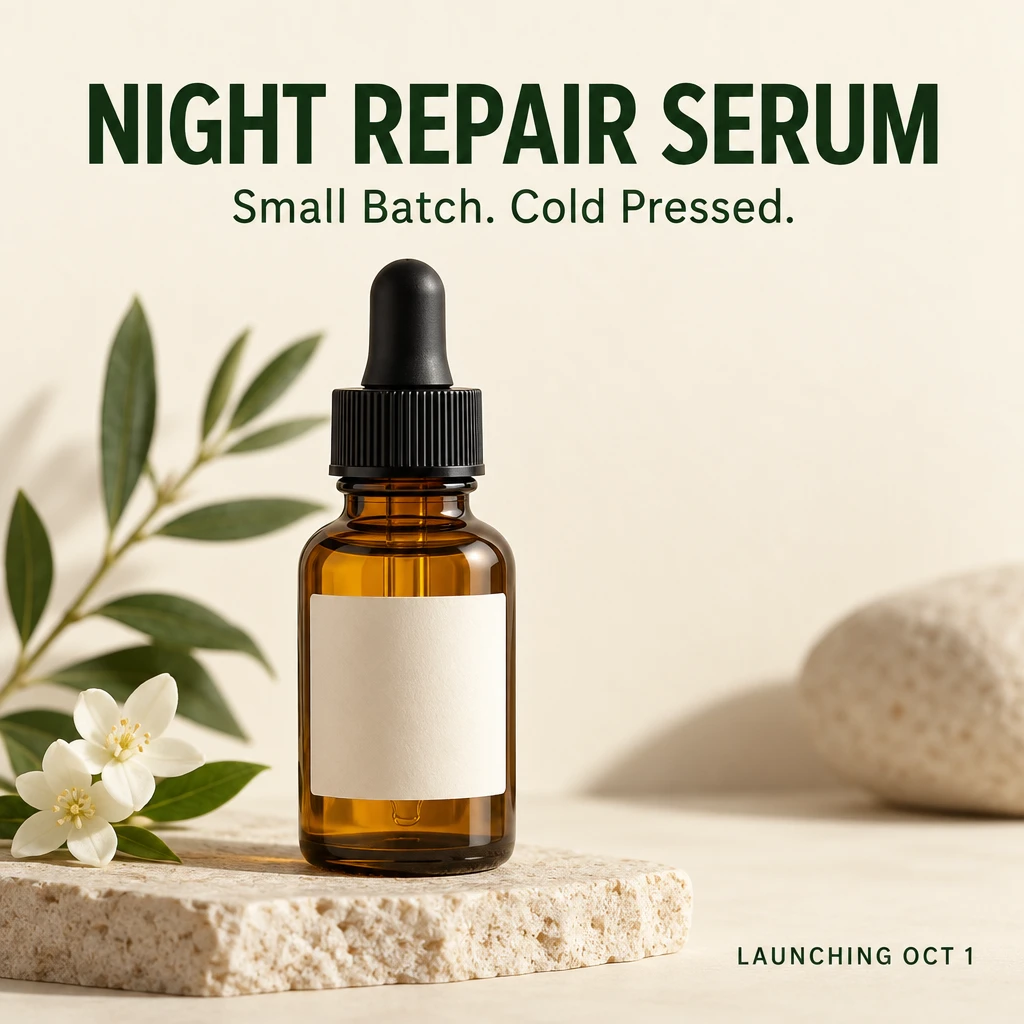
The key move for text prompts: quote the exact copy you want in the output (reading exactly "..."), and separate headline, subheading, and fine print into their own sentences. We checked every character in this output against the prompt before publishing — always proofread generated text the same way before you ship it, since even a strong text-rendering model occasionally misspells a word or crowds a letter.
Recipe 4: Lifestyle / Environmental Staging
Once you have a clean product shot, the same product usually needs a lifestyle version for social or landing pages.
A photorealistic square lifestyle photograph of a matte charcoal-gray ceramic pour-over coffee dripper with a wooden collar, placed on a sunlit wooden kitchen windowsill next to a folded linen towel and a small glass of water, morning light streaming in at a low angle casting long soft shadows, shallow depth of field, warm and inviting mood, photorealistic, no text, no people.
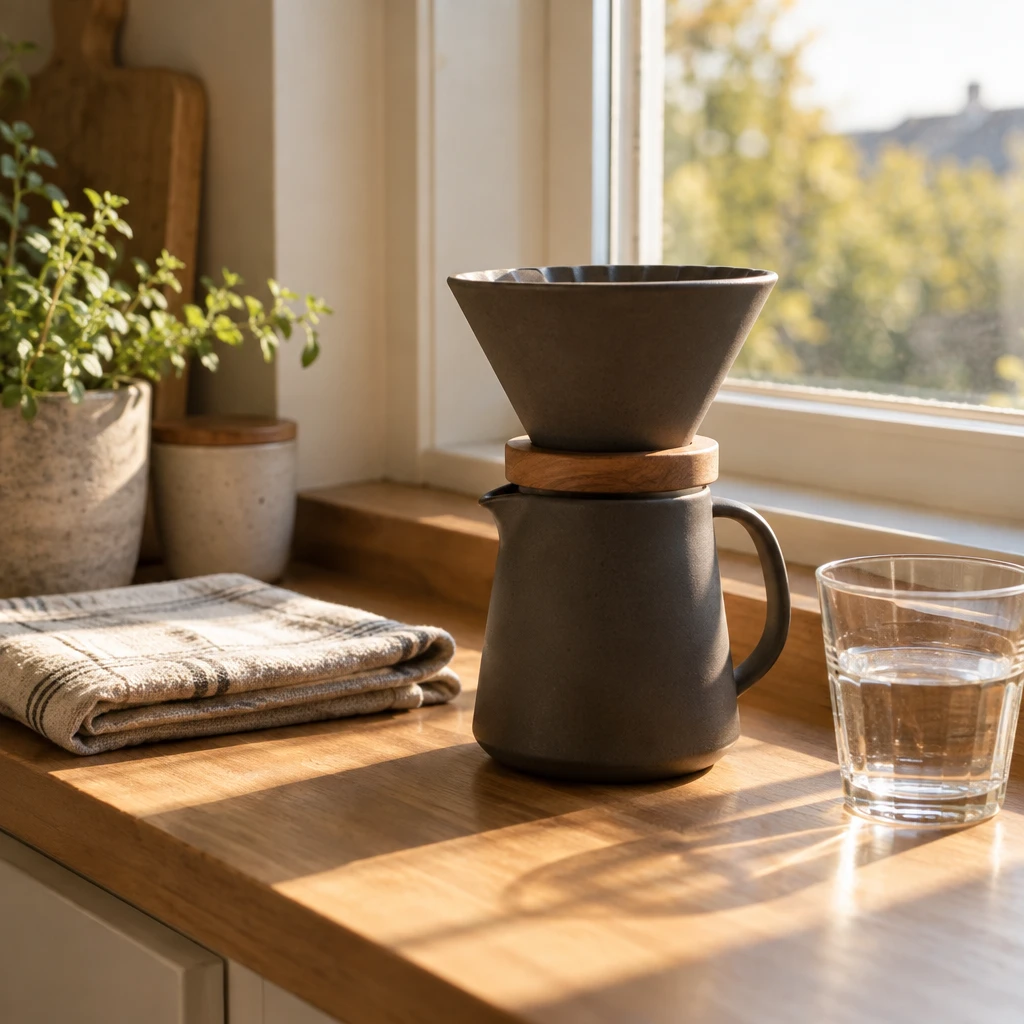
Notice this prompt reuses the exact same product description from Recipe 1 ("matte charcoal-gray ceramic pour-over coffee dripper with a wooden collar") and only changes the setting, light, and mood. Keeping the product description word-for-word identical across prompts is the easiest way to get a consistent-looking product across a whole shoot.
Recipe 5: Precise Image-to-Image Edits
Sunburst can also edit an existing photo instead of generating from scratch — useful when you need to change one detail without re-shooting everything else.
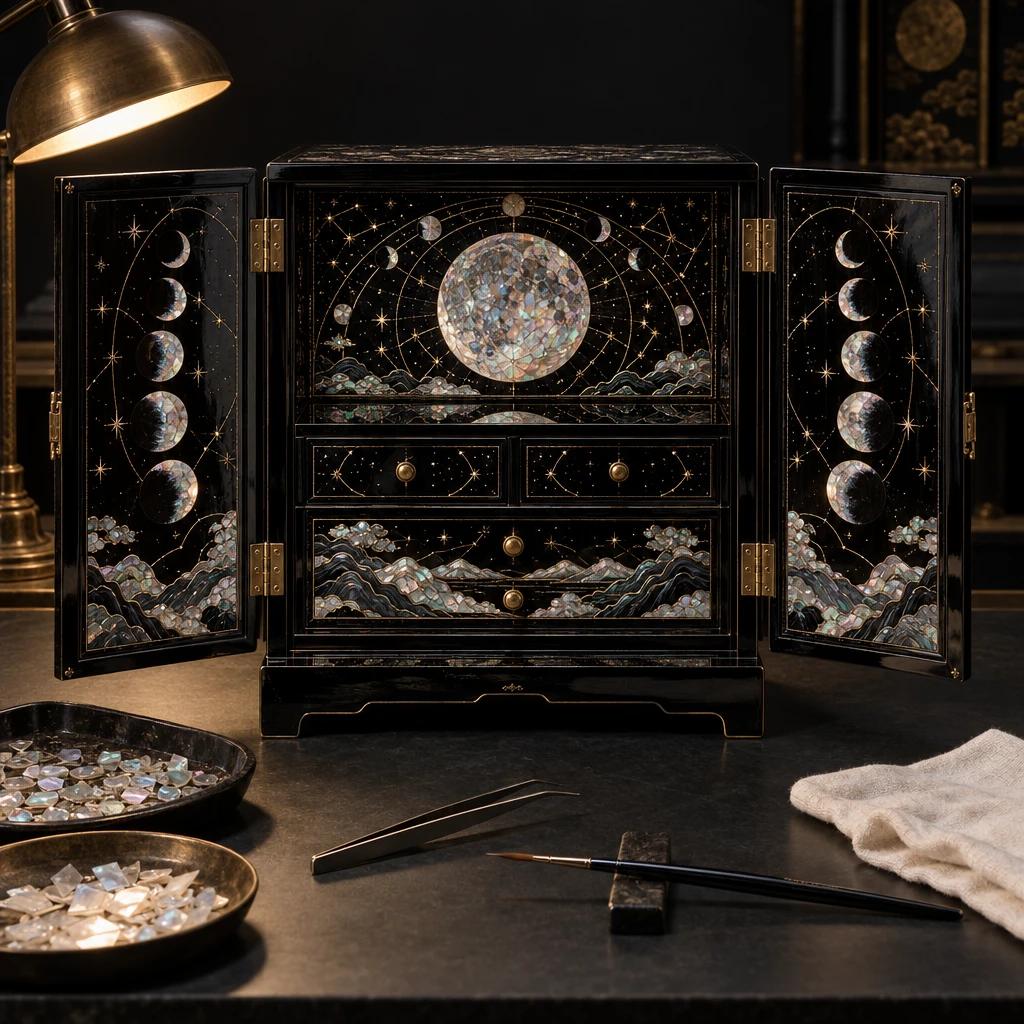
Change only the central crescent-moon inlay on the open lacquer cabinet into a perfectly circular total lunar eclipse disc made from deep crimson mother-of-pearl with a thin copper-gold halo. Preserve every surrounding shell fragment, gold-wire constellation, cabinet shape, door angle, brass hinge, conservation tool, tray, lacquer reflection, camera position, focus, lighting direction, shadow, and background exactly. Do not add, remove, move, resize, or recolor anything else. No text, logos, people, animals, perfume, or watches.
Before (input image):
After (Sunburst output):
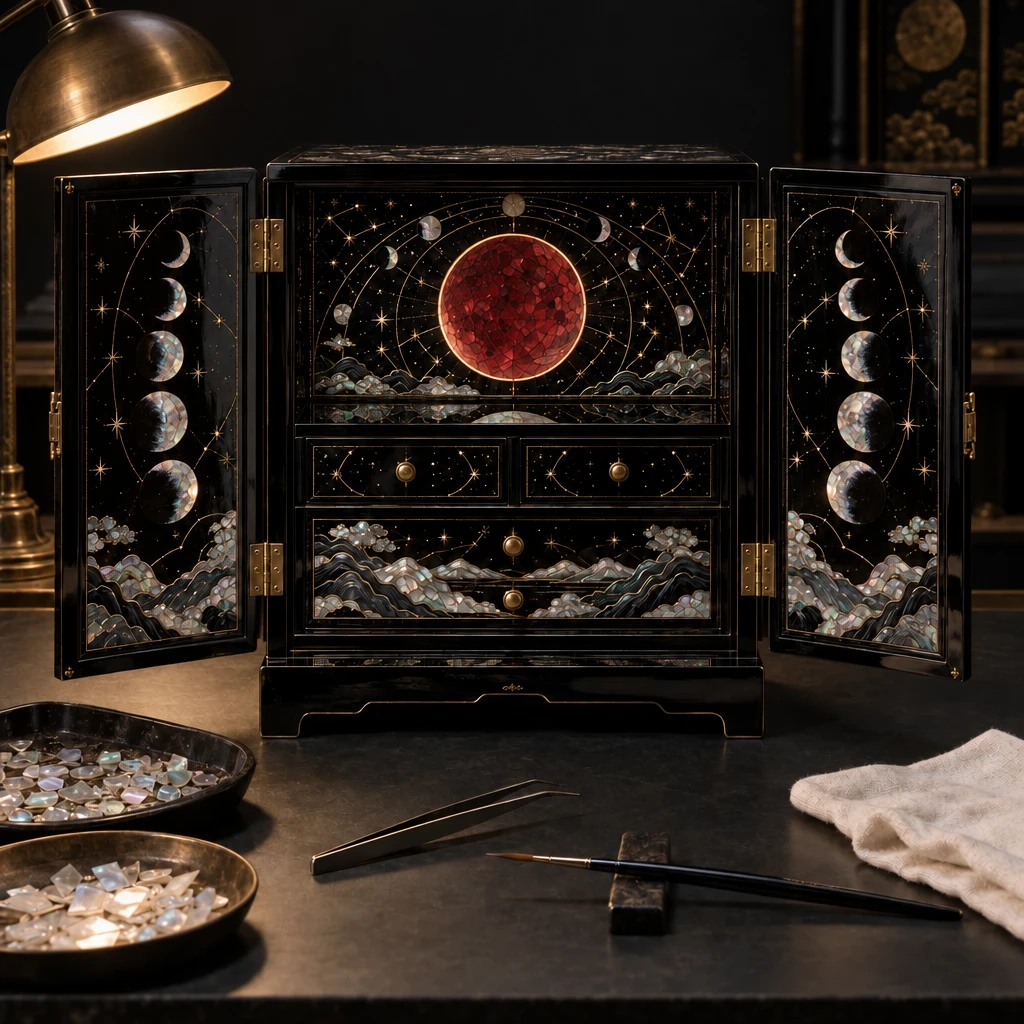
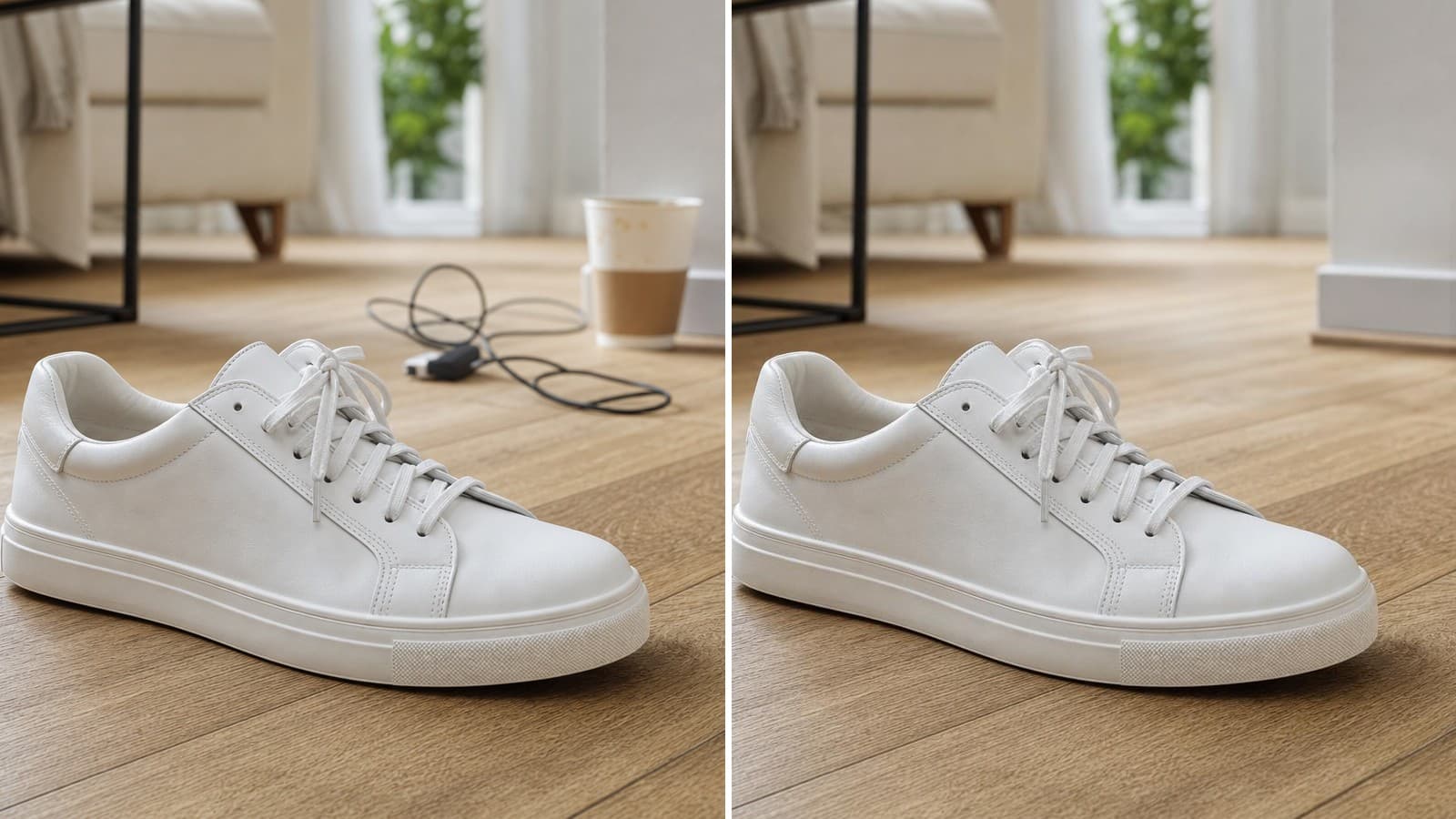
For edits, the prompt structure flips: open with the one thing you want changed, then spend the rest of the prompt exhaustively listing everything that must stay identical. The longer and more specific that "preserve" list is, the less the model touches outside the area you actually asked it to change.
Recipe 6: Background Swaps on Existing Product Photos
A narrower version of the same edit technique — swap only the backdrop behind a product you already photographed.
Edit the supplied kettle photo. Change ONLY the background to a warm pale peach seamless studio backdrop. Preserve the exact cobalt-blue kettle body, handle, metal spout, lid, knob, base, AER lettering, camera angle, object scale and position. Do not change the product color. Do not add props. Keep the image square.
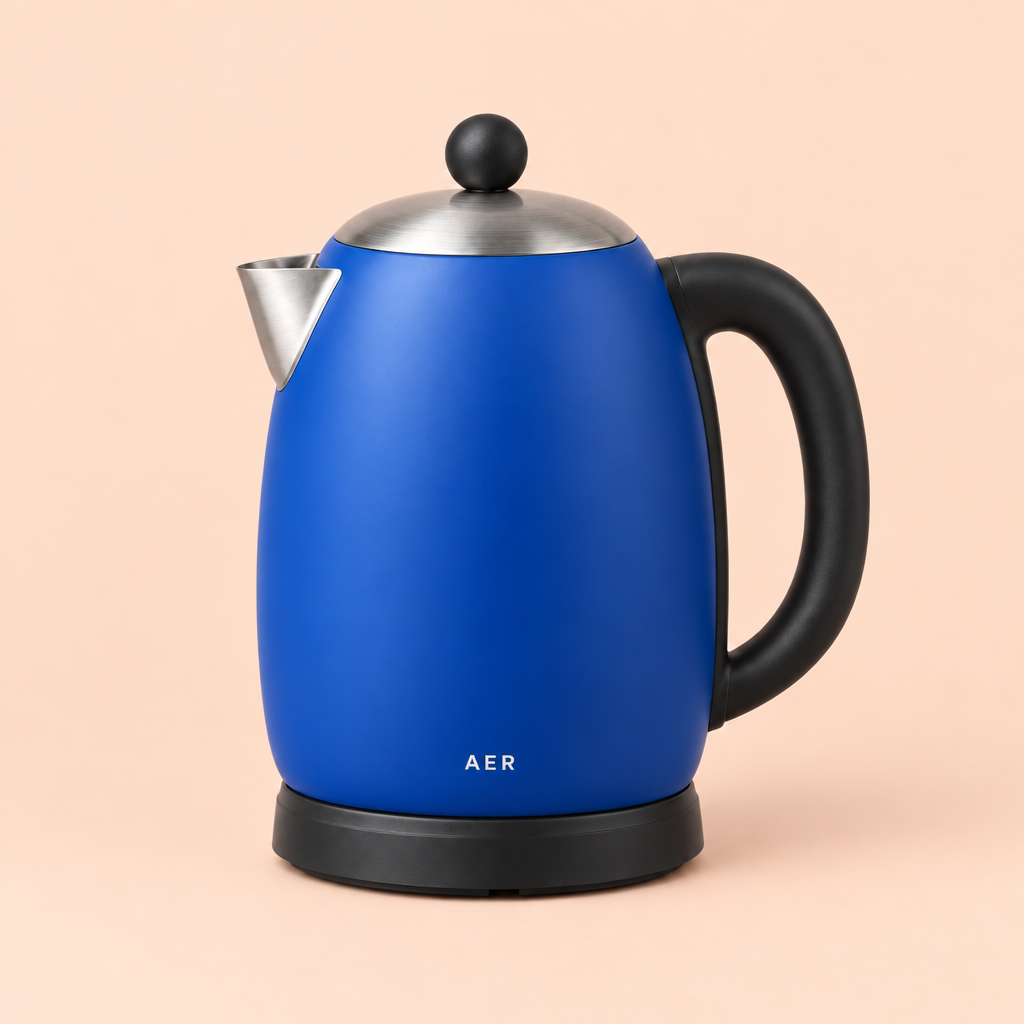
This is the fastest way to get a whole set of on-brand background variants from a single product photo — shoot (or generate) the product once, then run this style of edit prompt with a different backdrop color each time.
Recipe 7: Wide Editorial / Blog Hero Shots
Not every prompt needs to be a product shot. Sunburst also handles wider, scene-setting compositions well — the cover image on this article is one.
A wide 16:9 editorial hero image for a blog post about AI image-generation prompt recipes. A designer's minimalist desk viewed from above: an open laptop showing a clean photo-editing interface with a product photo on screen, a loose stack of printed photo proofs fanned out beside it, a cup of coffee, and a small potted succulent. Soft, warm north-light studio lighting, shallow depth of field, muted sage-and-cream color palette, photorealistic, high detail, no visible text or logos anywhere in the scene.
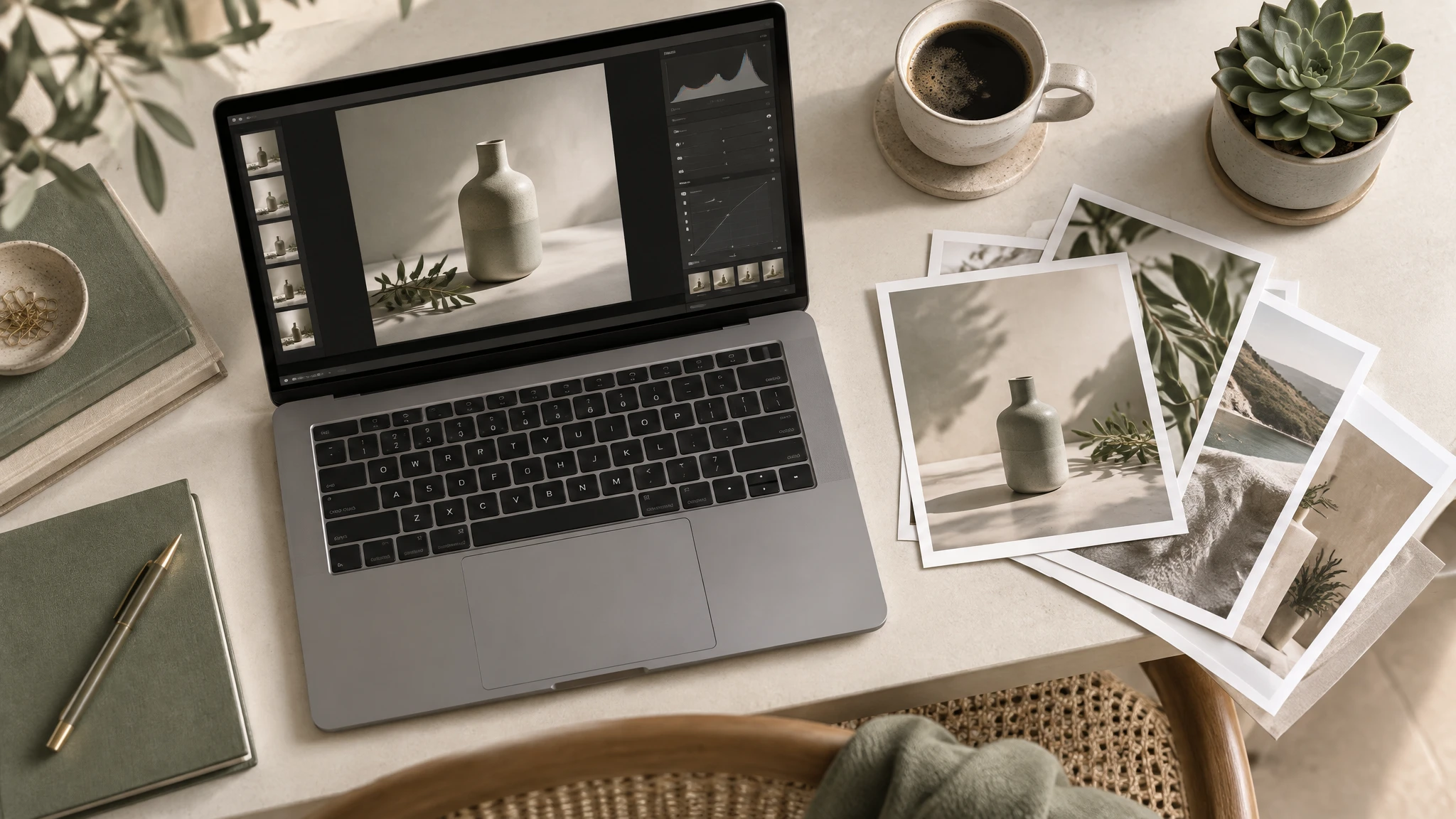
For 16:9 hero shots, naming the aspect ratio and camera angle ("viewed from above") up front matters more than it does for square product shots, since the composition has to work at a much wider crop.
Tips for Writing Your Own Sunburst Prompts
- Be literal, not clever. Sunburst rewards exhaustive, plain-language descriptions of material, color, lighting, and camera angle over stylistic flourishes.
- For edits, list what to preserve, not just what to change. The "before/after" recipe above only kept its surrounding details intact because the prompt named them one by one.
- Quote exact text for on-image copy. Use
reading exactly "..."and keep taglines short — long strings are more likely to pick up a spacing issue. - Reuse product descriptions verbatim across a shoot. Recipes 1 and 4 above use the identical product sentence so the dripper looks like the same physical object in both shots.
- Say what should NOT appear. "No text, no hands, no props" removes an entire category of unwanted elements in one line.
FAQ
What is GPT Image 2.5 Sunburst best used for? Photorealistic product photography, macro/texture shots, on-image text (posters, labels, banners), and precise image-to-image edits where only part of an existing photo needs to change.
Can GPT Image 2.5 Sunburst edit an existing photo instead of generating a new one? Yes — Recipes 5 and 6 above are both image-to-image edits. Supply the source image, describe only what should change, and list everything that should stay identical.
Does GPT Image 2.5 Sunburst render text accurately? In our tests here, yes — the poster in Recipe 3 rendered all three lines of copy correctly on the first attempt. Always proofread generated text character-by-character before publishing, since no text-rendering model is error-free 100% of the time.
How much does it cost to generate an image with GPT Image 2.5 Sunburst?
$0.0672 per output image at the medium quality tier, which is what every image in this guide was generated at. Higher quality tiers are also available; see the model page for the full breakdown.
Can I use these exact prompts for my own product? Yes — copy any prompt above and swap the product description, colors, or setting for your own. Keeping the rest of the prompt structure (lighting, backdrop, style tags, or the preserve-list for edits) intact is usually enough to get a comparable result.
Key Takeaways
- Seven real prompts — covering studio product shots, macro texture, text-in-image posters, lifestyle staging, and two image-to-image edits — each paired with its actual, unedited output.
- Every image here was generated at the
mediumquality tier ($0.0672/image), the practical sweet spot for fast, affordable prompt iteration. - For edits, explicitly listing every element to preserve is what keeps the rest of the frame untouched.
- For on-image text, quote the exact copy in the prompt and keep taglines short.
- The same core prompt structure carries across product, lifestyle, and macro shots — only the subject and lighting description need to change.
Want to go deeper on the API side? Our GPT Image 2.5 Sunburst API guide covers request/response shapes and parameters, and our Flare vs. Sunburst product poster comparison stress-tests text rendering between the two models head-to-head. Or open GPT Image 2.5 Sunburst directly and try one of these prompts yourself.