To extend an image with Grok Imagine (outpainting), send the picture to grok-imagine/image-to-image, set aspect_ratio to the wider or taller frame you want, and write a prompt that says three things: what must stay exactly as it is, what to fill the new space with, and that nothing new should be added. Each edit costs $0.033 at 1K. Below are four real extensions and one failure, all from a single attempt each.
One thing to know up front: Grok Imagine re-renders the whole picture at the new size. It isn't pixel-exact outpainting that only paints the margins, so the subject can shift or change slightly. Check the details before you use the result.
1. Square product photo to 16:9
Original, 1:1:
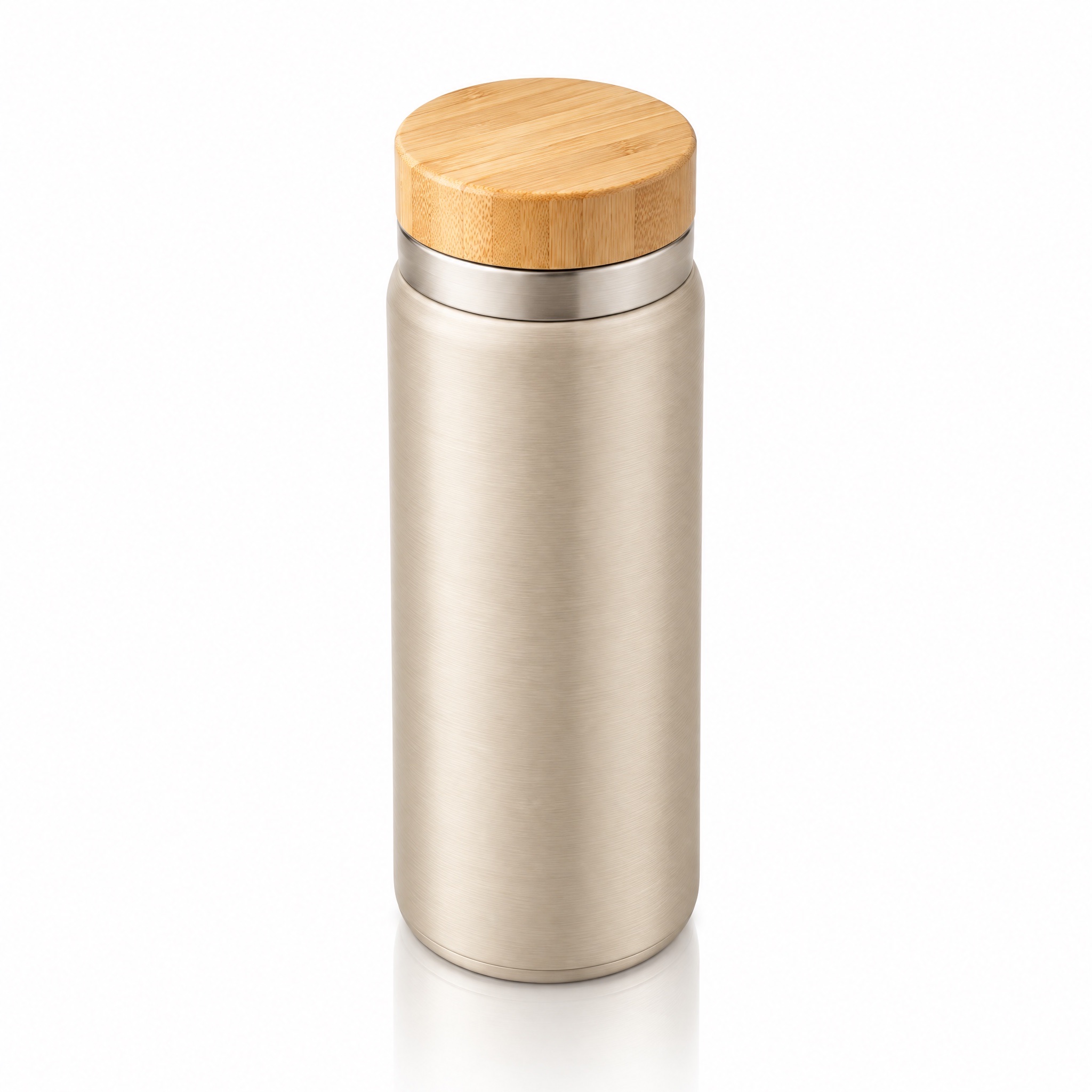
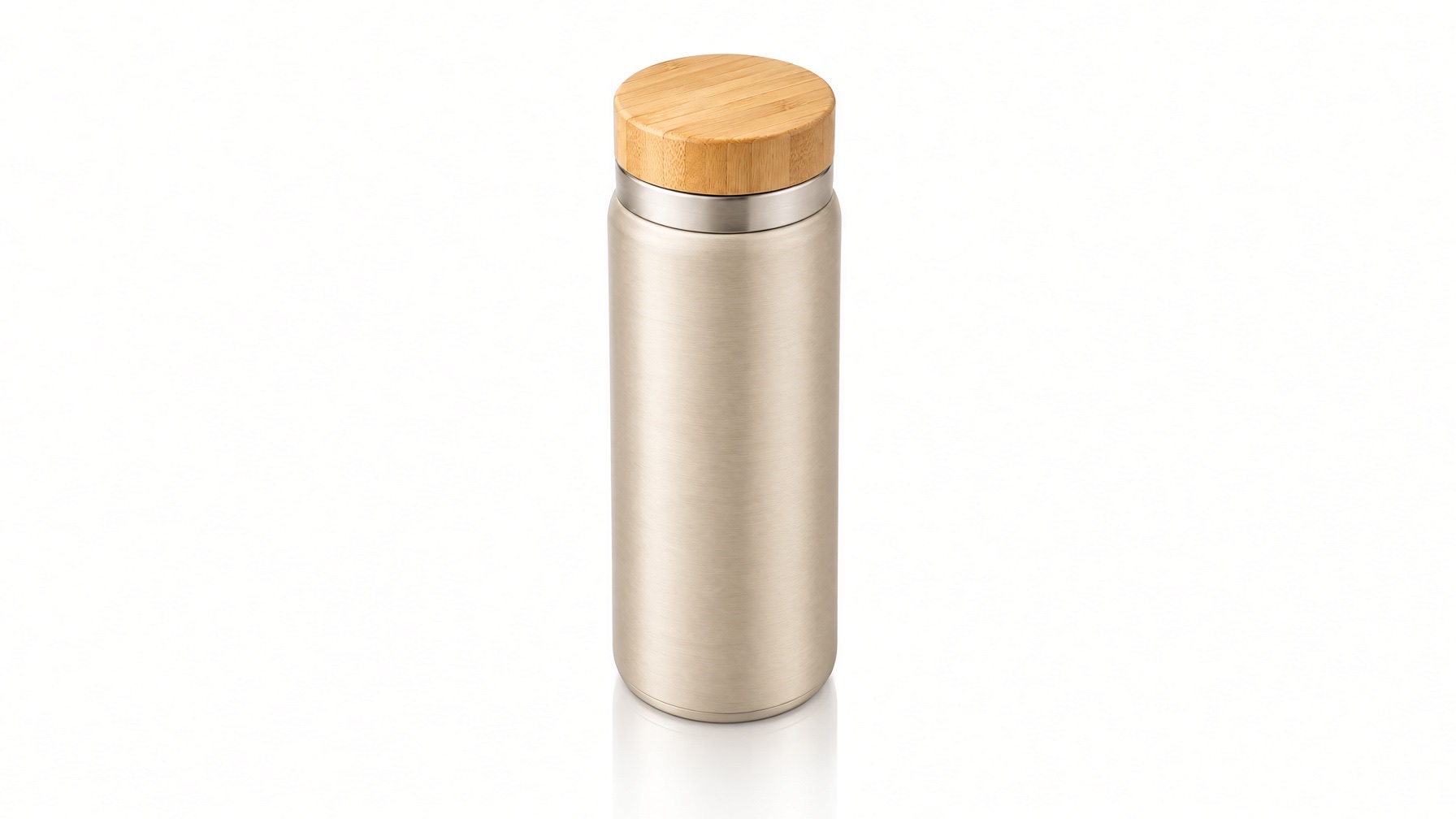
Extend this product photo to a wider 16:9 frame. Keep the thermos bottle exactly as it is, same size, shape, color and position in the center. Fill the new space on the left and right with the same seamless pure white studio background and the same soft top-left lighting. No new objects, no text.
Try this prompt → (upload your image, aspect ratio 16:9, 1K)
grok-imagine/image-to-image, aspect_ratio: "16:9", 1K, output 1792×1008, $0.033.
The bottle kept its shape, lid, and finish, and the white background stretched cleanly. It didn't stay centered, though: the model moved it to the left third. If position matters, check it, or crop the result back to center.
2. The same photo with a weak prompt
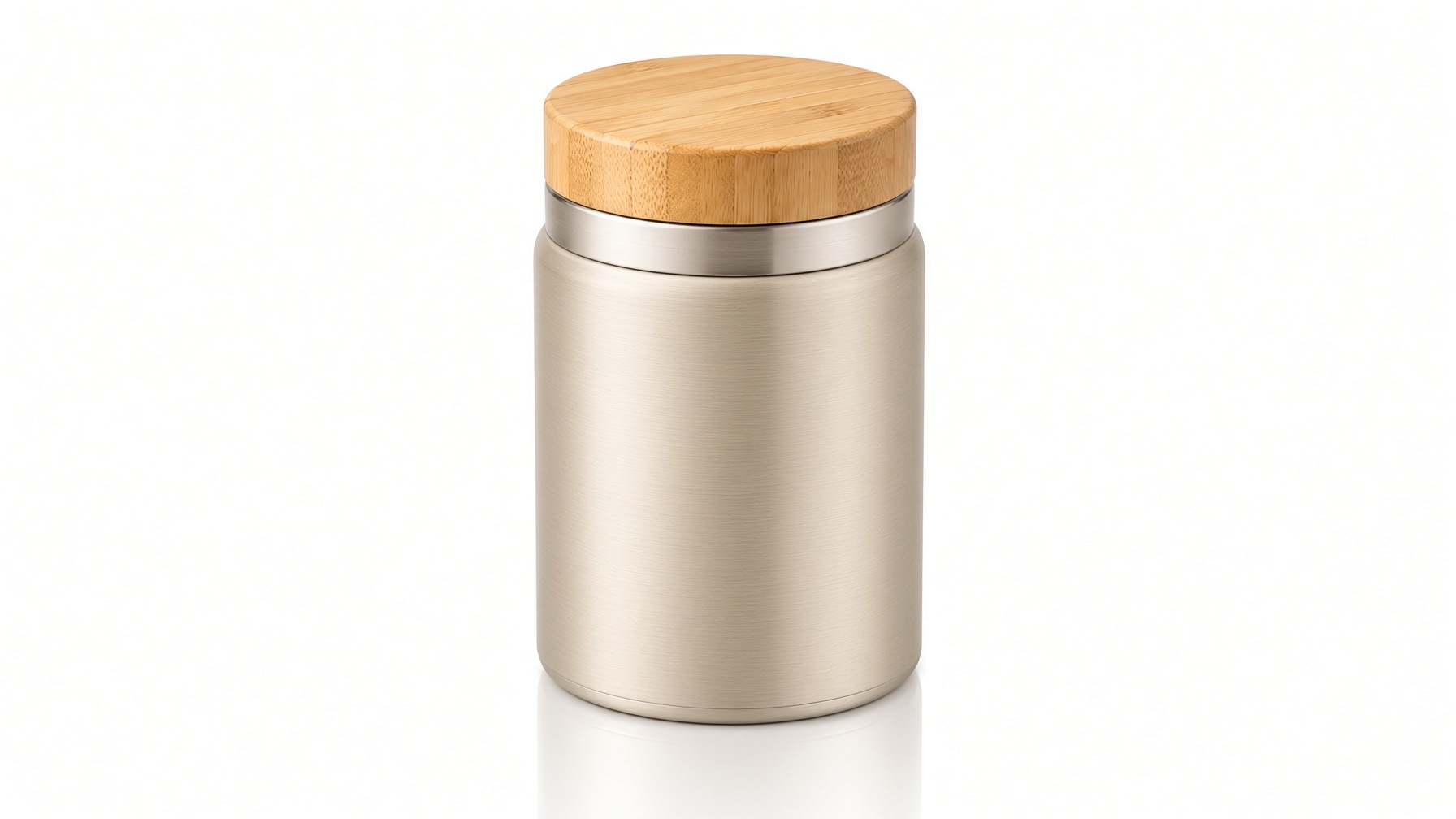
Make it wider.
grok-imagine/image-to-image, aspect_ratio: "16:9", 1K, $0.033.
"Make it wider" was taken literally: the frame is 16:9, but the thermos itself got wider and squatter. This is the most common outpainting mistake. Say "extend the frame" or "extend the background," and say the subject keeps its size and shape.
3. Square to 9:16 for Stories, with room for a headline
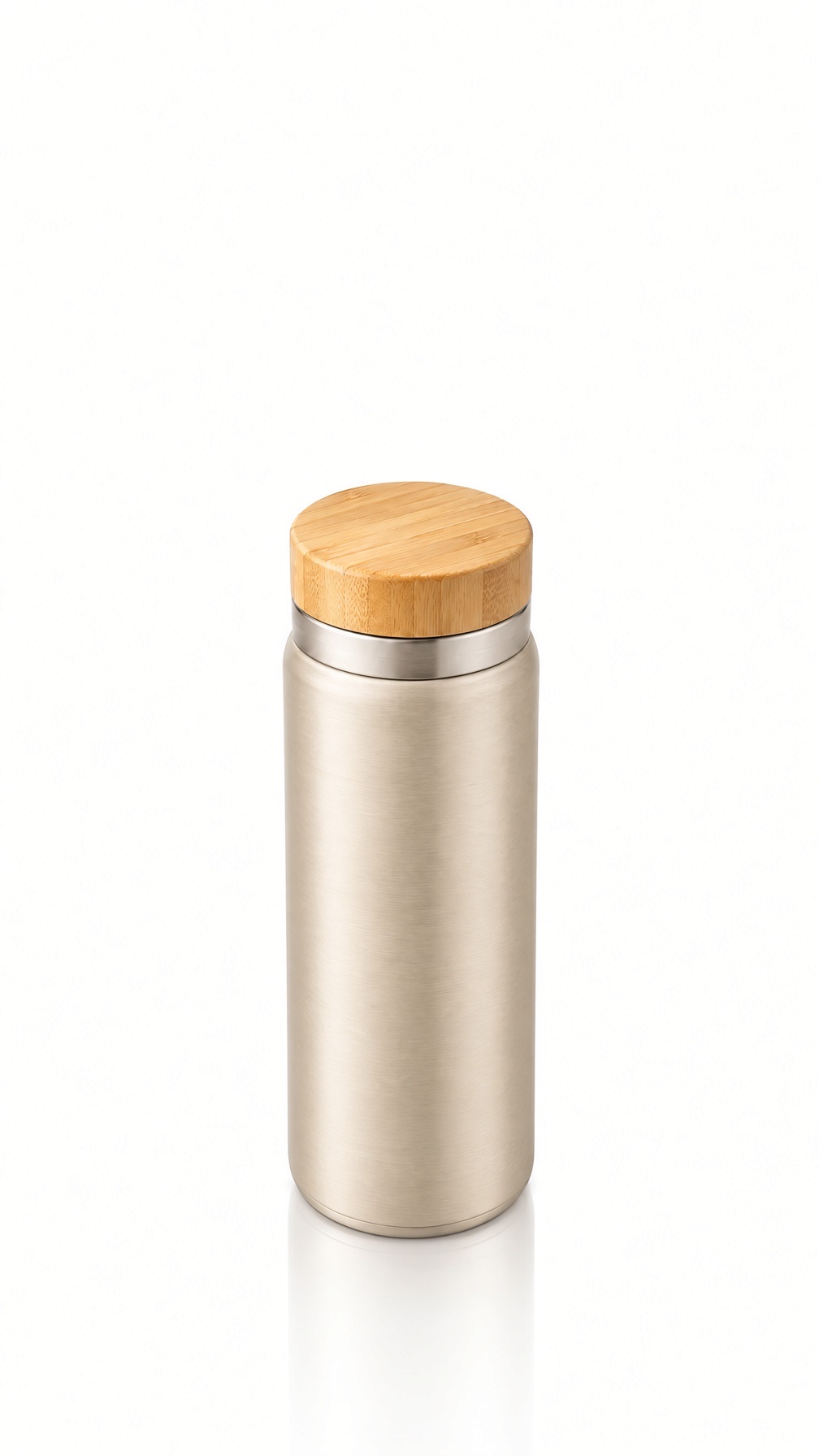
Extend this product photo to a tall 9:16 frame. Keep the thermos bottle exactly as it is in the middle. Continue the seamless pure white studio background above and below it with the same soft lighting, leaving empty space at the top for a headline. No new objects, no text.
Try this prompt → (upload your image, aspect ratio 9:16, 1K)
grok-imagine/image-to-image, aspect_ratio: "9:16", 1K, output 1008×1792, $0.033.
Asking for "empty space at the top for a headline" gives a usable Stories or Reels cover in one step: the product sits low and the top stays clear for text.
4. Lifestyle scene from 4:3 to a 2:1 banner
Original, 4:3:
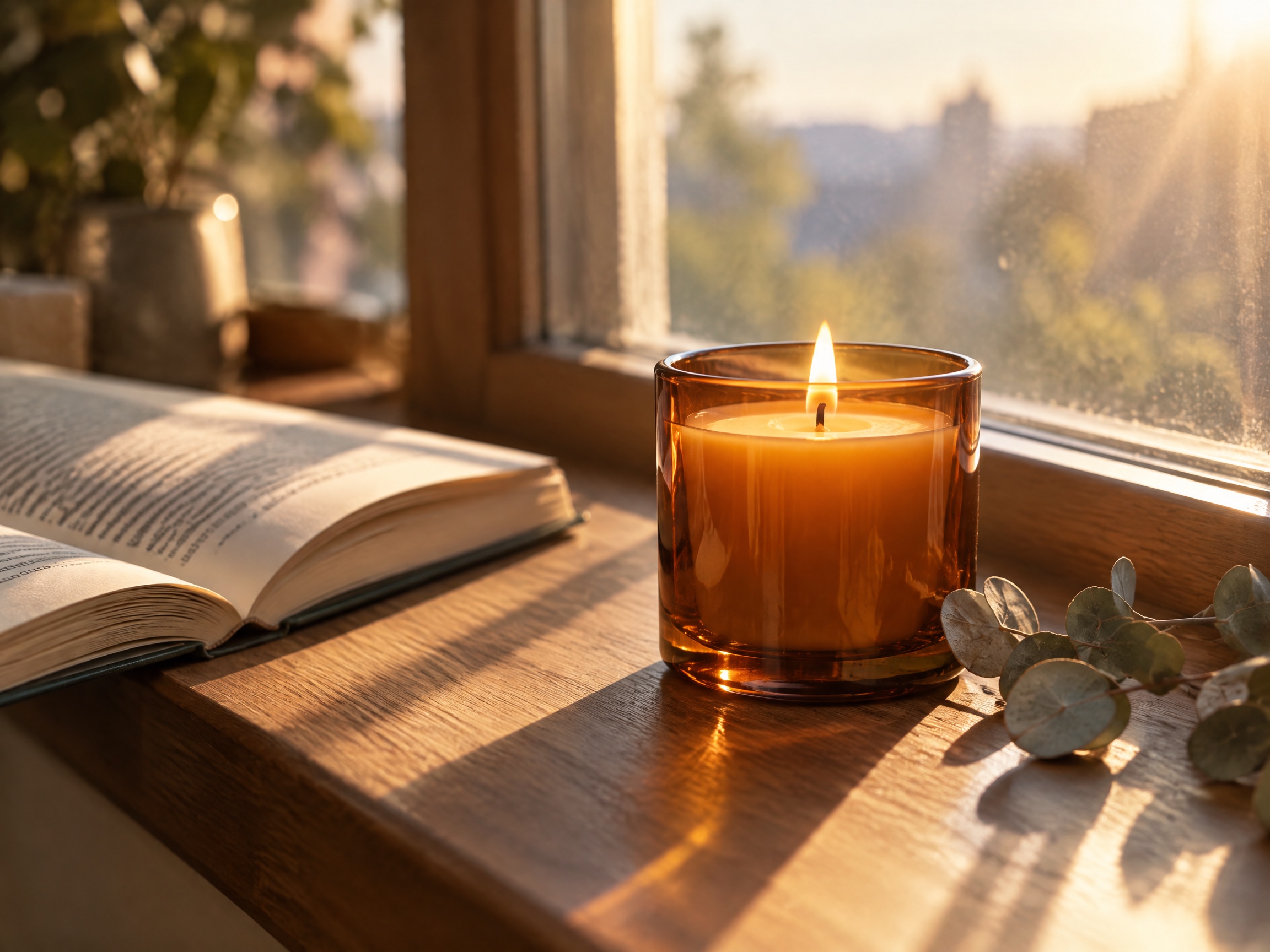
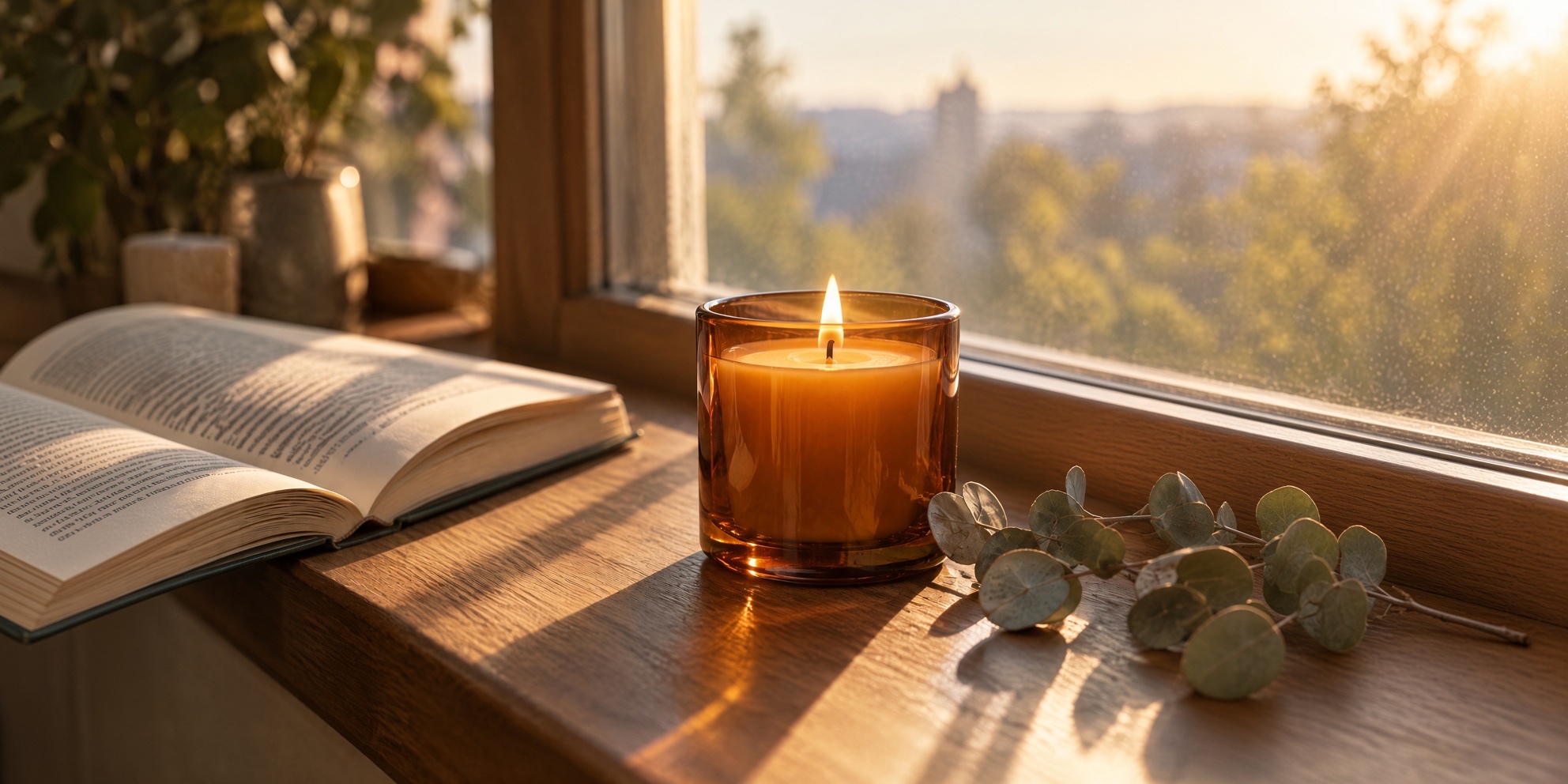
Outpaint this photo to a wide 2:1 panorama. Keep the candle, book and eucalyptus exactly as they are. Continue the wooden windowsill, the window frame and the morning light to the left and right, with the same warm color and shallow depth of field. Add nothing that draws attention away from the candle.
Try this prompt → (upload your image, aspect ratio 2:1, 1K)
grok-imagine/image-to-image, aspect_ratio: "2:1", 1K, output 1984×992, $0.033.
Name the surfaces that should continue (windowsill, window frame, light) so the model extends the scene instead of inventing a new one. "Add nothing that draws attention away from the candle" keeps the new area quiet.
5. Interior from 16:9 to 9:16
Original, 16:9:
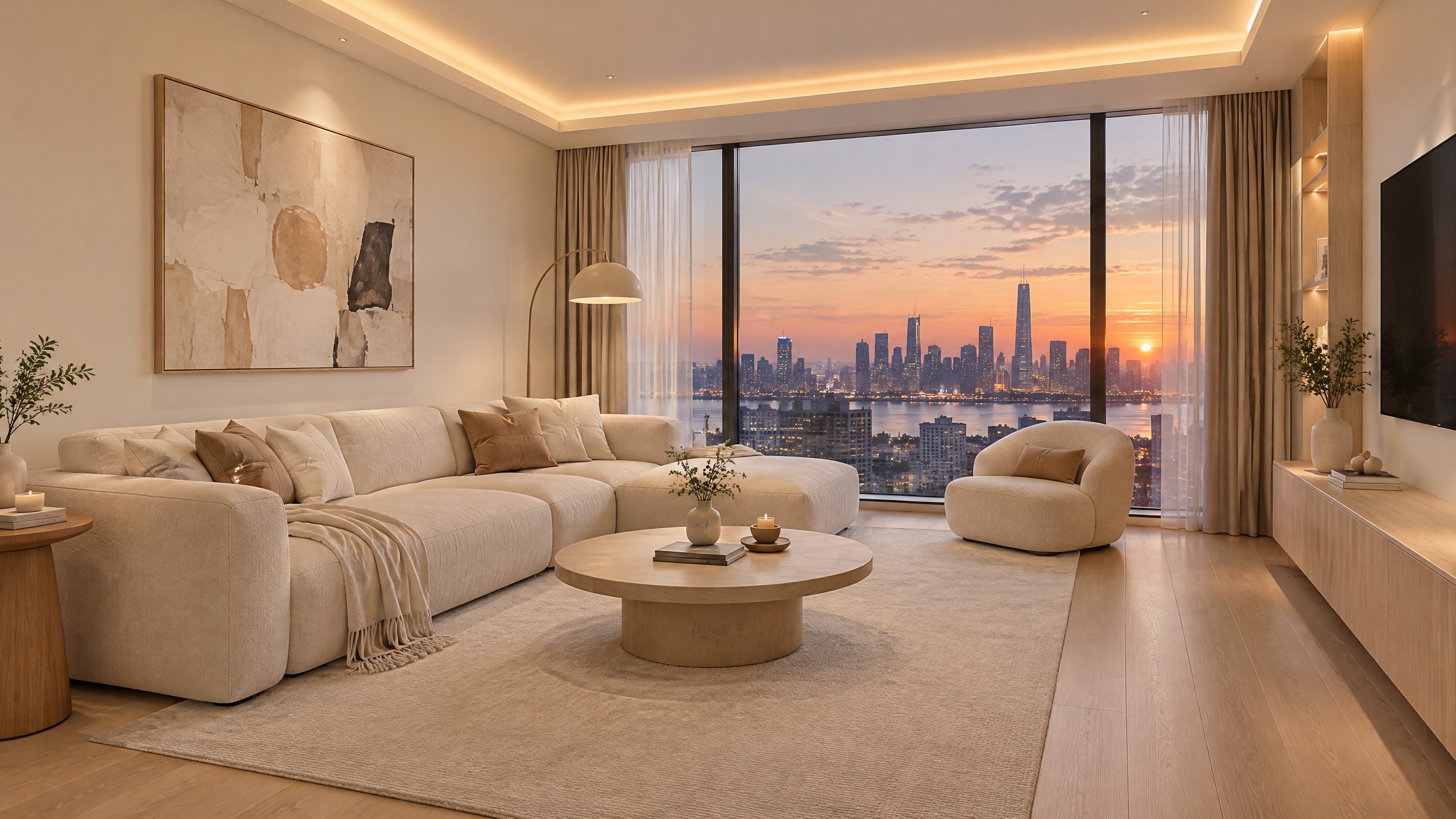
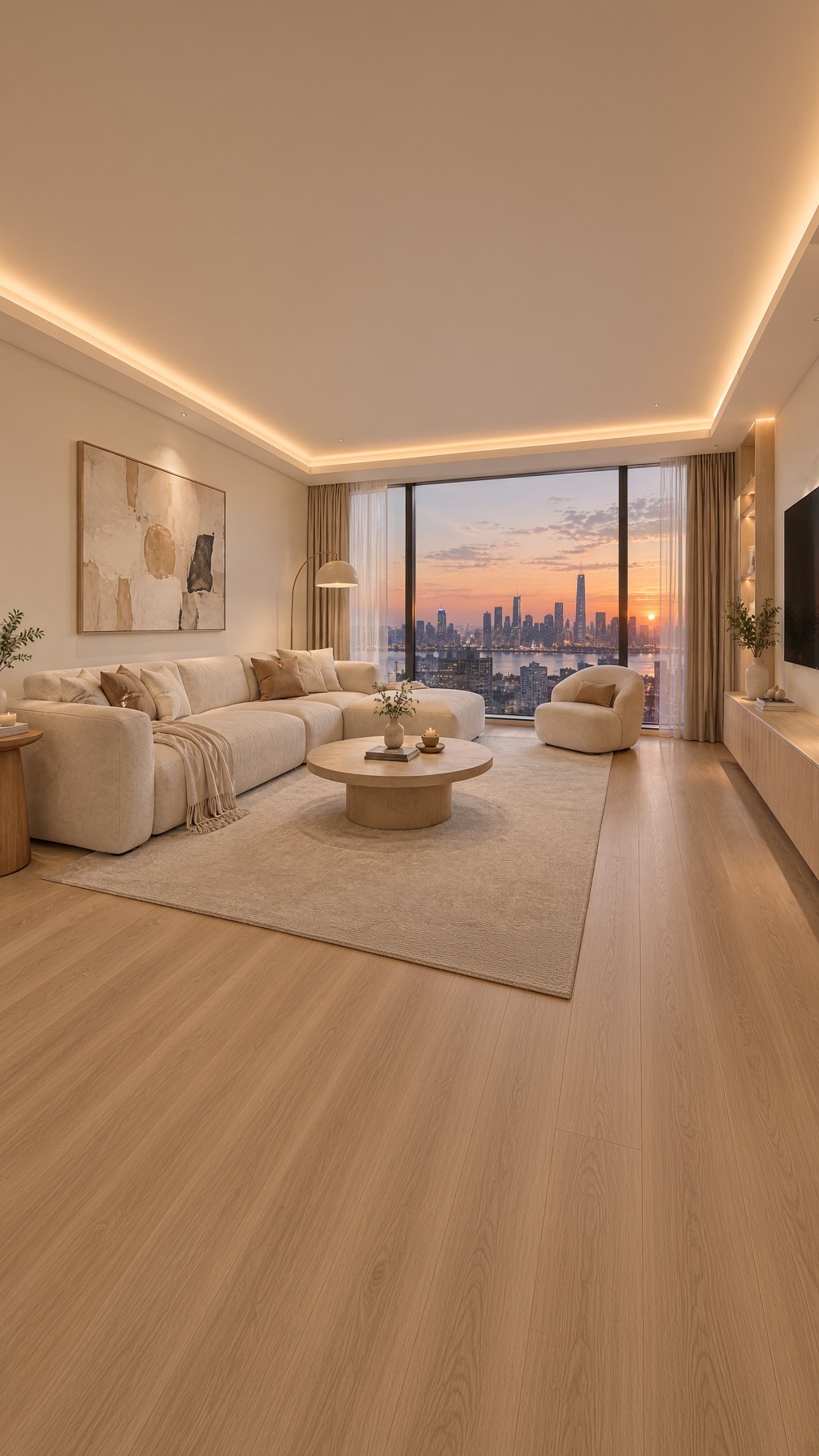
Extend this living room image vertically to a 9:16 frame. Keep the sofa, coffee table, window and skyline unchanged. Add more of the ceiling with the same hidden warm light strip above, and more of the light oak floor below. Same wide-angle eye-level perspective, same soft evening light.
Try this prompt → (upload your image, aspect ratio 9:16, 1K)
grok-imagine/image-to-image, aspect_ratio: "9:16", 1K, output 1008×1792, $0.033.
A landscape interior becomes a vertical one by adding ceiling above and floor below, which is much better than cropping the sides off. Restating the perspective ("wide-angle, eye-level") keeps the room's geometry consistent.
The outpainting prompt formula
- Name the target frame: "Extend this photo to a 16:9 frame," and set the same value in
aspect_ratio. - Lock the subject: "Keep the [subject] exactly as it is, same size, shape, color."
- Describe the fill: which background, surface, or light continues, and in which direction.
- Forbid additions: "No new objects, no text."
API call
curl -X POST https://api.hiapi.ai/v1/tasks \
  -H "Authorization: Bearer $HIAPI_KEY" \
  -H "Content-Type: application/json" \
  -d '{
    "model": "grok-imagine/image-to-image",
    "input": {
      "prompt": "Extend this product photo to a wider 16:9 frame. Keep the bottle exactly as it is. Fill the new space with the same white background. No new objects, no text.",
      "image_urls": ["https://your-cdn.example.com/product.jpg"],
      "aspect_ratio": "16:9",
      "resolution": "1k"
    }
  }'
aspect_ratio:auto(keeps the input ratio),2:1,20:9,19.5:9,16:9,4:3,3:2,1:1,2:3,3:4,9:16,9:19.5,9:20,1:2. To extend, it must differ from your image's ratio.resolution: lowercase1kor2k.image_urls: 1–3 public JPEG, PNG, or WebP URLs.- Price: $0.03 per image plus $0.003 per reference image, so $0.033 for one input image.
- Poll
GET /v1/tasks/{taskId}and downloadoutput[0].urlwhenstatusissuccess. The link is temporary.
FAQ
Does Grok Imagine keep the original pixels?
No. It re-renders the whole image at the new ratio, so the subject can move or change slightly. For pixel-exact extension, composite the original back over the result in an editor.
Why did my subject get stretched?
The prompt asked for the image to be wider, not the frame. Say "extend the frame/background" and "keep the subject's size and shape."
Can I extend in only one direction?
You can ask for it ("extend only the top"), but the model decides the final framing. Check placement on every result.
Which other model can do this?
For more reference fidelity, grok-imagine-quality/image-to-image takes the same fields at $0.08 per image at 1K plus $0.015 per reference image. See the Grok Imagine image-to-image prompt recipes.
Upload a photo and try the first prompt on the model page.