TL;DR
- What this is: a repeatable workflow for turning stills you already own, like a packshot or a portrait, into vertical short-form clips with ray-3.2/image-to-video on the hiapi async task API.
- The one fact that shapes everything: ray-3.2 i2v has no
aspect_ratioand nodurationfield. The clip takes its shape from your input image and is always about 5 seconds long. To get a 9:16 vertical, you feed it a 9:16 still. That's the whole trick. - What's new since our how-to: the schema now takes an optional
end_image_url(a last frame). If you pass the same image as both first and last frame, you get a clip that ends where it started, which is exactly what a seamless loop needs. - Proof: every clip below was generated for this article in one fan-out batch. Three 540p clips, $0.2145 each ($0.6435 total), each done in 41–58 seconds server-side. All three came back as 540×960, 24fps, 5.04s, silent MP4s.
Most short-form teams aren't short on ideas. They're sitting on a folder of product shots, campaign stills, and creator portraits that never move. Image-to-video fixes that: your frame stays the anchor and the model adds motion. This guide covers that job end to end with Ray 3.2: prepping the still, prompting the motion, batching, the loop trick, and what to fix in the edit.
Image-to-video or text-to-video: which do you need?
Ray 3.2 has two separate endpoints on hiapi, and they suit different short-form jobs:
- Image-to-video (this page): you already have the frame. The model has to keep your product, your model, and your lighting, and just animate it. Use this for packshot reveals, catalogue-to-Reels, creator stills, and any clip where brand accuracy beats novelty.
- Text-to-video: you have an idea but no asset. The model composes the whole shot. If that's your situation, our Ray 3.2 text-to-video short-form workflow covers batching concepts from prompts alone.
The workflows really are different. With text-to-video, you pick a vertical frame by passing aspect_ratio: "9:16". With image-to-video, that field doesn't exist, so framing is something you decide before the API call, when you prepare the still.
The request: three required-or-common fields, one new optional one
We checked the schema field by field against the live API on 2026-11-01. It's closed, so unknown keys come back as a 400:
| Field | Required | Values | Notes |
|---|---|---|---|
prompt | yes | text | Describe the motion, not the scene. The scene is already in your image |
image_url | yes | public URL | The first frame. It sets the output's aspect ratio |
resolution | no | 540p, 720p, 1080p | The only thing you pay for (see below) |
end_image_url | no | public URL | Optional last frame. New since our how-to guide was written |
duration and aspect_ratio are still rejected outright (additional properties 'duration' not allowed). Other last-frame names you might guess, like last_frame_url, tail_image_url, or end_frame_url, are rejected the same way. The field is end_image_url and nothing else.
A single vertical clip:
curl -s https://api.hiapi.ai/v1/tasks \
  -H "Authorization: Bearer $HIAPI_KEY" \
  -H "Content-Type: application/json" \
  -d '{
    "model": "ray-3.2/image-to-video",
    "input": {
      "prompt": "Slow cinematic push-in toward the serum bottle, a single water droplet slides down the amber glass...",
      "image_url": "https://your-cdn.example.com/serum-9x16.jpg",
      "resolution": "540p"
    }
  }'
You get back a data.taskId. Poll GET /v1/tasks/{taskId} until data.status is success (or fail), then download output[0].url right away, because it's a temporary link with an expireAt. The how-to guide has the full Python submit/poll/download script and error payloads, and the quick start covers keys and the task API basics.
Pricing: resolution is your only lever
Live prices for ray-3.2/image-to-video (from hiapi pricing at the time of writing; always re-check there):
| Resolution | Price per clip |
|---|---|
| 540p | $0.2145 |
| 720p | $0.429 |
| 1080p | $1.7145 |
Clip length is fixed and aspect ratio comes from your image, so you never pay extra for vertical, and there's no "longer clip" option to upsell yourself into. One 1080p clip costs as much as eight 540p clips. So the short-form pattern is the same as for any per-clip video model: run your motion tests at 540p, then re-render only the winning prompt + still at 720p or 1080p for the version you post. For the full Ray 3.2 cost picture across both endpoints, see the Ray 3.2 API pricing breakdown.
Step 1: Prepare a 9:16 still (this is where vertical comes from)
The model can't reframe your shot, so the still has to be right before you submit:
- Make it 9:16. We used 720×1280 stills. At
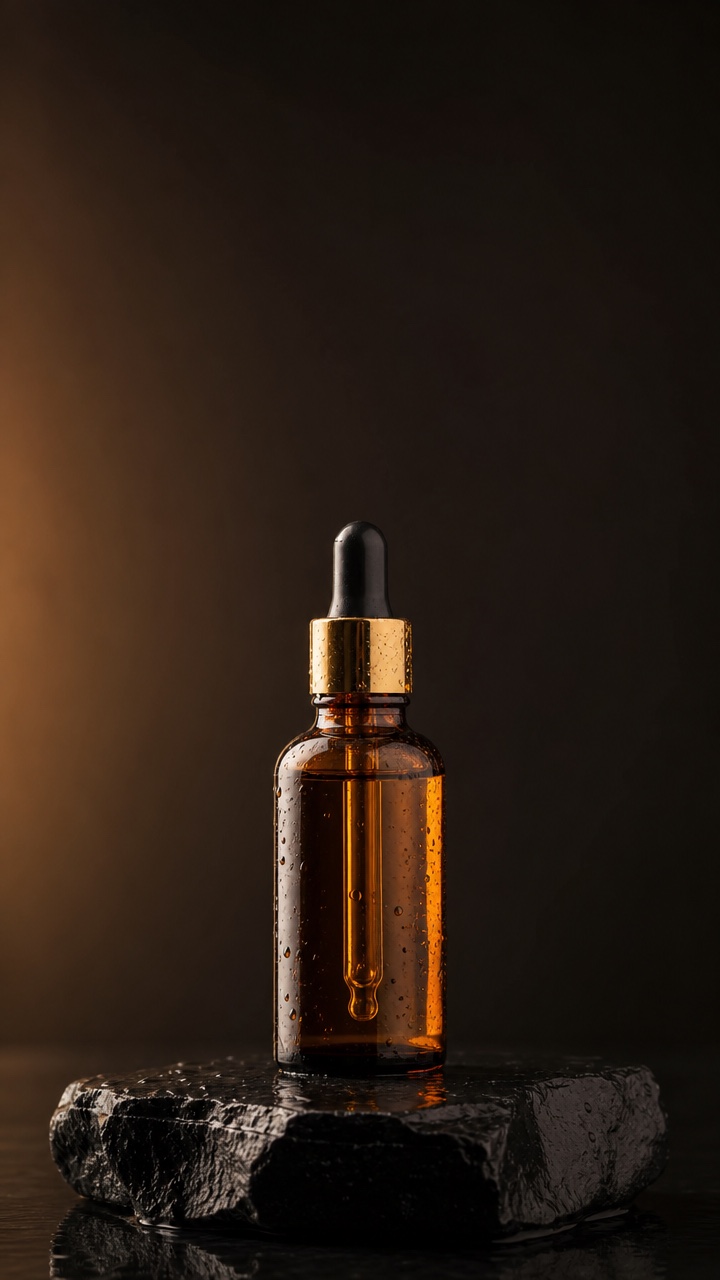
540pthey came back as 540×960, a native vertical with nothing to crop afterwards. A landscape packshot will give you a landscape clip, so crop or extend it to 9:16 first. - Leave headroom for motion. Camera moves push into the frame. Our serum still had a lot of empty background above the bottle, and the push-in used that space without cropping the cap.
- Set the hook in the frame itself. The first frame of the clip is your image, so whatever stops the scroll (the product, the face, the light) has to be in the still already.
For this article both stills were generated as native 9:16 images with gpt-image-2. In real use you'd drop in your own product shot or portrait:
Step 2: Prompt the motion, not the scene
The image already says what is in the shot. The prompt only has to say how it moves. Three things worked across this batch:
- Name one camera move (push-in, gentle drift, locked-off) and say what should stay still.
- Give the subject one or two physical beats, like a droplet sliding, a light sweep, or hair lifting in the wind. That's what makes a 5-second clip feel alive instead of like a Ken Burns pan.
- Pick motion that suits the asset type. Products want slow, controlled light play. People can take bigger, warmer motion.
Product clip (the cover clip above). Prompt:
Slow cinematic push-in toward the serum bottle, a single water droplet slides
down the amber glass, a band of warm light sweeps across the bottle from left
to right and makes the gold cap glint, the background stays dark and still,
premium skincare commercial
The push-in and light sweep came through well, and the bottle shape and gold cap held. One honest catch: the dropper's black rubber bulb turned lighter and more metallic as the light passed over it. On a real SKU, that's the kind of detail drift brand teams will flag. Check product details frame by frame before you post, and if a part keeps drifting, try a weaker light-sweep instruction or keep the motion on the background.
Portrait / creator still. Prompt:
The wind lifts her curls, she turns her head slightly toward the camera and
her half-smile widens into a warm smile, the golden-hour backlight flickers
through her hair, the camera holds steady with a very gentle drift, natural
lifestyle feel
The face, sweater, and golden-hour light stayed consistent, and the head turn and smile landed. Ray 3.2 moved the camera more than "very gentle drift" suggests, though: by the last frame she has shifted across the frame and the skyline behind her has moved. For people shots, expect the model to read your motion cues generously. If you need a locked frame, say so explicitly, as we did in the loop prompt below.
Step 3: The loop trick with end_image_url
Loops do well on short-form feeds. A clip that restarts invisibly gets replayed, and it works as a background behind captions or a product callout. Ray 3.2's optional end_image_url makes that easy: pass the same still as both the first and last frame, and the model has to come back to where it started.
{
  "model": "ray-3.2/image-to-video",
  "input": {
    "prompt": "Seamless loop: the warm light slowly brightens and dims across the serum bottle, water droplets glisten, a faint wisp of mist drifts past the stone and fades out, the camera stays locked off, the bottle does not move",
    "image_url": "https://your-cdn.example.com/serum-9x16.jpg",
    "end_image_url": "https://your-cdn.example.com/serum-9x16.jpg",
    "resolution": "540p"
  }
}
We measured it instead of eyeballing it. We extracted each clip's first and last frames and compared them with SSIM (1.0 means identical):
| Clip | end_image_url | First-vs-last frame SSIM |
|---|---|---|
| Loop (same still as end frame) | yes | 0.958 |
| Product push-in | no | 0.654 |
| Portrait | no | 0.410 |
With the end frame pinned, the clip finishes almost exactly where it began, close enough that a plain repeat in your editor or the platform's auto-replay doesn't show an obvious jump. Without it, the clip ends somewhere new, which is fine for a cut but not for a loop. Two things to keep in mind:
- Keep loop motion cyclic. Light that brightens and dims, mist that drifts in and out, and a locked-off camera all work. A push-in can't "return" convincingly in five seconds.
- We only tested same-image loops. Passing a different end frame (for example, a closed box as the first frame and an open box as the last) is what the field is designed for, but we haven't verified those results here, so test before you build a campaign on it.
Step 4: Batch it: fan out, then collect
The task API is asynchronous, so don't render clips one at a time. Submit every still + prompt pair first, save each taskId to disk the moment you get it, and only then poll:
for each (still, prompt) pair:
    taskId = POST /v1/tasks  (model=ray-3.2/image-to-video, input={...})
    persist taskId immediately        # the task is billed at submit

for each saved taskId:
    poll GET /v1/tasks/{taskId} until status in ("success", "fail")
    on success: download output[0].url now (it expires)
Our three-clip batch was submitted back to back and finished in 44s (product), 41s (loop), and 58s (portrait) of server-side time. Because they ran in parallel, the whole batch took about as long as the slowest clip, a little over a minute of wall-clock including an 8-second poll interval. If a poll fails on a network blip, retry the same id. Resubmitting creates and bills a second clip.
Step 5: Finish in the editor
What the API gives you is raw footage, not a finished post:
- No audio. All three clips had a single H.264 video stream and no audio track. Add the trending sound, voiceover, or captions in your editor.
- 5 seconds is one beat. Stack three or four clips (for example product push-in → loop as a caption background → creator reaction) into a 15–20 second cut with hard cuts on the beat.
- Upscale only the winner. Re-run the chosen still + prompt at 720p or 1080p for the final export rather than rendering the whole batch at high resolution.
FAQ
How do I get a vertical 9:16 clip from ray-3.2 image-to-video? Supply a 9:16 input image. There is no aspect_ratio parameter, and the output follows the input's shape. A 720×1280 still at 540p came back as a 540×960 clip.
Can I make the clip longer than 5 seconds? Not with this endpoint. There's no duration field and sending one returns a 400. Every clip we generated was 5.04 seconds (121 frames at 24fps). Stack clips in the edit for longer cuts.
Does Ray 3.2 i2v support a last frame? Yes. The optional end_image_url field sets the final frame. Passing the same image as image_url gives you a loopable clip (first-vs-last SSIM 0.958 in our test).
Does it generate sound? No, the output MP4 is silent.
Will it keep my product exactly as it is? Shape, colour, and overall composition held well in our test, but small parts can drift under strong lighting motion (our dropper bulb changed tone). Review product details before you publish.
How much does a batch cost? It's billed per clip by resolution only: $0.2145 at 540p, $0.429 at 720p, $1.7145 at 1080p. Our three-clip test batch was $0.6435.
Start animating your stills
Ray 3.2 image-to-video is live on the async task API now. Open the ray-3.2/image-to-video model page for the current parameters and pricing, then take three of your existing 9:16 stills and run them at 540p. You'll have a test batch for well under a dollar. Comparing models for the same job? See how Kling 3.0 handles image-to-video short-form.