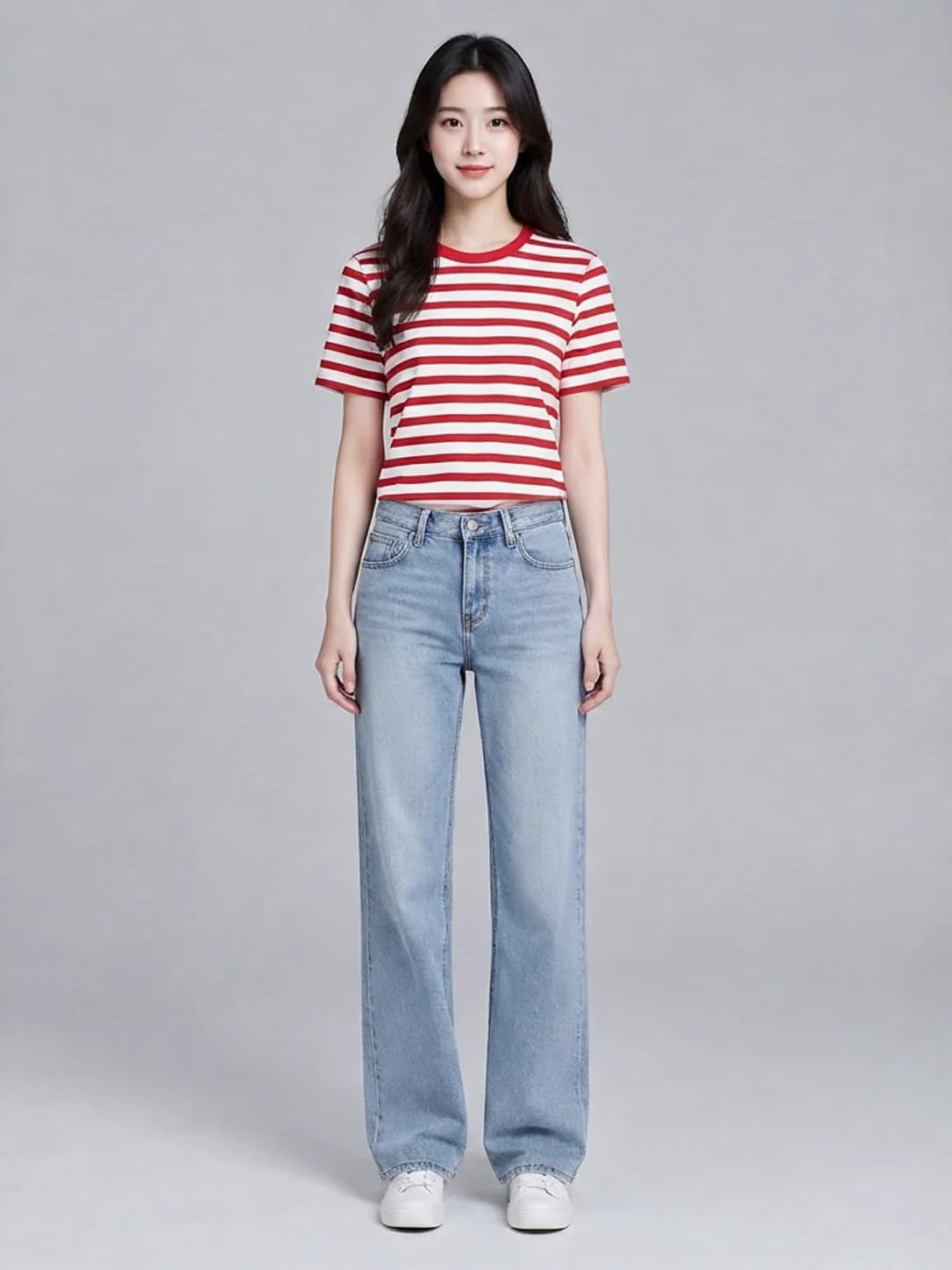
Keep the two image roles separate: the person photo belongs in person_image_url, and the garment photo belongs in product_image_url. Putting a person photo in the garment field changes what the request supplies.
TL;DR
Google Virtual Try-On costs $0.1075 per image; see pricing and budgets. Use HiAPI /v1/tasks: submit a task to obtain a taskId, then query its result. No prompt is required.
Prepare the input and fields
Choose a single front-facing person with the body clearly visible. For the garment, use a clean flat lay or hanging photo with complete edges. The two permanent image URLs below identify person A and the red-and-white striped T-shirt; replace them with your own public image URLs.
| Field | What to send |
|---|---|
person_image_url | Required public HTTP(S) URL for the person photo |
product_image_url | Required public HTTP(S) URL for the garment photo |
num_images | Integer; explicitly set 1, the only supported count |
Submit a task with cURL
This is a Bash/cURL example. Configure HIAPI_API_KEY in the runtime environment first. You can replace the image URLs; keep the key in the server environment.
curl -X POST "https://api.hiapi.ai/v1/tasks" \
  -H "Authorization: Bearer $HIAPI_API_KEY" \
  -H "Content-Type: application/json" \
  -d '{
  "model": "google-virtual-try-on",
  "input": {
    "person_image_url": "https://static.hiapi.ai/gallery/2026/10/9f656c8b6ecf94d5.webp",
    "product_image_url": "https://static.hiapi.ai/model-covers/2026/10/22/1792660602486-b5b70d2cfdd8dc95-1792152569828-b5b70d2cfdd8dc95-t-g1-0.webp",
    "num_images": 1
  }
}'
A successful submission returns data.taskId. Save that value for later queries.
Query the task and save the result
Put the task identifier in TASK_ID, then query it:
curl "https://api.hiapi.ai/v1/tasks/$TASK_ID" \
  -H "Authorization: Bearer $HIAPI_API_KEY"
When the task reaches data.status=success, get the image from data.output[0].url and save it. For ongoing workloads, set top-level callback.url and callback.when: "final" in the submission to receive terminal notifications, and deduplicate by taskId. Both success and failure can trigger a notification. Querying is useful for debugging and reconciliation.
Python submission example
Install requests in the environment. The timeout=60 value is a client network timeout, not the image generation time.
import os
import requests

payload = {'model': 'google-virtual-try-on', 'input': {'person_image_url': 'https://static.hiapi.ai/gallery/2026/10/9f656c8b6ecf94d5.webp', 'product_image_url': 'https://static.hiapi.ai/model-covers/2026/10/22/1792660602486-b5b70d2cfdd8dc95-1792152569828-b5b70d2cfdd8dc95-t-g1-0.webp', 'num_images': 1}}
response = requests.post(
    "https://api.hiapi.ai/v1/tasks",
    headers={"Authorization": f"Bearer {os.environ['HIAPI_API_KEY']}"},
    json=payload,
    timeout=60,
)
response.raise_for_status()
result = response.json()
task_id = result["data"]["taskId"]
print(task_id)
Check inputs and results
No prompt is needed. Do not set num_images to 2 or 4; submit separate requests for candidates. Before submission, check that both URLs are publicly readable and assigned to the correct fields. If a task fails, inspect its returned information and fix the input before submitting again.
FAQ
Can both images use the same field?
No. Use person_image_url for the person and product_image_url for the garment.
Should I add a prompt parameter?
No. The input has no prompt field; the two images define the try-on.
Why explicitly set num_images to 1?
One result is currently supported. An explicit count keeps the request aligned with the $0.1075 per-image budget.
Does a taskId mean the image is ready?
You still need to query the task or receive a notification. Read the image from data.output[0].url after data.status=success.
Further reading
Pricing and budgets · API integration · Examples and input selection · Google Virtual Try-On