When you move from text-to-video to image-to-video, the job of your prompt changes completely. In text-to-video you have to describe the entire world — the subject, the setting, the lens, the light — because the model is building the shot from nothing. In image-to-video, that world already exists: your still is the first frame. The prompt's only remaining job is to say what moves, and how the camera behaves.
That shift trips a lot of people up. They paste a rich scene-description prompt into pixverse-v6/image-to-video, the model tries to honor both the frame and the words, and the result either barely moves or warps as it fights the picture. The fix is to write motion, not scenery.
Below are four copy-paste recipes for pixverse-v6/image-to-video on hiapi, each organized around a different kind of motion: a camera move, a subject action, ambient atmosphere, and a vertical, format-driven shot. Every recipe shows the real first frame I generated, the exact request body I sent, and the actual clip it produced on the live API — no stock footage, no mockups.
What changes when the first frame is fixed
pixverse-v6/image-to-video takes your image as image_url and animates it. A few things follow directly from that, and they shape every prompt on this page:
- The composition is locked. You can't re-frame the subject or change the set dressing in the prompt — that's already decided by the image. Asking for a different layout just causes morphing. Describe motion within the frame instead.
- There is no
aspect_ratiofield. The text-to-video endpoint has one; this one rejects it. The clip inherits the shape of your input image, so if you want a 9:16 vertical result you crop or generate the frame vertical before you submit (recipe 4 does exactly this). - The levers that matter are motion-side.
prompt(the motion),duration(1–15s),resolution(360p/540p/720p/1080p), optionalgenerate_audio,negative_prompt,seed, and astylepreset. The full field table lives in the image-to-video docs; this page is about the prompts.
Every request below is a single POST /v1/tasks; you then poll the task until it returns the clip URL. If you want the plumbing (curl + Python, polling loop), the model page has it. Here we focus on the one field you actually tune per shot: the motion prompt.
Recipe 1 — A camera move on a locked frame
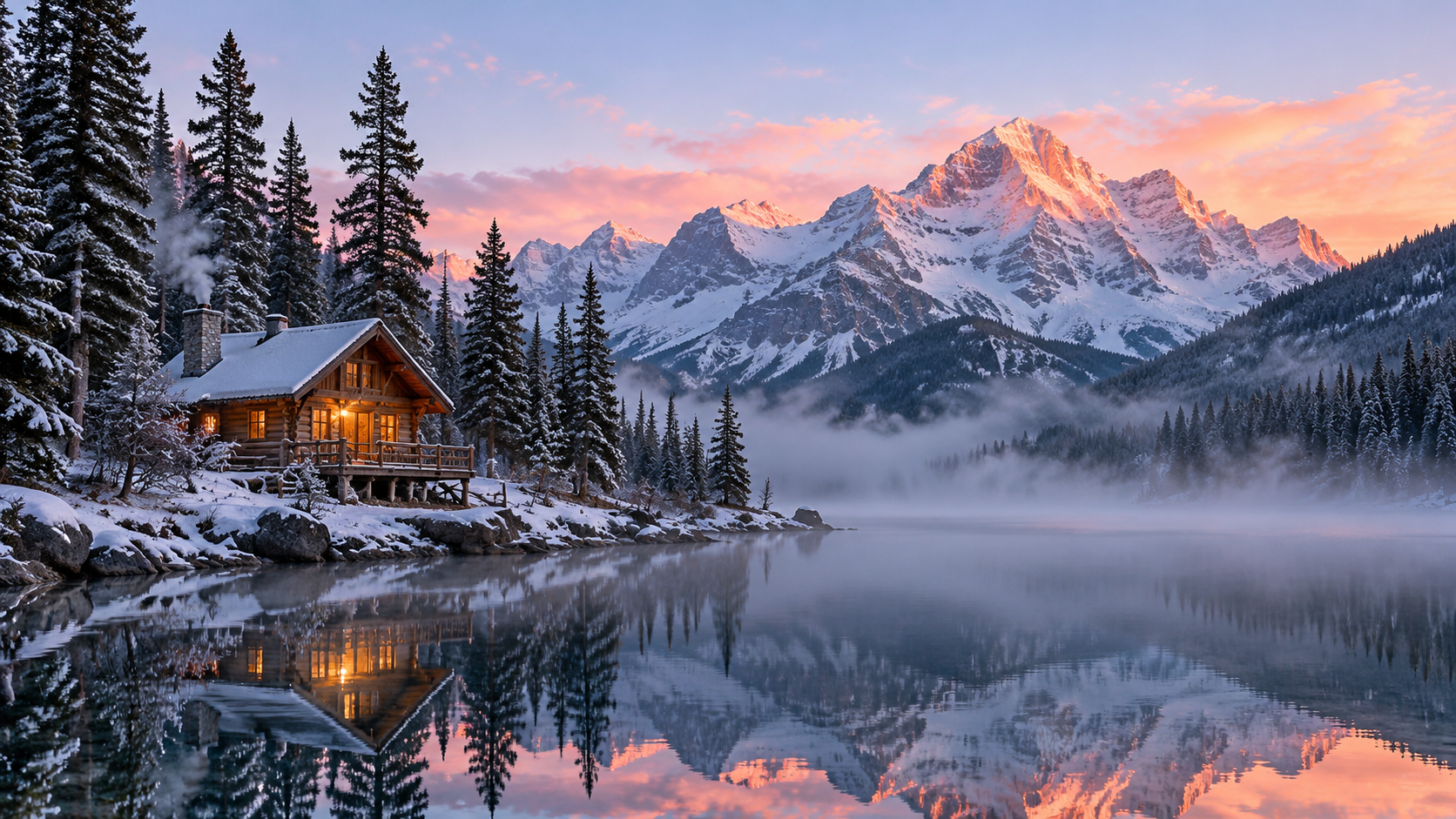
The most reliable way to bring a landscape still to life is to move the camera, not the scene. Pick one clear move — a push-in, a slow dolly, a gentle rise — and write it plainly, then add the small secondary motions that sell it (drifting mist, rippling water). Keeping the horizon "level" in the prompt stops the model from tilting the frame as it invents the move.
{
  "model": "pixverse-v6/image-to-video",
  "input": {
    "image_url": "https://static.hiapi.ai/blog/pixverse-v6-image-to-video-prompt-recipes/01-cabin-pushin-frame.jpg",
    "prompt": "Slow, steady cinematic push-in toward the cabin. Mist drifts low across the lake and the water ripples gently. The pines sway in a soft breeze. Unhurried early-morning motion; the horizon stays level throughout.",
    "duration": 5,
    "resolution": "720p",
    "generate_audio": true,
    "negative_prompt": "shaky camera, sudden cuts, warping, flickering, people"
  }
}
In the clip the camera glides steadily forward — by the end the cabin and the snow-lit peaks sit noticeably larger in frame — while mist slides across the water and the reflection holds. The horizon never tilts, and because generate_audio was on, the file comes back with a quiet ambient bed already layered in (you can confirm the audio track with ffprobe).
Why it works: one dominant camera verb ("push-in"), two quiet environmental motions, and a stability instruction. generate_audio: true layers in matching ambience in the same call — no separate audio step.
Recipe 2 — Animate the subject that's already there
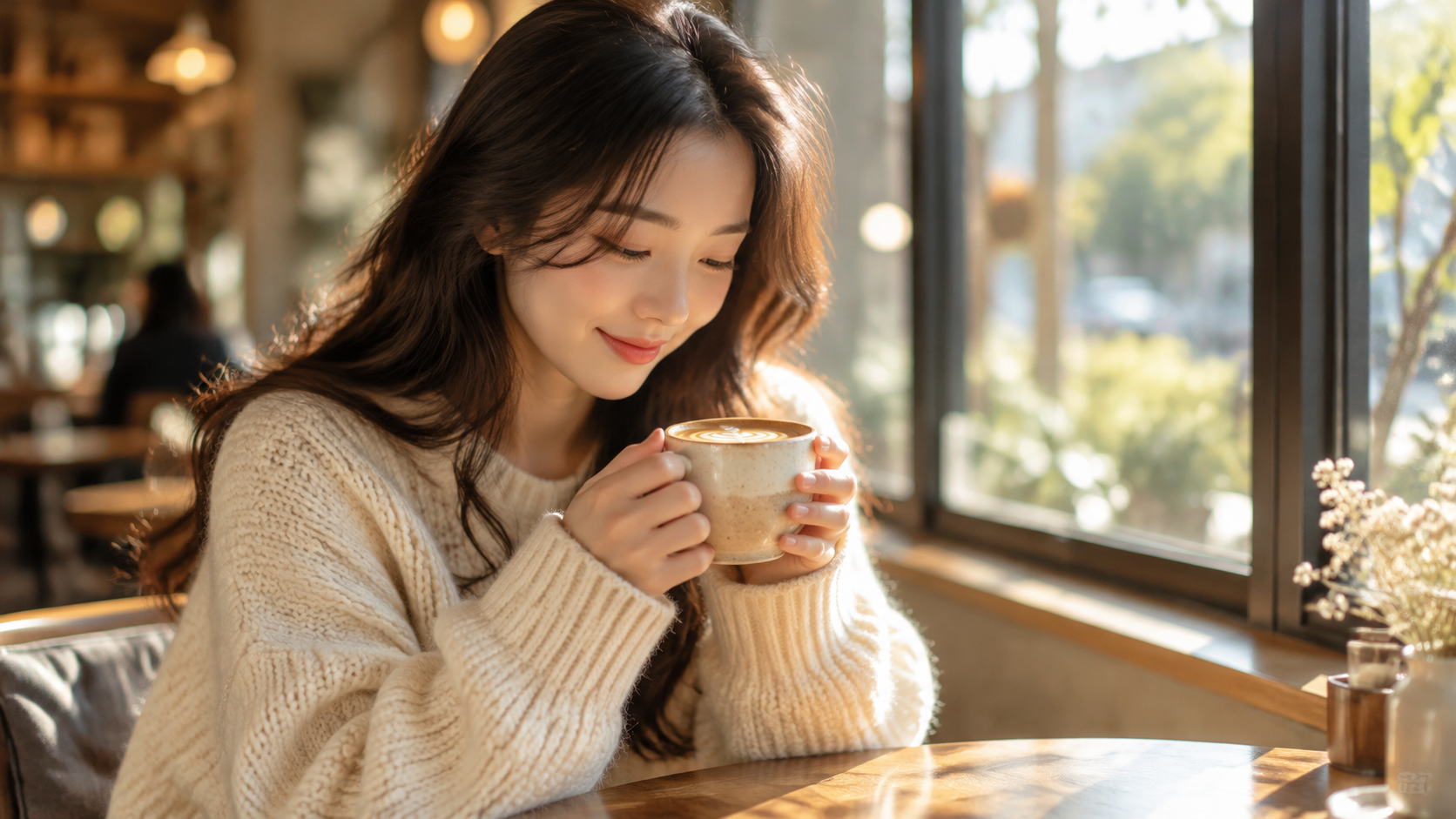
When a person or product is the focus, the trick is to ask only for motion the current pose can plausibly reach. Our subject is holding a cup and looking down, so "lift the cup, sip, look up, smile" is a natural arc. Over-asking ("she stands up and walks away") is what produces melting faces and extra fingers — so this is the recipe where negative_prompt earns its keep.
{
  "model": "pixverse-v6/image-to-video",
  "input": {
    "image_url": "https://static.hiapi.ai/blog/pixverse-v6-image-to-video-prompt-recipes/02-cafe-sip-frame.jpg",
    "prompt": "The woman slowly lifts the cup, takes a small sip, then raises her eyes toward the camera and gives a gentle, natural smile. A subtle blink and a slight tilt of the head; faint steam curls from the cup. The background stays still.",
    "duration": 5,
    "resolution": "720p",
    "negative_prompt": "distorted face, deformed hands, extra fingers, morphing features, warping, flicker"
  }
}
The result follows the beats in order: she raises the cup, and by the end her eyes have lifted from the cup to the lens and settled into an easy smile. Face and hands stay clean through the whole move — on a human subject that's exactly what the loaded negative_prompt is buying you.
Why it works: the motion matches the pose, the beats are sequenced ("lifts… sips… raises… smiles"), and the negative_prompt is loaded with the specific failure modes of human i2v — faces and hands.
Recipe 3 — Ambient motion with a locked-off camera
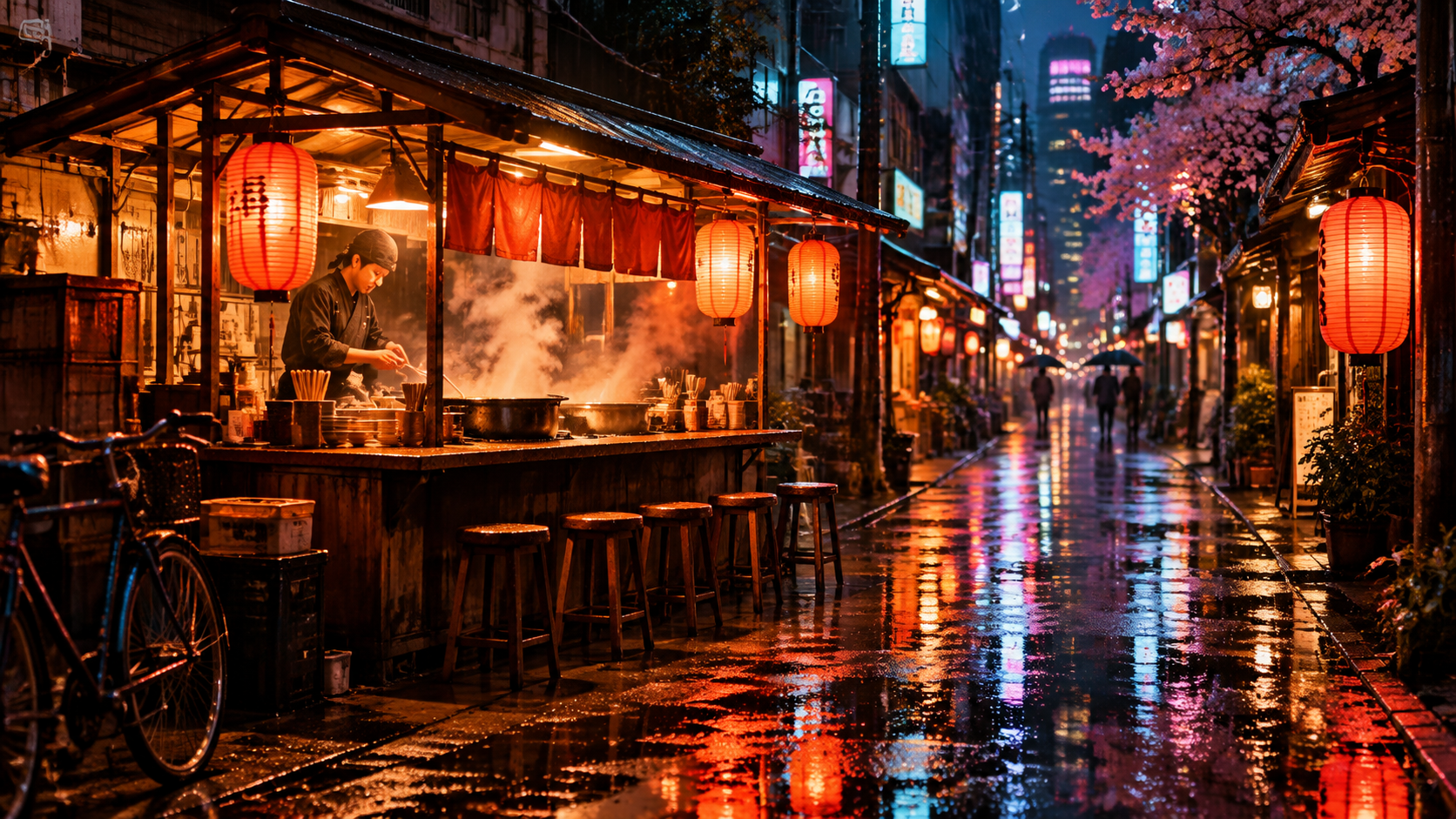
Not every clip needs a camera move. Sometimes the most cinematic result is a held shot where only the world moves: rain, steam, flickering neon, a passer-by. The key phrase here is telling the camera explicitly to stay put — otherwise the model often adds a slow drift you didn't ask for.
{
  "model": "pixverse-v6/image-to-video",
  "input": {
    "image_url": "https://static.hiapi.ai/blog/pixverse-v6-image-to-video-prompt-recipes/03-ramen-rain-frame.jpg",
    "prompt": "The camera stays locked off, no movement at all. Fine rain keeps falling in thin streaks; the neon signs flicker and shimmer in the wet pavement; steam curls up from the ramen pots; one or two pedestrians drift through the far background under umbrellas.",
    "duration": 5,
    "resolution": "720p",
    "generate_audio": true,
    "negative_prompt": "camera shake, zoom, pan, dolly, warping, melting signage"
  }
}
The frame holds its position start to finish — the stall, the stools and the receding street stay exactly where they were — while steam rolls off the pots, the wet pavement shimmers with neon reflections, and the figures under umbrellas shift along the background. No creeping zoom, no drift. With audio on it comes back with a rainy-street ambience to match.
Why it works: "locked off, no movement at all" plus camera shake, zoom, pan, dolly in the negative prompt pins the camera, so all the motion budget goes into the atmosphere. Audio on gives you rain and street ambience to match.
Recipe 4 — Vertical output from a portrait frame
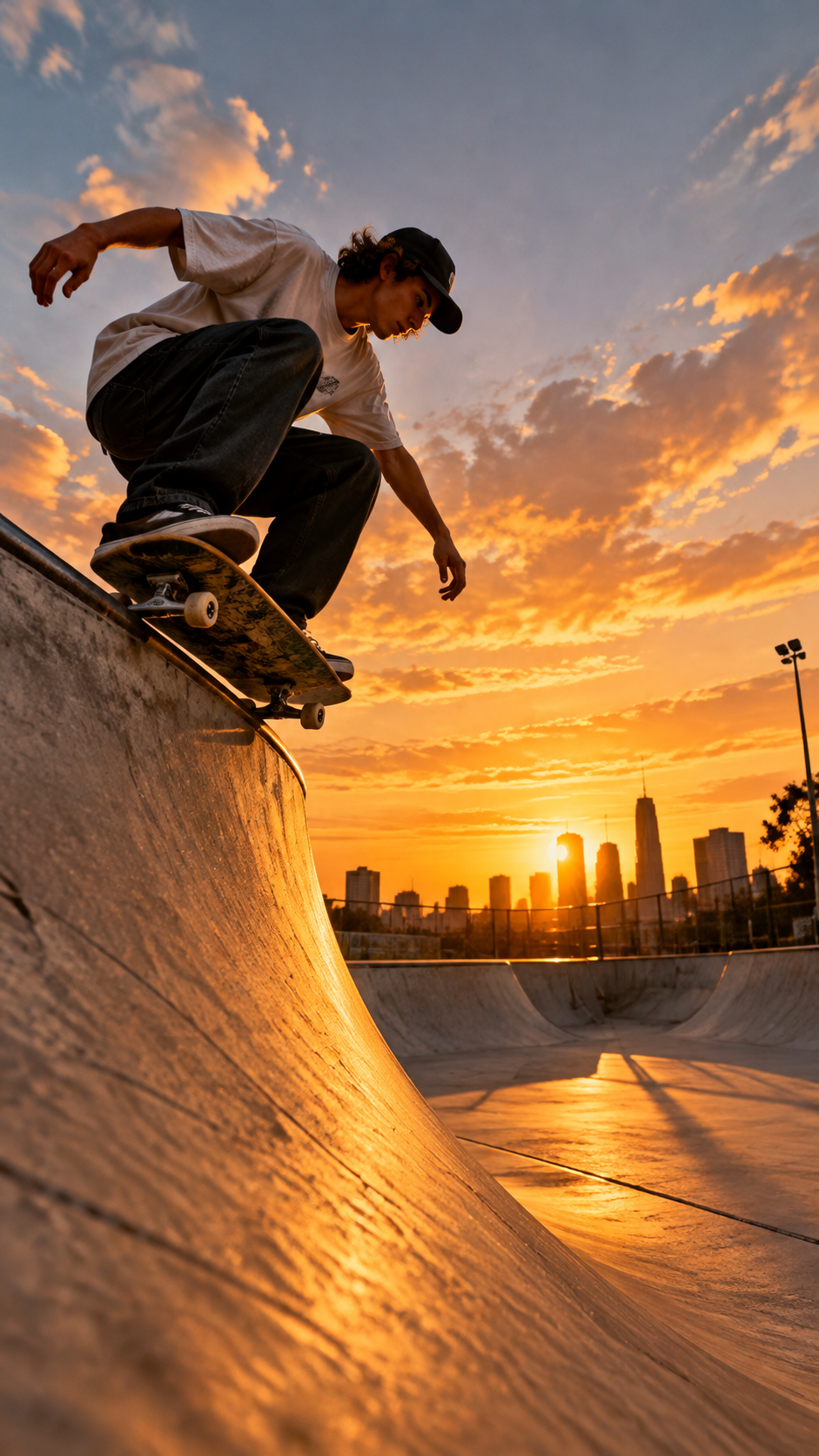
This recipe pins down the single most i2v-specific rule: geometry comes from your image. Because there's no aspect_ratio knob, the only way to get a 9:16 vertical clip is to feed a 9:16 frame — so this still was generated portrait. I also passed style: anime on this one to test whether the preset (anime, 3d_animation, clay, comic, cyberpunk) would reskin an already-photoreal frame. The answer turned out to be instructive — see below.
{
  "model": "pixverse-v6/image-to-video",
  "input": {
    "image_url": "https://static.hiapi.ai/blog/pixverse-v6-image-to-video-prompt-recipes/04-skate-vertical-frame.jpg",
    "prompt": "The skater drops in and carves down the ramp with fast, confident motion; the board kicks up a little dust and the jacket and hair whip in the wind. Energetic, dynamic action held in a stable vertical frame.",
    "duration": 5,
    "resolution": "720p",
    "style": "anime",
    "negative_prompt": "blurry, distorted limbs, warping, low energy, letterbox bars"
  }
}
The clip came back 720×1280 — vertical — straight from the portrait frame, with no aspect_ratio field anywhere in the request. The drop-in and carve read fast and clean, with natural motion blur on the board and the ramp wall. The style: anime preset, though, had no visible effect — the result stayed fully photorealistic, tracking the look of the input image rather than converting to anime. On image-to-video the first frame anchors the appearance.
What to take from it: the vertical frame forces a vertical clip with no aspect_ratio field in sight, and "stable vertical frame" plus letterbox bars in the negative prompt keep it full-bleed instead of pillar-boxed. Don't lean on style to transform a photoreal frame here — if you want an anime or claymation look, generate the first frame in that style before you animate it.
Dialing it in
Once a recipe is close, these are the knobs that move the result:
duration— an integer,1–15seconds (default5). Longer clips cost proportionally more and give the model more room to drift, so keep demos short and tight.negative_prompt— your main artifact brake. For people, list faces/hands; for locked shots, list camera moves; for styled shots, listletterbox bars.seed— pass an integer to make a look reproducible, then change only the prompt to iterate.resolution+generate_audio— these two set the price. At 720p a clip is $0.0645/s with sound off and $0.086/s with sound on; 1080p is $0.129/s / $0.1645/s. A 5-second 720p clip with audio is about $0.43. Current per-second rates for every tier are on the pricing page.
FAQ
Why doesn't pixverse-v6/image-to-video have an aspect_ratio field?
Because you supply the first frame, the output geometry follows that image. There is no ratio to choose — the clip comes out the same shape as your image_url. For a vertical result, crop or generate your frame at 9:16 first (recipe 4).
How long can an image-to-video clip be?
duration accepts an integer from 1 to 15 seconds, defaulting to 5. It must be a number, not a string.
Can I get sound in the same call?
Yes. Set generate_audio: true and the model adds a matching soundtrack/ambience to the clip — no separate request. It's off by default, and turning it on moves you to the "sound on" price tier.
My subject's face or hands warp. How do I fix it?
Two levers. First, only ask for motion the starting pose can reach — small, plausible actions animate cleanly; large ones (standing, walking off) tend to morph. Second, load the negative_prompt with the specific failure terms: distorted face, deformed hands, extra fingers, morphing features.
Does the style preset restyle my input image?
Don't count on it for image-to-video. When I sent a photorealistic frame with style: anime, the clip came back photoreal — the input image dominated the look and the preset had no visible effect. If you need a specific style (anime, clay, comic), the reliable move is to generate or edit your first frame in that style before you animate it.
How is this different from text-to-video prompting? In text-to-video you build the whole scene in words; in image-to-video the scene is fixed by your frame and you only describe motion and camera. If you want to generate motion from a text description instead of a still, that's pixverse-v6/text-to-video.
Takeaways
- Write motion, not scenery — the first frame already contains the scene, so spend the prompt on what moves and how the camera behaves.
- There is no
aspect_ratio: the clip inherits your frame's shape, so set vertical/landscape by choosing the input image. - Match the motion to the pose and lean on
negative_prompt— it's the difference between a clean subject animation and a warping face. generate_audioandresolutionare the two fields that set your price; a 5s 720p clip runs well under a dollar.
Pick the recipe closest to your shot, swap in your own image_url, and send it to pixverse-v6/image-to-video. If you're starting from a text idea instead of a still, begin on the model catalog and pick the text-to-video line.