TL;DR
- What it is: a mask-driven inpainting model from Black Forest Labs. You send a source image, a same-size black-and-white mask and a prompt, and only the white area is repainted. It is live on HiAPI: open the model page to try it, and new accounts get 200 free credits on sign-up.
- What it costs: $0.0715 per image (143 credits), billed per successful output. Steps, guidance, seed and output format add nothing, failed tasks are refunded, and $10 buys about 139 edits.
- Fastest path:
POST https://api.hiapi.ai/v1/taskswithmodel: "flux-1-fill-pro"andinput.image,input.maskandinput.prompt, then poll thetaskIdor wait for the callback and downloaddata.output[0].url.
The part that trips people up is not the parameters, it is the assets: the mask must match the source dimensions exactly, and its white area should cover only what changes. Get those two right and the first run is boring, in the good way.
What is FLUX.1 Fill Pro?
It is an editing model that changes only the region you mark. The mask decides where the edit stops, not the wording, so the furniture, shadows and horizon line next to your target stay put.
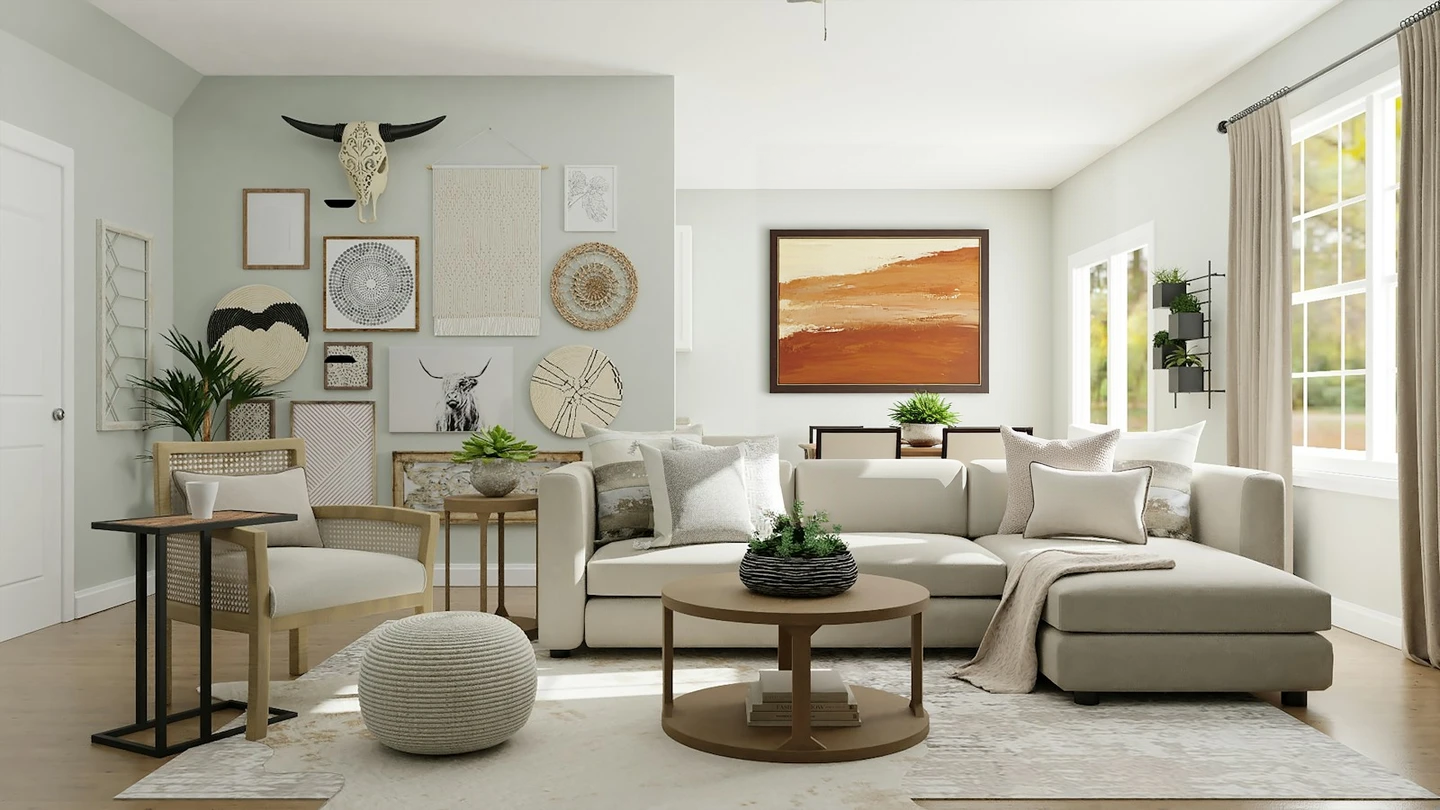
A mask over the small patch of wall behind the clock, output 1440 × 810. The tapestry, woven discs, bison skull, plant, sofa and light on the left were not repainted.
- Three inputs. Source image (JPEG / PNG / GIF / WebP), a same-size black-and-white mask, and a prompt of up to 4,000 characters.
- A boundary you control. White repaints, black keeps. The edit stops at the mask edge, which is what product retouching, background swaps and garment recolors need.
- Output follows the source. No ratio parameter: the aspect ratio is inherited, and a 1600 × 900 source returns 1440 × 810, adjusted to multiples of 32.
- Few settings. steps 15–50 (default 50), guidance 1.5–100 (default 60), plus optional seed and jpg or png output.
A large framed abstract painting in warm terracotta, sand and cream tones, hanging on the wall, with a thin dark wood frame; keep the room, sofa, furniture and lighting unchanged.
Generate with this prompt → The link pre-fills the prompt only: the source slot is empty and the mask slot holds the model's example mask. Swap in your own source and a same-size mask, then hit Run.
How do you prepare the mask?
Four rules, in this order:
- Two values only. White is repainted, black is kept. Soft grey edges blur the boundary, so aim for a hard edge.
- Match the source exactly. A 1600 × 900 source needs a 1600 × 900 mask. Do not screenshot and rescale; export the mask from the same file. A size mismatch fails the task.
- Hug the target. Cover what changes and stop. Pulling in nearby furniture, tabletop or shadow invites the model to touch them.
- Export PNG at the source resolution. PNG carries no compression noise and keeps the edge clean. The mask and the source both have to be reachable over http(s), because the API takes URLs, not file uploads.
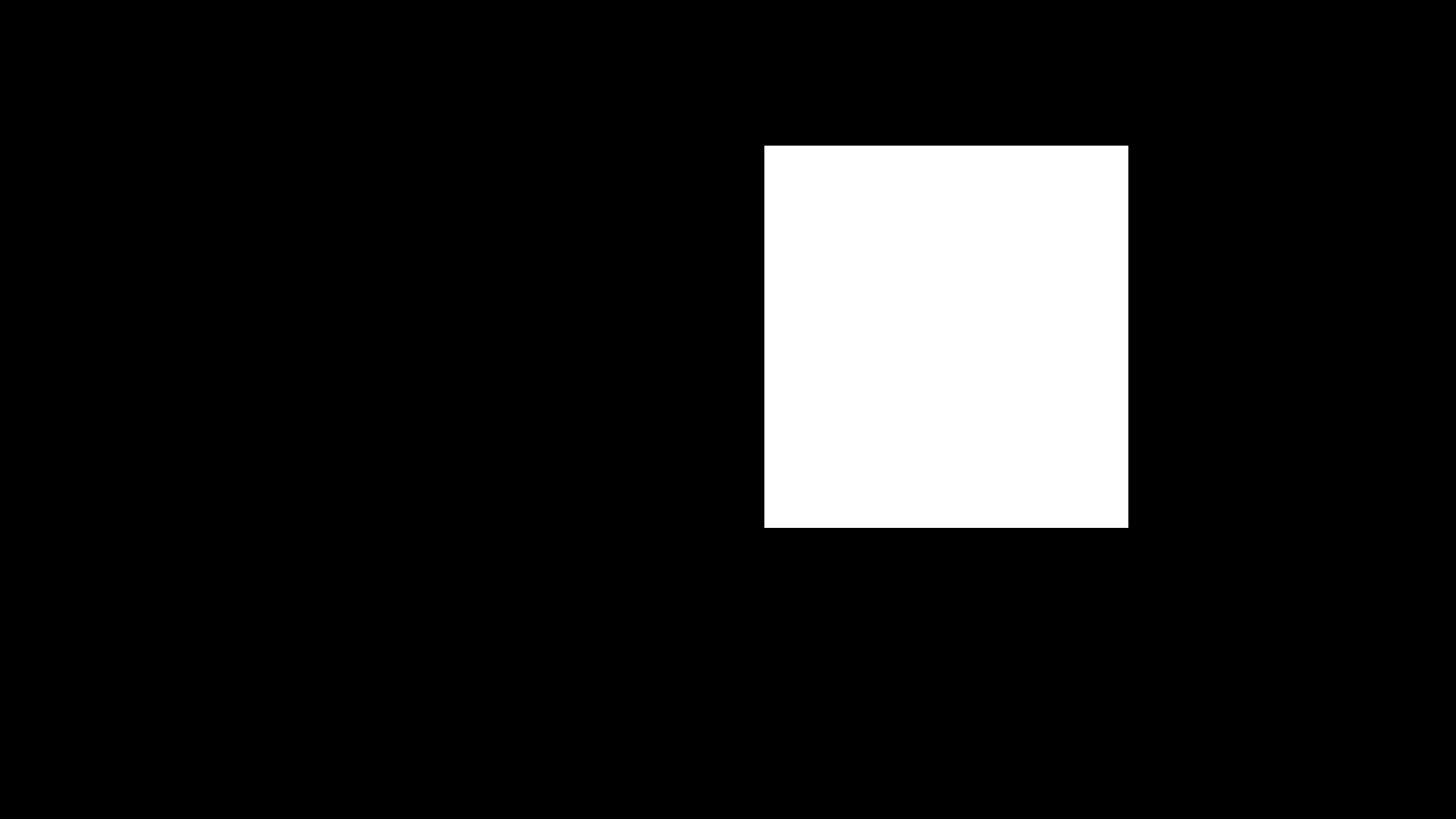
Black keeps, white repaints. This 1600 × 900 mask leaves white only where the clock hangs, so only that patch of wall is redrawn.
Try it online in 4 steps
The model page does not draw masks; build yours in your own editor first.
- Open the FLUX.1 Fill Pro model page, sign in, and your new account starts with 200 credits.
- Upload the source image, then the same-size black-and-white mask.
- Paste the prompt. Describe what appears inside the white area and state what must be preserved.
- Hit Run. Defaults are steps 50, guidance 60 and jpg output, which is the right place to start.
A "Generate with this prompt" link opens the page with the prompt filled in. The source slot is empty and the mask slot starts on the model's example mask, so replace the mask with your own unless it happens to fit.
Call the API in 4 steps
- Create an API key (
sk-...) in the dashboard. POST /v1/taskswithimage,maskandpromptinsideinput.- Poll
GET /v1/tasks/{taskId}, or sendcallback.urland wait for the notification. - Once
data.statusissuccess, downloaddata.output[0].urland store the file.
The full field table, error codes and parameter notes are in the API docs.
Your first masked edit: curl
curl -s -X POST https://api.hiapi.ai/v1/tasks \
  -H "Authorization: Bearer sk-YOUR_KEY" \
  -H "Content-Type: application/json" \
  -d '{
    "model": "flux-1-fill-pro",
    "input": {
      "image": "https://static.hiapi.ai/model-onboarding/flux-1-fill-pro/prod-migrate/2026/10/21/1792572565867-4e5072a121d7018f-1792418738578-4e5072a121d7018f-source.jpg",
      "mask": "https://static.hiapi.ai/model-onboarding/flux-1-fill-pro/prod-migrate/2026/10/21/1792572569695-82bb18075f29c864-1792418739459-82bb18075f29c864-mask.png",
      "prompt": "A large framed abstract painting in warm terracotta, sand and cream tones, hanging on the wall, with a thin dark wood frame; keep the room, sofa, furniture and lighting unchanged.",
      "steps": 50,
      "guidance": 60,
      "output_format": "png"
    }
  }'
The task ID comes back in data.taskId:
{"code":200,"data":{"taskId":"tk-hiapi-..."},"message":"success"}
Fetch the result:
curl -s https://api.hiapi.ai/v1/tasks/YOUR_TASK_ID \
  -H "Authorization: Bearer sk-YOUR_KEY"
Those two URLs are the exact pair used above: a 1600 × 900 source and its same-size mask, so this request reproduces the painting edit at the top of the page.
Your first masked edit: Python
Create, poll and download in one script; swap in your key and run it:
import requests, time

API = "https://api.hiapi.ai/v1/tasks"
HEADERS = {"Authorization": "Bearer sk-YOUR_KEY"}

payload = {
    "model": "flux-1-fill-pro",
    "input": {
        "image": "https://static.hiapi.ai/model-onboarding/flux-1-fill-pro/prod-migrate/2026/10/21/1792572565867-4e5072a121d7018f-1792418738578-4e5072a121d7018f-source.jpg",
        "mask": "https://static.hiapi.ai/model-onboarding/flux-1-fill-pro/prod-migrate/2026/10/21/1792572569695-82bb18075f29c864-1792418739459-82bb18075f29c864-mask.png",
        "prompt": "A large framed abstract painting in warm terracotta, sand and cream tones, hanging on the wall, with a thin dark wood frame; keep the room, sofa, furniture and lighting unchanged.",
        "steps": 50,
        "guidance": 60,
        "output_format": "png",
    },
}

resp = requests.post(API, headers=HEADERS, json=payload, timeout=30)
task_id = resp.json()["data"]["taskId"]

while True:
    status = requests.get(f"{API}/{task_id}", headers=HEADERS, timeout=30).json()["data"]
    if status["status"] in ("success", "fail"):
        break
    time.sleep(3)

if status["status"] == "success":
    image_url = status["output"][0]["url"]
    with open("fill-pro-edit.png", "wb") as f:
        f.write(requests.get(image_url, timeout=60).content)
else:
    print(status.get("error"))
How should you tune the settings?
Change one at a time, so each difference has an obvious cause.
- steps (15–50, default 50): higher adds detail. The default is already production-grade; go lower only when speed matters more.
- guidance (1.5–100, default 60): higher follows your prompt more closely. Push it up when the style drifts, ease it back when the result looks stiff.
- seed: fix one once you like a result. Same source, same mask, same prompt and a fixed seed gets you back to something close.
- output_format:
jpgby default. Usepngwhen you need maximum detail or plan another processing pass. - prompt_upsampling:
falseby default. Turning it on rewrites your prompt, so leave it off to keep your exact wording.
Four things to handle before launch
- You cannot draw a mask on the page. Both the playground and the API accept a finished mask image, and it must match the source size. Build it in Photoshop, Figma or a segmentation tool first.
- Use a callback on the server. Add
"callback": {"url": "https://yourapp.com/webhook", "when": "final"}so the job reports itself, and keep polling as a fallback. - Retry the poll, not the create. Every
POST /v1/taskscreates and bills a new task. Store thetaskIdand re-read that task on a timeout. - Output URLs expire. Download the file as soon as the task succeeds instead of storing the link. And since the ratio follows the source with no ratio parameter, crop to your fixed slot yourself.
FAQ
Can I skip the mask?
No. image, mask and prompt are all required, and the mask has to be a black-and-white image the same size as the source.
How long should the prompt be? Up to 4,000 characters, but short works: one sentence on what appears inside the white area, one on what must stay. Specific detail is what makes it repeatable.
Is the output the same pixel size as the source? The ratio matches; pixels are adjusted to multiples of 32. A 1600 × 900 source returns 1440 × 810, so resize before compositing back.
Am I charged for a failed edit? No. The hold on a failed task is refunded automatically.
Run your first edit now
Use the two assets above as practice material: copy the curl body, drop in your API key and run it, or open the model page with the prompt already filled in, upload the source and the mask, and hit Run. That edit is $0.0715, and the 200 sign-up credits cover your first one.
More on FLUX.1 Fill Pro
- FLUX.1 Fill Pro model page: try a masked edit online
- FLUX.1 Fill Pro API pricing: $0.0715 per edit
- FLUX.1 Fill Pro vs Kontext Max: mask or full-image edit
- FLUX.1 Fill Pro prompts: 4 masked edits to copy
- FLUX.1 Fill Pro API docs: every parameter and input format
- How to use the FLUX.1 Fill Pro API with curl and Python