TL;DR
Choose Google Virtual Try-On for a dedicated person-and-garment workflow. Choose Seedream 5.0 Lite for written instructions about keeping footwear and backgrounds, or for garment changes within a broader editing workflow. Google Virtual Try-On costs $0.1075 per image, with calculations on the pricing page; Seedream 5.0 Lite costs $0.035 per image. Both pairs produce a changed outfit, with details outside the garment that still need review.
Prepare a person photo and garment image, then open Google Virtual Try-On. For text-directed editing, open Seedream 5.0 Lite image to image.
Which differences affect the choice?
| Decision | Google Virtual Try-On | Seedream 5.0 Lite image to image |
|---|---|---|
| Input method | Dedicated person and garment fields | Reference-image array plus an editing instruction |
| Prompt | No prompt field | Required prompt, 4 to 3000 characters |
| Image organization | person_image_url, product_image_url | image_urls, supporting 1 to 14 references |
| Settings here | num_images: 1 | Person first, garment second; 3:4, 2K |
| Count or size control | num_images currently accepts only 1 | Supports 2K and 4K; examples use 2K |
| Result files shown | Both are 1086×1448 WebP | Both are 1728×2304 PNG |
| Price per image | $0.1075 | $0.035; 2K and 4K cost the same |
Each pair uses the same person and garment images with the same goal: put that garment on that person. Try-On has no prompt; Seedream uses one. Dimensions and formats differ too, so these are shared-input, shared-goal comparisons, not identical parameters. Compare appearance at the same display size; pixel count is not a quality ranking.
Striped T-shirt: check the pattern, hem and hands
| Shared person image | Shared garment image |
|---|---|
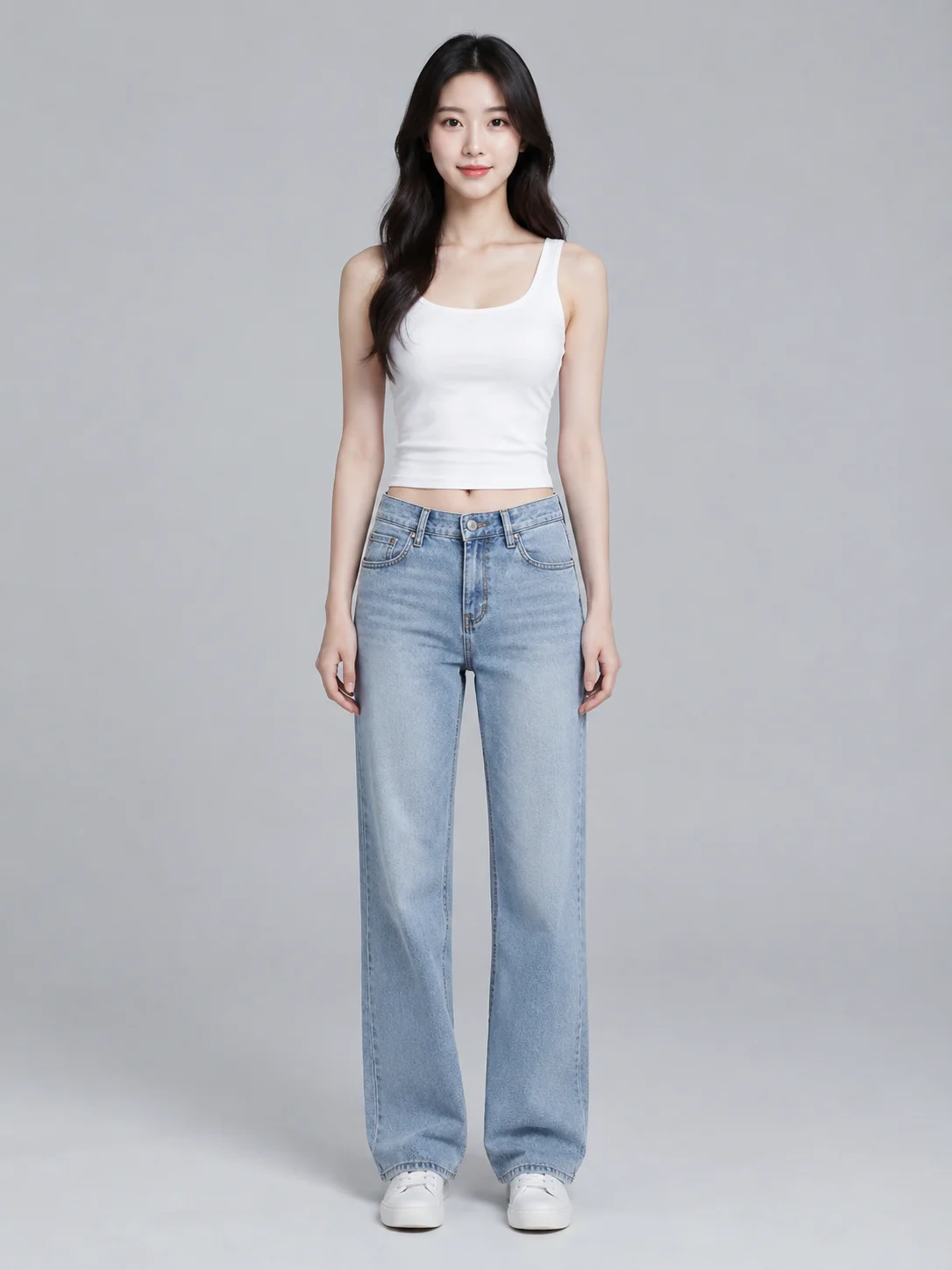 | 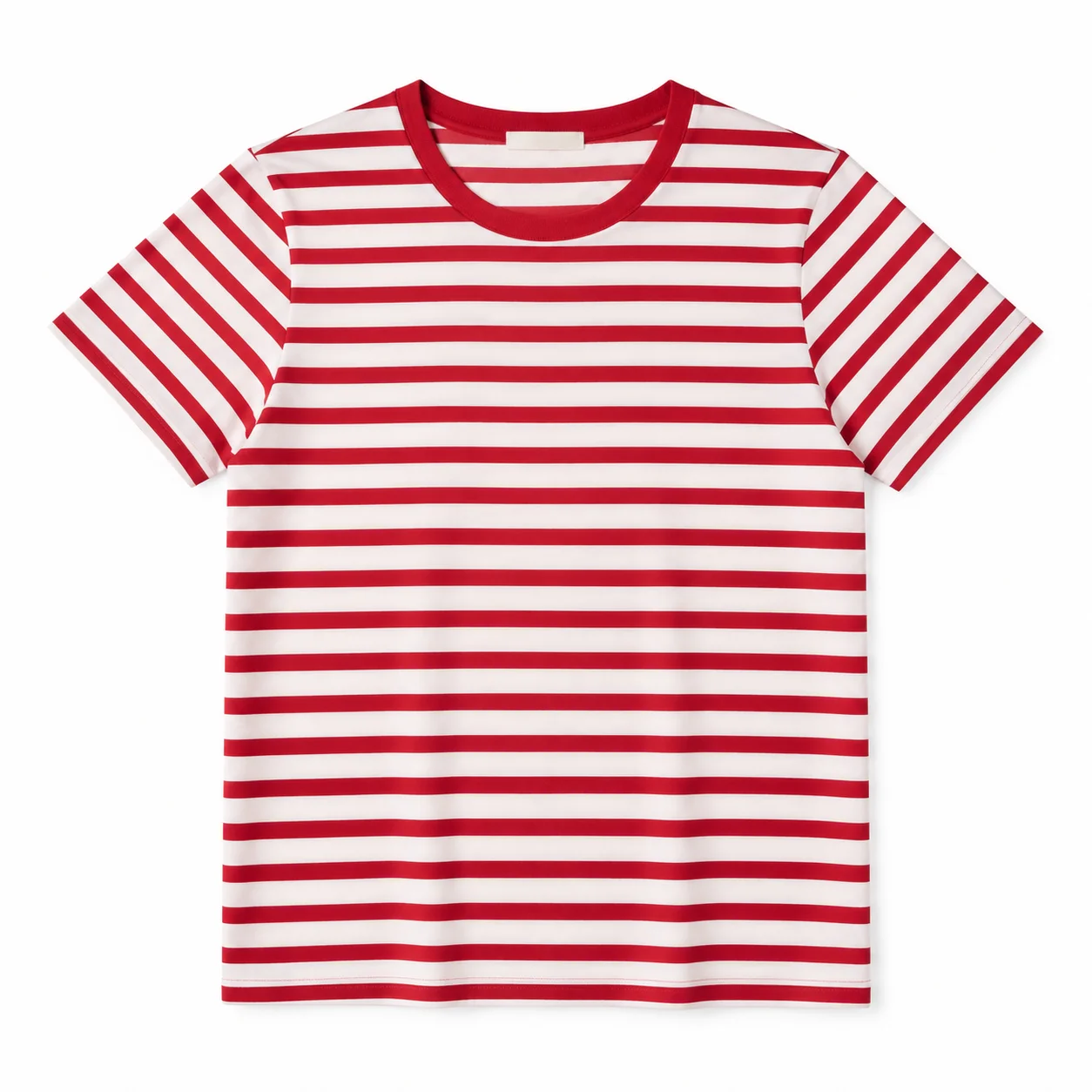 |
| Prepare person and garment images, then open Try-On | Prepare person and garment images, then open Try-On |
| Google Virtual Try-On | Seedream 5.0 Lite |
|---|---|
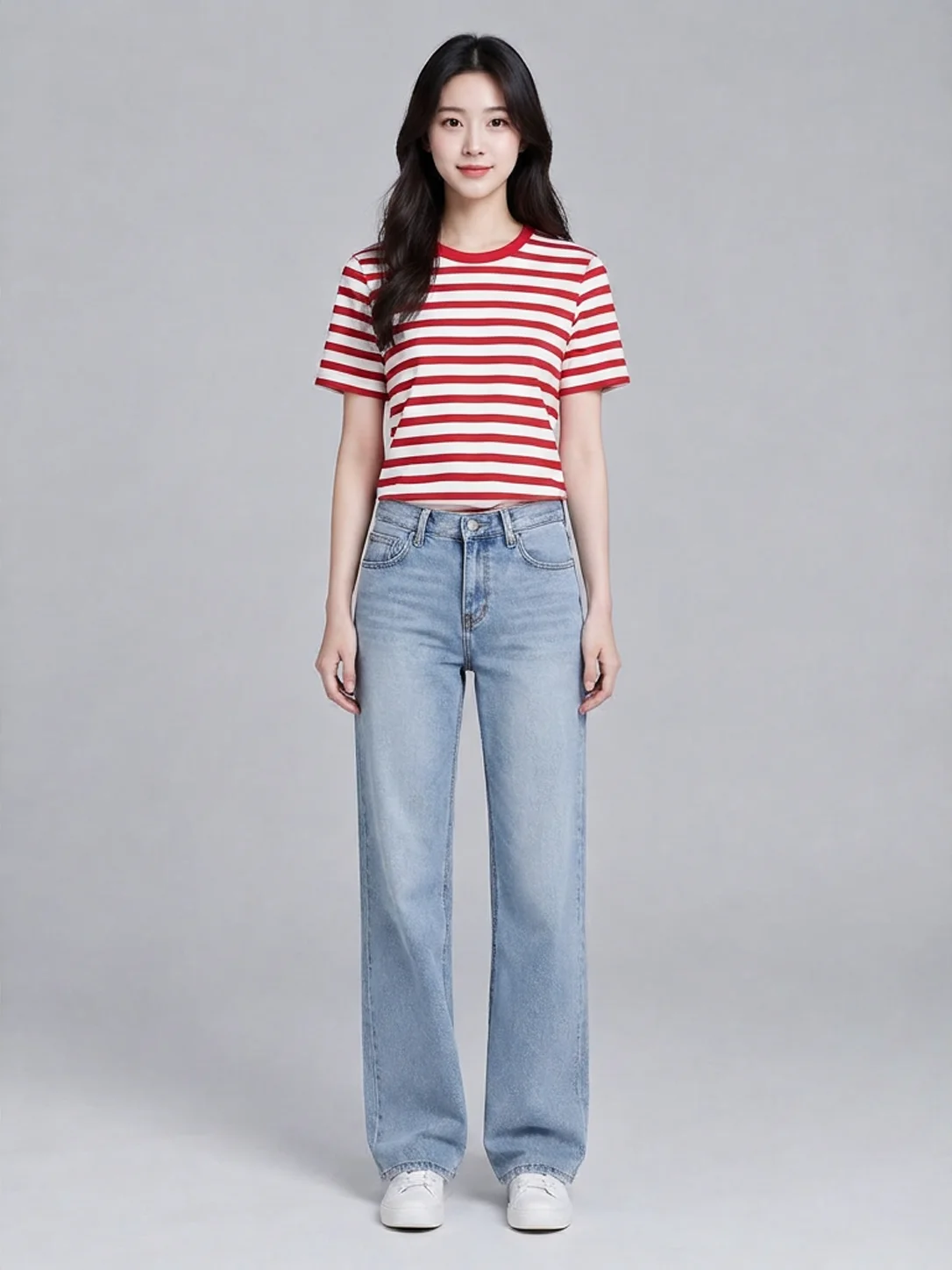 | 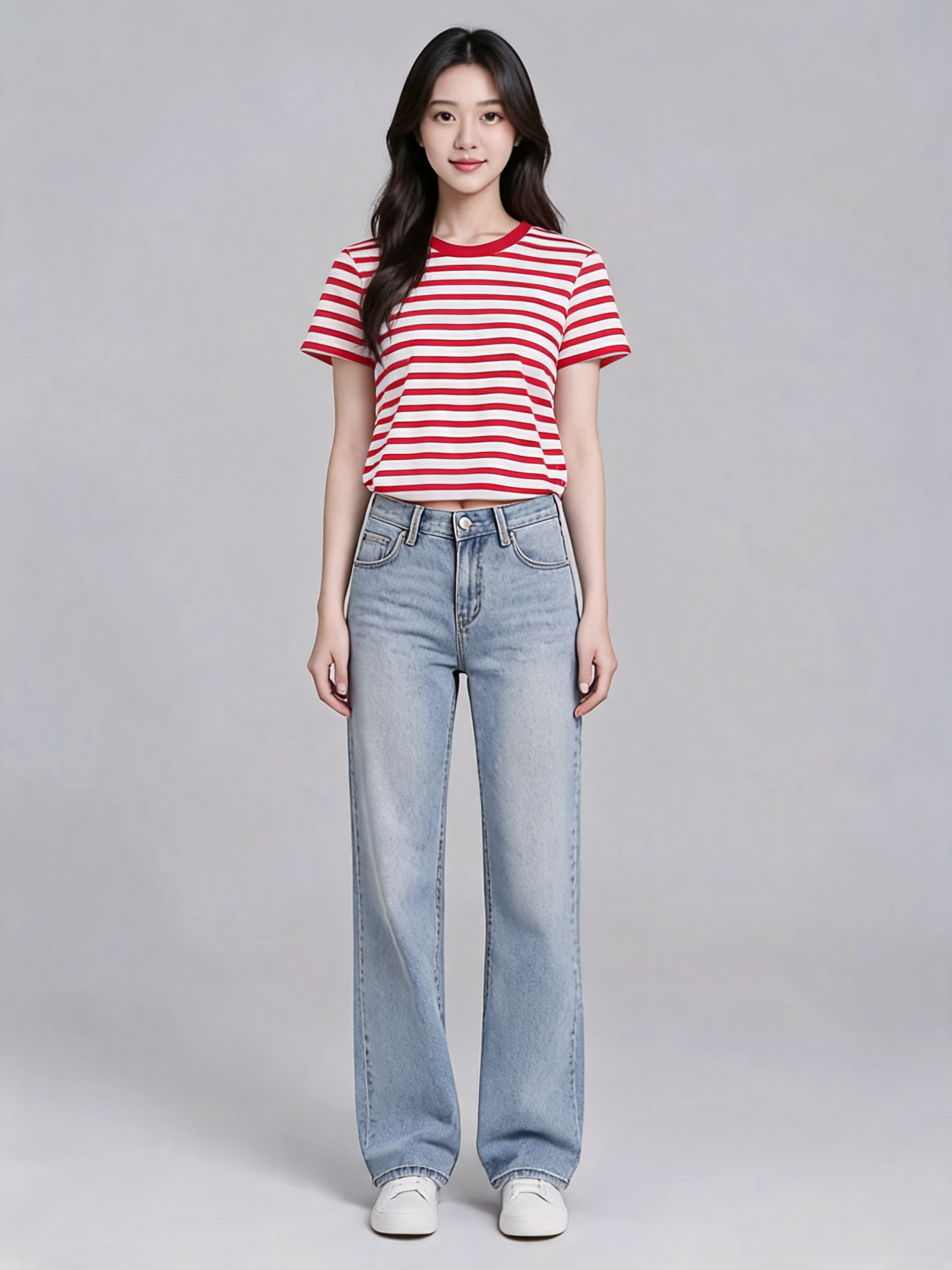 |
| Prepare person and garment images, then open Try-On | Generate with this prompt → |
Try-On: no prompt, num_images: 1, 1086×1448 WebP, $0.1075. Seedream: the original instruction below, 3:4, 2K, 1728×2304 PNG, $0.035. View both at the same display size.
The person starts in a white tank top, blue jeans and white shoes. The garment reference is a flat lay of a red-and-white striped T-shirt. Both results replace the tank top with the striped shirt while retaining jeans and a light background. Stripes bend across the chest and around folds at the waist.
Try-On creates a new arrangement of the neckline, shoulders, sleeves and hem. Seedream also fits the neckline and sleeves to the body, but the bunching at the waist, stripe spacing and hem position differ. For a listing, check whether those choices still describe the original cut; recognizing red-and-white stripes is only part of the review.
Hands remain near the pockets in both versions, so the junction between wrists and hem needs attention. Facial appearance also changes locally. Keeping the person in the scene does not establish pixel-level identity preservation. For a catalog featuring the same model across products, compare facial shape, hairline and proportions against the original.
Satin dress: footwear and hand placement can change
| Shared person image | Shared garment image |
|---|---|
 |  |
| Prepare person and garment images, then open Try-On | Prepare person and garment images, then open Try-On |
| Google Virtual Try-On | Seedream 5.0 Lite |
|---|---|
 |  |
| Prepare person and garment images, then open Try-On | Generate with this prompt → |
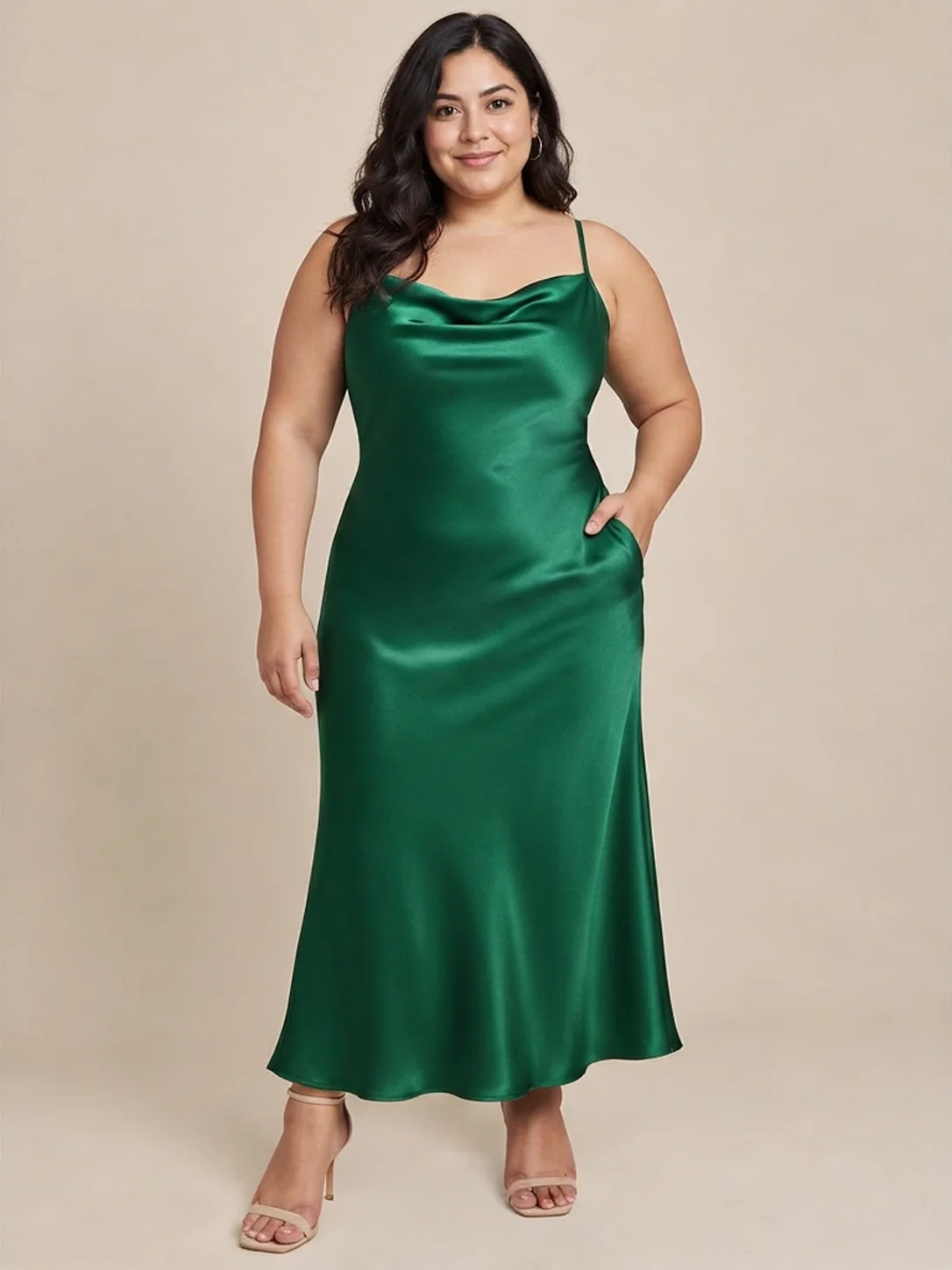
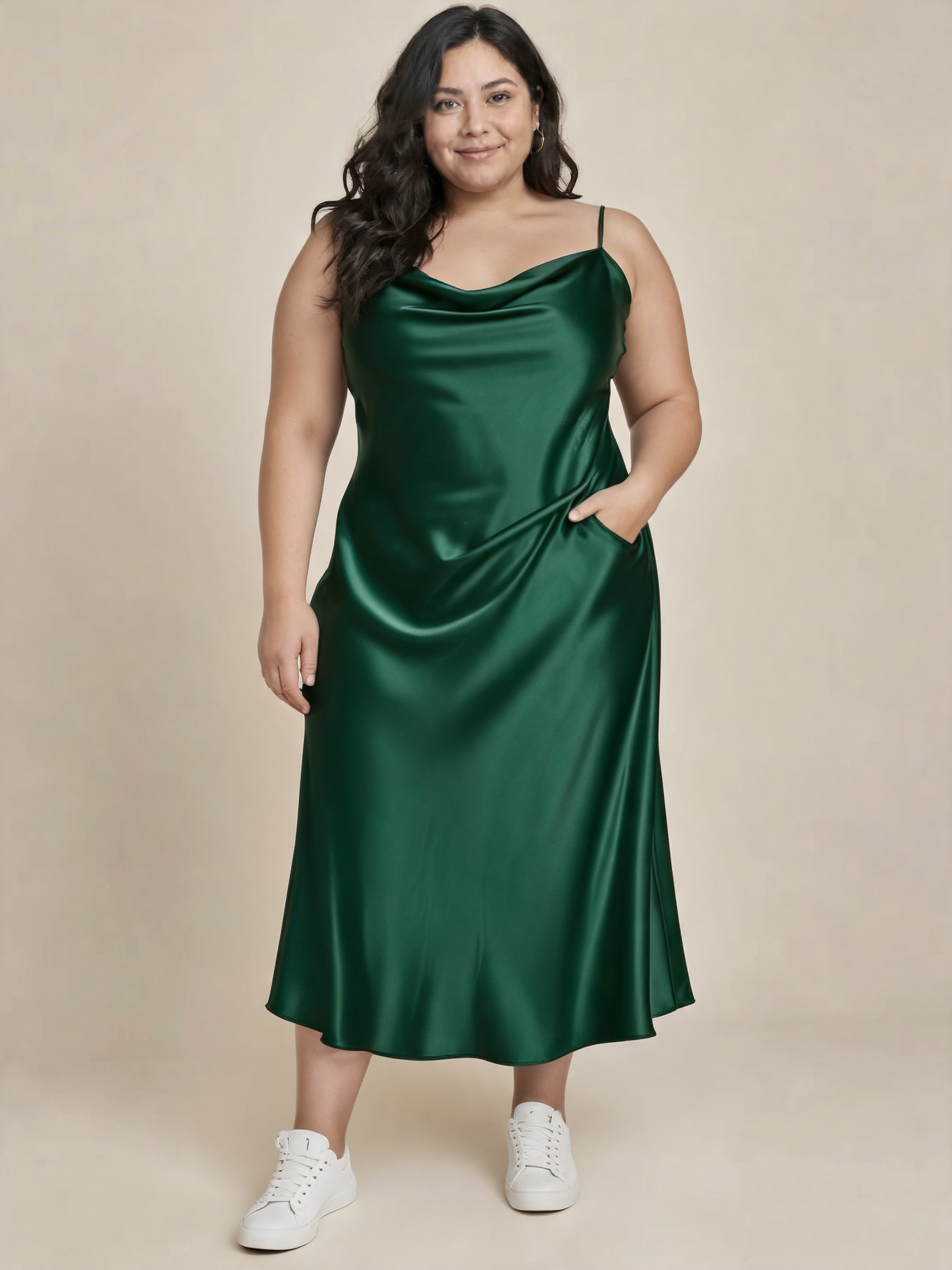
Try-On: no prompt, num_images: 1, 1086×1448 WebP, $0.1075. Seedream: the same original instruction, 3:4, 2K, 1728×2304 PNG, $0.035. Dimensions and formats differ.
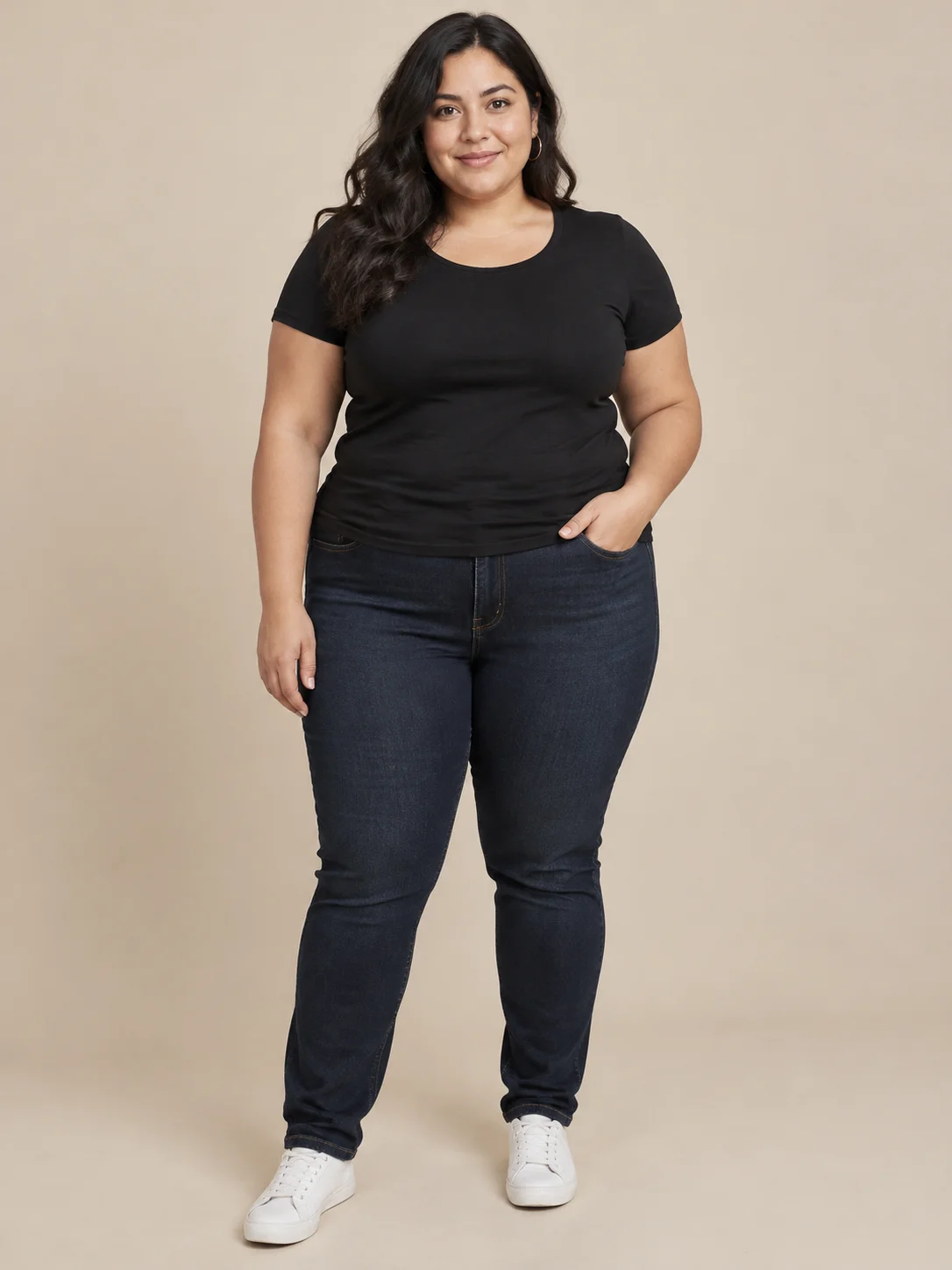
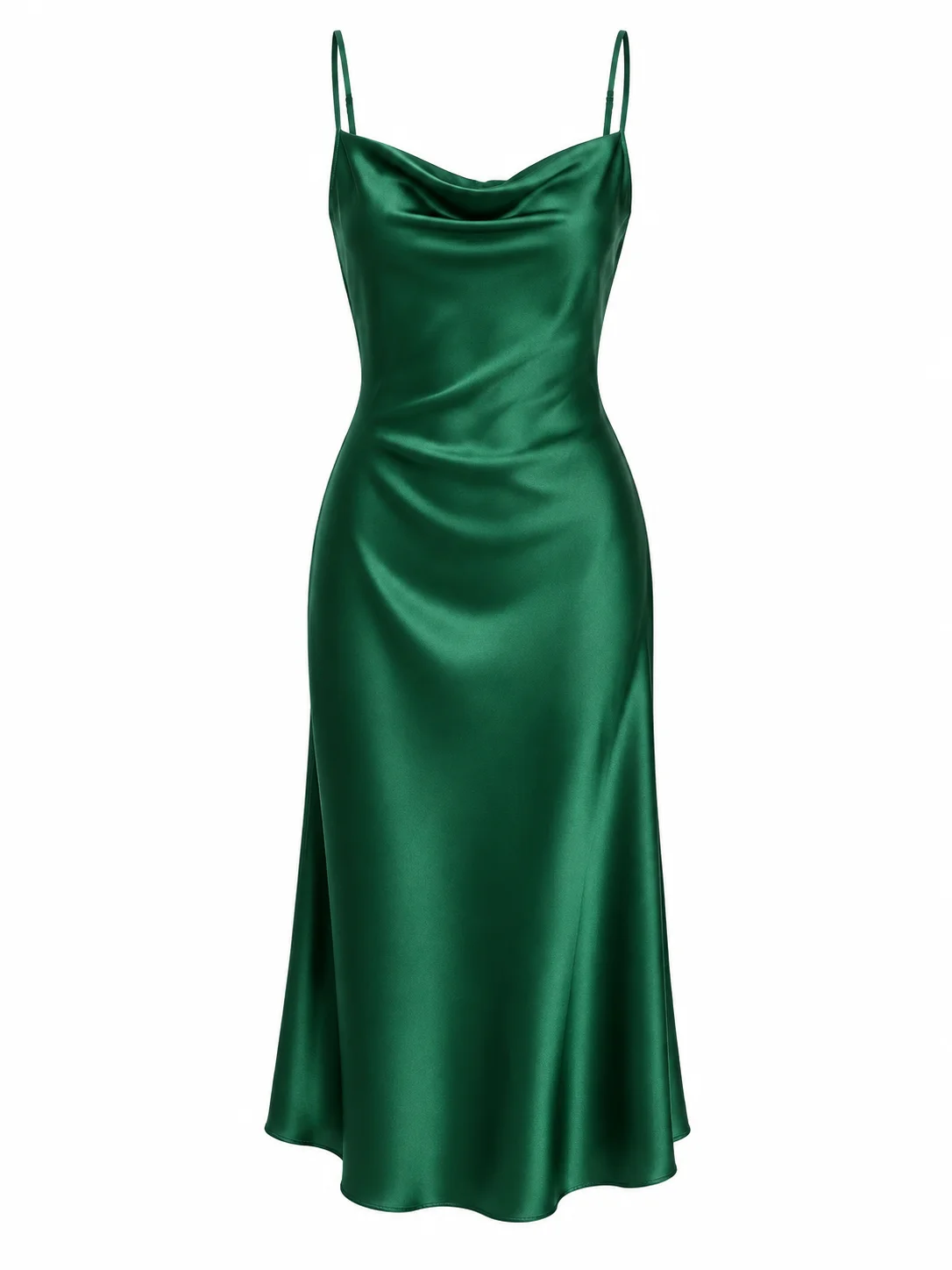
The shared person image shows a black T-shirt, dark jeans and white sneakers; the garment is a green satin slip dress. Both outputs replace the top and trousers with a green long dress. Thin straps and a draped neckline remain recognizable, and the beige background is still present.
The clearest difference is at the feet: Try-On replaces the sneakers with heeled sandals, while Seedream retains visible white sneakers. Seedream explicitly asks to preserve footwear. That supports a statement about this result, not a promise for every outfit. Dress folds, hem position and body outline also differ, and facial appearance needs a separate check.
Both versions create hand occlusions and folds that resemble hands in pockets, although the garment reference does not establish those pockets. Inspect fingers, wrists and seams together so a generated fold does not become an assumed product feature. This pair can help explore styling; sizing and comfort still require garment measurements and physical fitting information.
What does the same number of candidates cost?
| Result count | Try-On: count × $0.1075 | Seedream: count × $0.035 |
|---|---|---|
| 10 | $1.075 | $0.35 |
| 100 | $10.75 | $3.50 |
| 1,000 | $107.50 | $35.00 |
For 10 garments paired with 3 people, one candidate per combination means 30 results: $3.225 for Try-On or $1.05 for Seedream. Two candidates per combination mean 60 results, costing $6.45 and $2.10 respectively. The unit-price difference is $0.0725. Whether an image is usable still depends on garment and person detail; these calculations exclude manual review.
Which workflow fits your task?
- For repeated person-and-garment pairing with fewer instructions to maintain, start with Try-On. Dedicated fields make the roles of both images explicit.
- To state requirements for shoes or backgrounds, or continue into other editing tasks, choose Seedream and keep the person-first, garment-second order consistent.
- For product-detail pages, define required neckline, strap, pattern and accessory details before reviewing outputs. A dedicated try-on tool can still change shoes, and a lower unit price does not remove review.
- For outfit exploration, either result can be a candidate. Judge the hem and shoes together instead of focusing only on fabric highlights.
What changes when you switch the API request?
Both use HiAPI /v1/tasks: submit a task to obtain a taskId, then query the result. The actual request bodies for both pairs appear below; use them as the POST JSON body. Authentication and result-query examples are in the Try-On integration guide.
Try-On takes public HTTP(S) person and garment URLs with explicit num_images: 1. It has no prompt, aspect_ratio or resolution input. Prepare images with visible body and garment outlines. Seedream's file limits should not be applied to Try-On.
Seedream accepts JPEG, PNG and WebP references up to 10 MB each. image_urls supports 1 to 14 images; these requests use two. Its prompt must contain 4 to 3000 characters. Set aspect_ratio: "3:4" and resolution: "2K" explicitly. The requests did not select an output format; PNG describes these returned files.
Both pairs use this exact original prompt:
Dress the person in the first image in the garment shown in the second image. Preserve the person, pose, face, hair, background, footwear and accessories. Match the garment color, pattern and cut.
The link fills the prompt only. Prepare the person image first and garment second, then select 3:4 and 2K manually.
T-shirt request bodies
Google Virtual Try-On:
{
  "model": "google-virtual-try-on",
  "input": {
    "person_image_url": "https://static.hiapi.ai/gallery/2026/10/9f656c8b6ecf94d5.webp",
    "product_image_url": "https://static.hiapi.ai/model-covers/2026/10/22/1792660602486-b5b70d2cfdd8dc95-1792152569828-b5b70d2cfdd8dc95-t-g1-0.webp",
    "num_images": 1
  }
}
Seedream 5.0 Lite:
{
  "model": "seedream-5.0-lite/image-to-image",
  "input": {
    "image_urls": [
      "https://static.hiapi.ai/gallery/2026/10/9f656c8b6ecf94d5.webp",
      "https://static.hiapi.ai/model-covers/2026/10/22/1792660602486-b5b70d2cfdd8dc95-1792152569828-b5b70d2cfdd8dc95-t-g1-0.webp"
    ],
    "prompt": "Dress the person in the first image in the garment shown in the second image. Preserve the person, pose, face, hair, background, footwear and accessories. Match the garment color, pattern and cut.",
    "aspect_ratio": "3:4",
    "resolution": "2K"
  }
}
Dress request bodies
Google Virtual Try-On:
{
  "model": "google-virtual-try-on",
  "input": {
    "person_image_url": "https://static.hiapi.ai/gallery/2026/10/227696be5a9bbf3d.webp",
    "product_image_url": "https://static.hiapi.ai/model-covers/2026/10/22/1792660606080-df7316c264bc6383-1792152570527-df7316c264bc6383-t-g3-0.webp",
    "num_images": 1
  }
}
Seedream 5.0 Lite:
{
  "model": "seedream-5.0-lite/image-to-image",
  "input": {
    "image_urls": [
      "https://static.hiapi.ai/gallery/2026/10/227696be5a9bbf3d.webp",
      "https://static.hiapi.ai/model-covers/2026/10/22/1792660606080-df7316c264bc6383-1792152570527-df7316c264bc6383-t-g3-0.webp"
    ],
    "prompt": "Dress the person in the first image in the garment shown in the second image. Preserve the person, pose, face, hair, background, footwear and accessories. Match the garment color, pattern and cut.",
    "aspect_ratio": "3:4",
    "resolution": "2K"
  }
}
Rebuild input when switching. Convert the dedicated fields into ordered image_urls, then add the original instruction and size settings. When returning to Try-On, restore its dedicated fields and remove Seedream fields. Keep the inputs and request body with each result, and read returned dimensions and format instead of carrying assumptions over from the previous model.
FAQ
Does Google Virtual Try-On need a prompt?
No. Prepare person and garment images, then use person_image_url, product_image_url and num_images: 1. Prepare both images, then select their corresponding inputs on the model page.
Are these comparisons made with identical parameters?
No. The person, garment and goal match, but Try-On has no prompt and Seedream has a written instruction. Dimensions and formats also differ. The images support appearance comparisons, not a ranking based on pixel count.
Does Seedream guarantee an unchanged face and footwear?
No. The dress example retains white sneakers, but both pairs still require checks of faces and garment structure. The instruction states the goal; inspect the result to confirm it.
Which should I use for a batch of product images?
Start with Try-On for a simple two-image pairing workflow, or Seedream for text instructions and a lower unit budget. Review representative garments against your acceptance criteria before planning the batch.
Pricing and budgets · API integration · Examples and input selection · Prepare images and open the model page