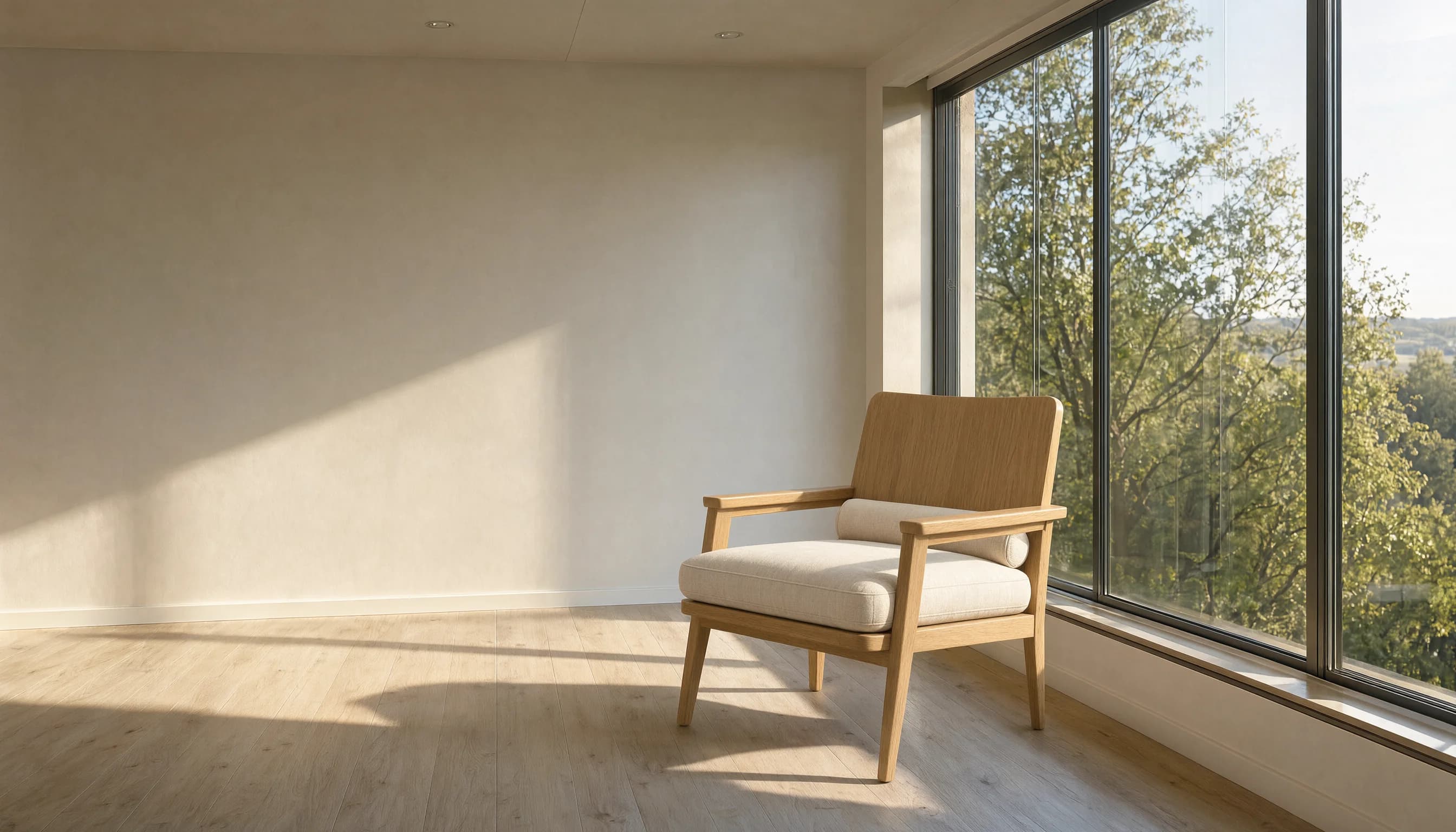
TL;DR
- Standard Imagen 4 runs on HiAPI as
imagen-4.0at $0.06 per image, one image per request, text-to-image only. Open the Imagen 4 model page to try a prompt first. - For a product catalog, it works well for white-background packshots and lifestyle scenes you would otherwise shoot for every colorway. It does not reproduce your actual SKU, because it has no reference-image input.
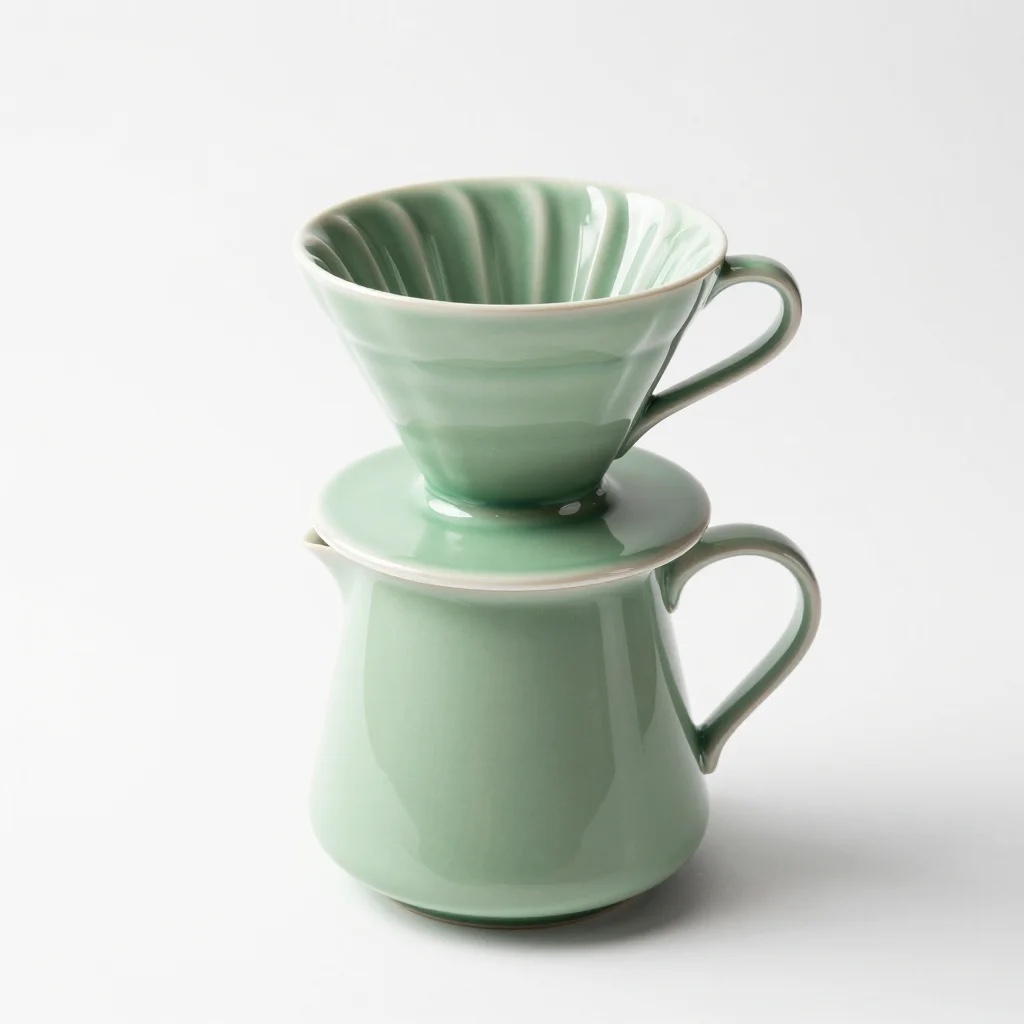
aspect_ratiois required (no default), andseedmust be a string of digits. In our run,"seed": "sku-dripper-01"passed validation and then failed every task withTASK_FAILEDabout a second later.- Plan a QA pass. In a 4-image batch we got an unrequested carafe, a glossy glaze where we asked for matte, and fake label text on a prop despite
negative_prompt: "text, logo".
What this guide covers
This is a practical workflow for an online store that needs a set of images for one product line: a white-background catalog shot per SKU, a lifestyle scene for the product page, and a vertical crop for mobile stories. Everything below was run against the live API on 2026-11-04 with one fictional product, a sage-green ceramic pour-over dripper and matching mug.
If you just need your first request working, start with How to Use Imagen 4 API. For general prompt templates, see Imagen 4 Prompts. This guide is about producing a store image set in batch and checking it before it goes live.
Pick the tier before you write prompts
All three Imagen 4 tiers on HiAPI are text-to-image and use the same request shape: change the model id to switch tiers. Prices are from HiAPI pricing on the day of testing.
| Tier | Model id | Price per image | Model page |
|---|---|---|---|
| Fast | imagen-4.0-fast | $0.03 | Imagen 4 Fast |
| Standard | imagen-4.0 | $0.06 | Imagen 4 |
| Ultra | imagen-4.0-ultra | $0.09 | Imagen 4 Ultra |
For a catalog, the arithmetic is simple. 200 SKUs × (1 packshot + 1 lifestyle scene) = 400 images, which comes to $24 on standard, $12 on Fast and $36 on Ultra, before any re-rolls. This article only tests the standard tier, so it makes no quality claims about Fast or Ultra. For a full price breakdown, see Imagen 4 API Pricing.
The request: four fields, two of them easy to get wrong
imagen-4.0 has a closed input schema. These are the boundaries we hit while building the batch, with the exact error messages:
| Field | Rule | What we saw |
|---|---|---|
prompt | required string | — |
aspect_ratio | required, one of 1:1, 16:9, 9:16, 3:4, 4:3, auto | Omitted: aspect_ratio: missing required field "aspect_ratio". "2:1": value must be one of '1:1', '16:9', '9:16', '3:4', '4:3', 'auto' |
negative_prompt | optional string | Accepted. Reduced, but did not eliminate, text on props (see QA) |
seed | optional string | A number (12): seed: got number, want string. A non-numeric string ("sku-dripper-01"): accepted with HTTP 200, then the task ends TASK_FAILED. A digit string ("1042"): works |
| anything else | rejected | additional properties 'foo' not allowed |
The seed issue is the one that cost us a round. It is tempting to use your SKU code as the seed so that re-runs are traceable, and the validator lets it through. All four tasks in our first batch came back like this:
{"code":200,"data":{"error":{"code":"TASK_FAILED","message":"task failed"},"model":"imagen-4.0","status":"fail"}}
We then removed one field at a time. The same prompt succeeded with negative_prompt alone and failed with "seed": "sku-dripper-01" alone, and "seed": "1042" succeeded. Keep seeds numeric and store the SKU mapping in your own job table.
Output sizes follow the ratio. In our runs, 1:1 returned 1024×1024, 4:3 returned 1152×864 and 9:16 returned 720×1280, all as WebP. If your storefront needs 2000 px zoom images, plan an upscale step. The output itself won't be that large.
Prompts for a catalog set
Write one prompt template per shot type, not per product, and fill in the product description. Keeping lighting, camera angle and background identical across SKUs is what makes a grid of packshots look like one catalog.
Packshot (1:1). State the background, the framing, a single light direction, and the shadow you want:
Studio packshot of a matte sage-green ceramic coffee mug with a thin loop handle
on a seamless pure white background, centered, handle pointing right, eye-level view,
soft diffused key light from the left, gentle contact shadow, e-commerce catalog photography
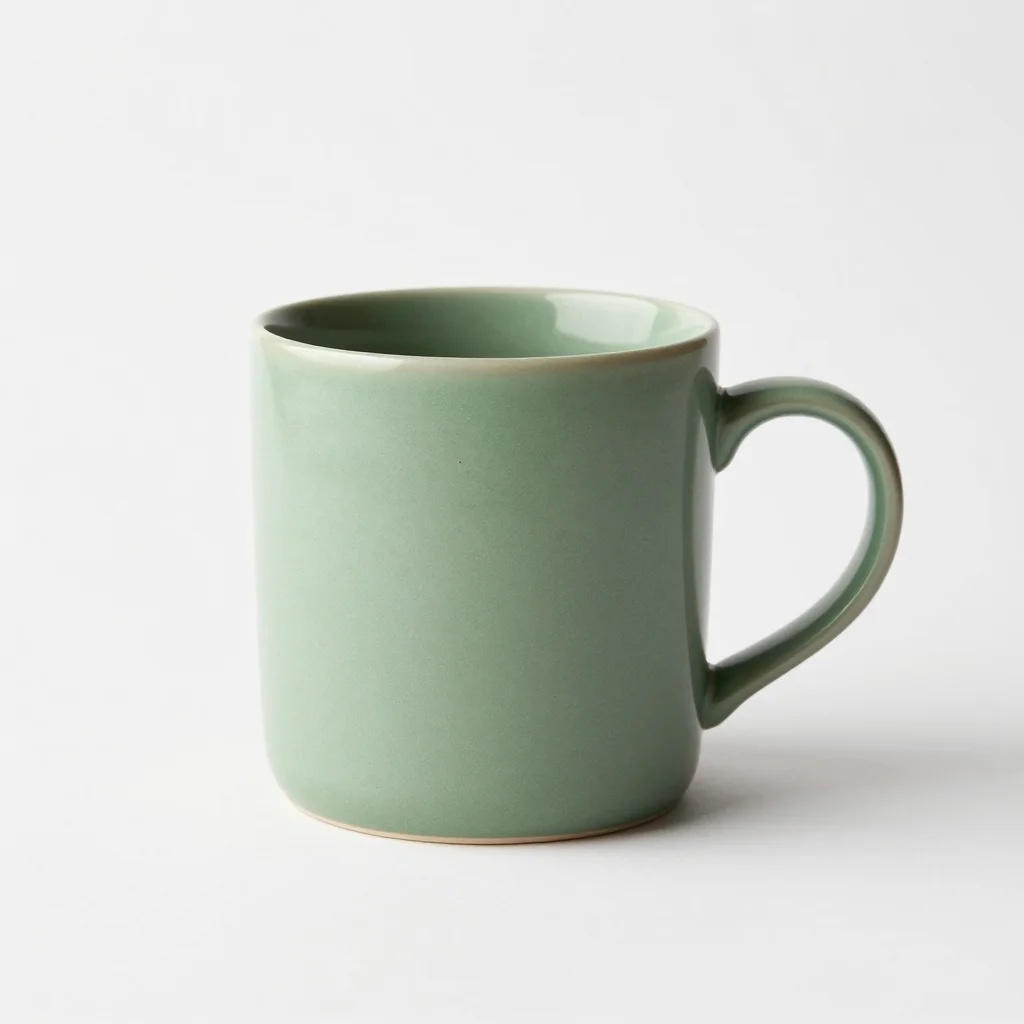
The mug came back clean: handle on the right as requested, a soft shadow, an even background. It needed no edits.
Lifestyle scene (4:3). Name the hero object, the surface, the light direction, and which props sit out of focus. Then say again that the product is the sharp subject:
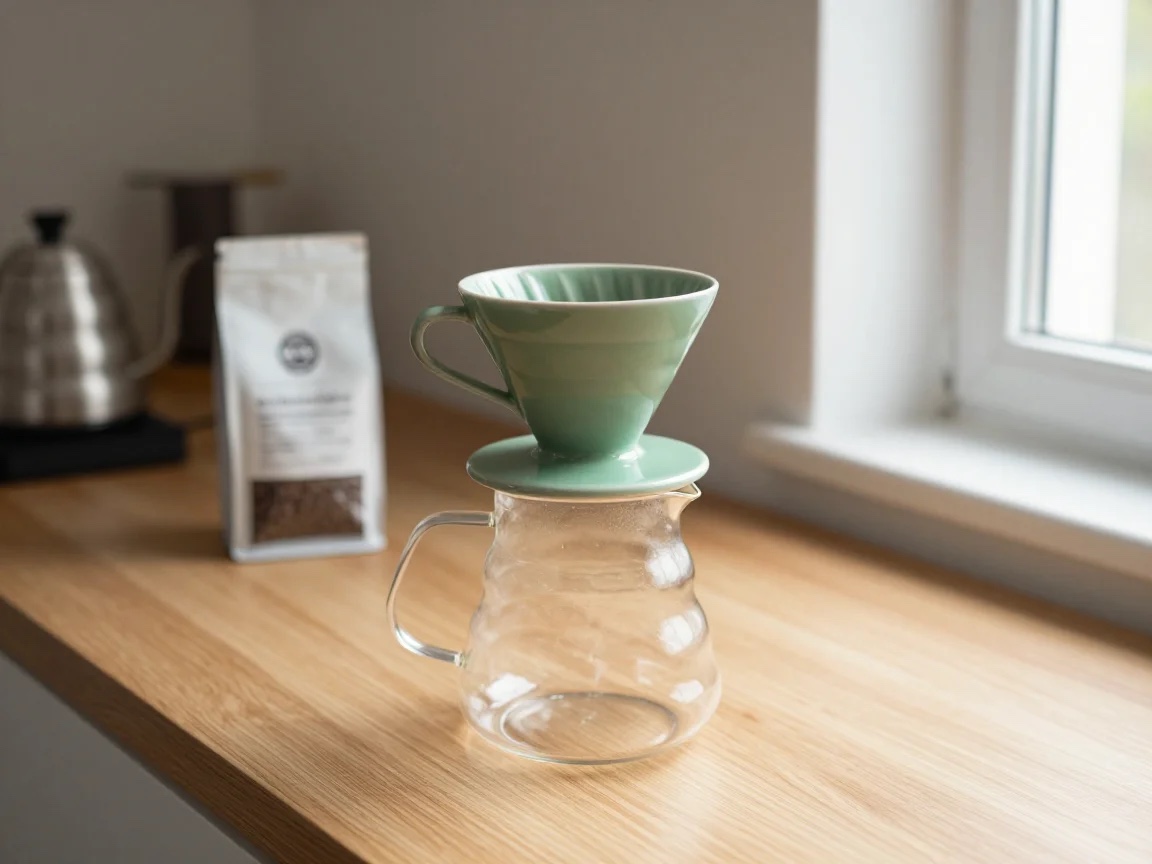
Lifestyle product photo: a matte sage-green ceramic pour-over dripper sitting on a glass carafe
on a light oak kitchen counter, morning window light from the right, a bag of coffee beans and a
gooseneck kettle softly out of focus in the background, warm natural tones, shallow depth of field,
the dripper is the sharp hero of the frame
That prompt produced the image at the top of this article.
Vertical story (9:16). Ask for negative space explicitly if a headline will go on top:
Vertical lifestyle product photo for a mobile story: overhead flat lay of a matte sage-green ceramic
pour-over dripper on a linen napkin, scattered roasted coffee beans, a small ceramic cup of black coffee,
on a pale stone surface, soft even daylight, generous empty space in the top third for a headline
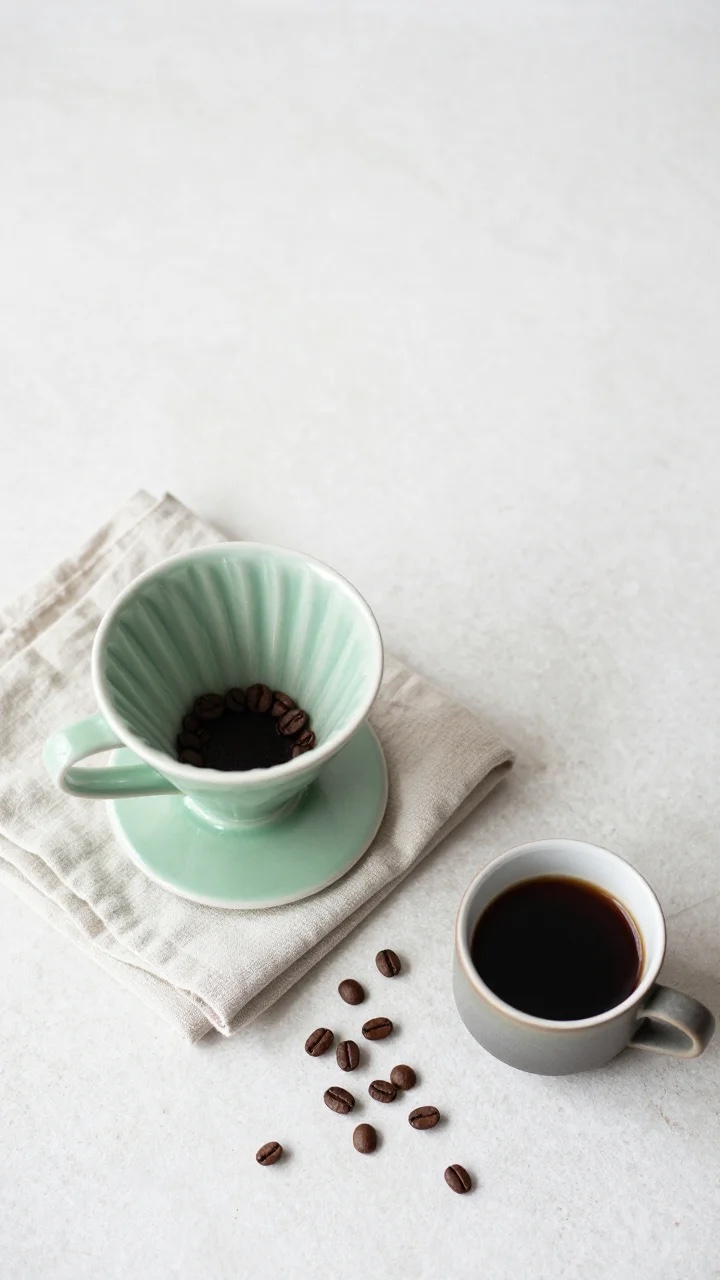
The empty top third came through as requested. Note the whole beans sitting inside the dripper, though: nobody brews that way, and a coffee shopper will notice. More on that below.
Async batch code
HiAPI image generation is asynchronous: POST /v1/tasks returns a taskId, and you poll GET /v1/tasks/{taskId} until status is success or fail (see the async API docs). For a catalog, submit every job up front and poll them in parallel. This is the script we ran, with the prompts trimmed. The two scene images came from it directly. The two packshots were generated one at a time with the same prompts while we tracked down the seed failure described above (the dripper packshot without a seed).
import os, time, json, concurrent.futures as cf
import requests

API = "https://api.hiapi.ai/v1/tasks"
HEADERS = {"Authorization": f"Bearer {os.environ['HIAPI_API_KEY']}",
           "Content-Type": "application/json"}

NEG = "text, logo, watermark, hands, people, clutter, reflections of camera"

JOBS = [
    {"sku": "dripper-white", "aspect_ratio": "1:1", "seed": "1041", "prompt": "Studio packshot of ..."},
    {"sku": "mug-white",     "aspect_ratio": "1:1", "seed": "1042", "prompt": "Studio packshot of ..."},
    {"sku": "dripper-scene", "aspect_ratio": "4:3", "seed": "2041", "prompt": "Lifestyle product photo: ..."},
    {"sku": "dripper-story", "aspect_ratio": "9:16", "seed": "3041", "prompt": "Vertical lifestyle product photo ..."},
]

def submit(job):
    body = {"model": "imagen-4.0",
            "input": {"prompt": job["prompt"], "aspect_ratio": job["aspect_ratio"],
                      "negative_prompt": NEG, "seed": job["seed"]}}  # seed: digits only
    r = requests.post(API, headers=HEADERS, json=body, timeout=30)
    r.raise_for_status()
    return r.json()["data"]["taskId"]

def wait(task_id, timeout_s=300):
    deadline = time.time() + timeout_s
    while time.time() < deadline:
        r = requests.get(f"{API}/{task_id}", headers=HEADERS, timeout=30)
        data = r.json()["data"]
        if data["status"] in ("success", "fail"):
            return data
        time.sleep(4)
    raise TimeoutError(task_id)

def run(job):
    t0 = time.time()
    task_id = submit(job)
    data = wait(task_id)
    if data["status"] != "success":
        return {"sku": job["sku"], "status": "fail", "error": data.get("error")}
    url = data["output"][0]["url"]
    img = requests.get(url, timeout=60).content
    path = f"{job['sku']}.webp"
    open(path, "wb").write(img)          # download now: output URLs expire
    return {"sku": job["sku"], "status": "success", "task_id": task_id,
            "seconds": round(time.time() - t0, 1), "bytes": len(img), "file": path}

with cf.ThreadPoolExecutor(max_workers=4) as pool:
    for result in pool.map(run, JOBS):
        print(json.dumps(result))
Three details matter in production:
- A failed task still returns HTTP 200. Check
data.status == "fail"anddata.error.code. Don't rely onraise_for_status()alone. - Download immediately. The
output[0].urlis a temporary link with anexpireAttimestamp (about 7 days out in our responses). Copy the bytes to your own storage or CDN. Don't hot-link the URL from your store. - Log the task id next to the SKU. When a reviewer rejects an image, you want the prompt, seed and task id that produced it.
In our run, single tasks completed in 7–8 seconds server-side (created → completed). The two parallel scene jobs took 31 s and 42 s wall-clock including the 4-second polling interval and download. With max_workers=4, polling overhead rather than generation dominates a small batch.
QA: what to check before images go live
Text-to-image creates a plausible product, not a photo of the one in your warehouse. Every image needs a human or automated check against the real SKU. These are the issues we caught in a 4-image batch:
| Check | What happened in our batch | Fix |
|---|---|---|
| Only the listed product in frame | The dripper packshot added a matching green carafe with a handle that the prompt never asked for (above). | Add "single object, nothing else in frame" and re-roll. Never publish a bundle you don't sell. |
| Finish and material | We asked for "matte" glaze. Both dripper shots came back glossy. The mug was closer to satin. | Treat material words as hints. Compare against the real product and reject mismatches. |
| Text on props | The coffee bag in the lifestyle scene has a logo-like mark and unreadable label text, even with negative_prompt: "text, logo". | Keep labelled props out of the prompt, or blur or crop them. Never let fake text into a listing. |
| Product logic | The flat lay put whole beans inside the dripper. | Have someone who knows the product category review scene images. |
| Consistency across shots | The dripper's rib pattern and foot shape differ between the packshot, the scene and the flat lay. | Don't mix generated shots of "the same" SKU on one product page unless they match the real item. |
| Size and ratio | All outputs matched the requested ratio (1024², 1152×864, 720×1280). | Check pixel dimensions automatically after download. |
That last point is the key decision for a store. Use Imagen 4 for category banners, lifestyle mood shots, ad creatives and placeholder imagery for products that exist only as a spec. For listing photos that must show your exact item, start from a real product photo and use an image-to-image model instead. Our Seedream 4.5 image-to-image e-commerce guide walks through that workflow.
FAQ
Can imagen-4.0 put my real product into a new scene?
No. On HiAPI it accepts only prompt, aspect_ratio, negative_prompt and seed. There is no image input field, so it can't take your product photo as a reference.
Does negative_prompt remove all text?
Not in our test. It's worth sending, but the lifestyle scene still showed fake label text on a background prop. The reliable fix is to avoid labelled props.
Why does my task fail instantly with TASK_FAILED?
Check your seed first. A non-numeric string like "sku-dripper-01" passes validation but failed every task in our run. Use digits in a string, such as "1042".
Is Google-Imagen4 a different model?
In our test, requests sent with "model": "Google-Imagen4" succeeded, and the task payload reported "model": "imagen-4.0". Use imagen-4.0 in new code.
Next step
Pick one product, write the three prompt templates above for it, and run the batch script against the Imagen 4 model. The async API docs cover authentication and polling if you are wiring this into a catalog pipeline.